

Navigating the Student Account
1. My Profile (and How to Change Your Name)
The My Profile section is your personal page. Here, you can add or change your profile picture (avatar), provide information about yourself, and view your activity. A completed profile helps instructors and other students get to know you better.
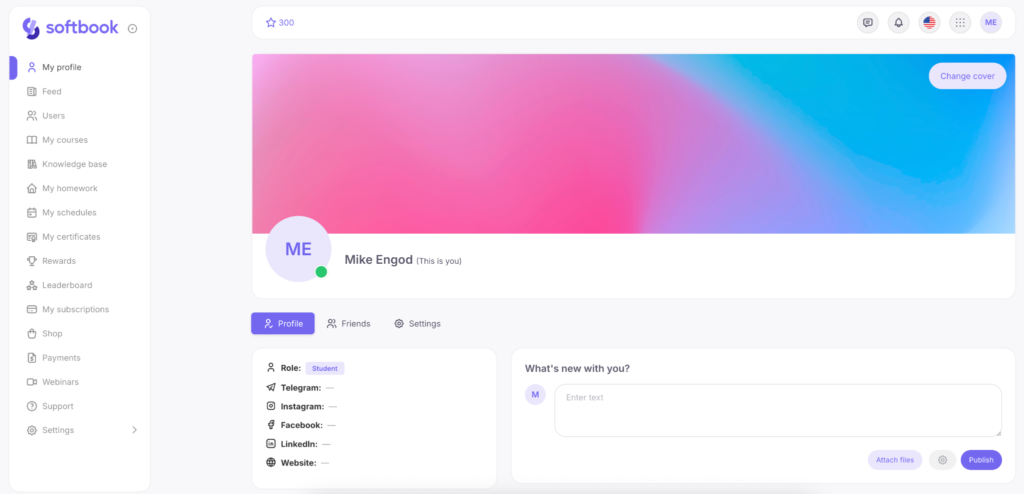
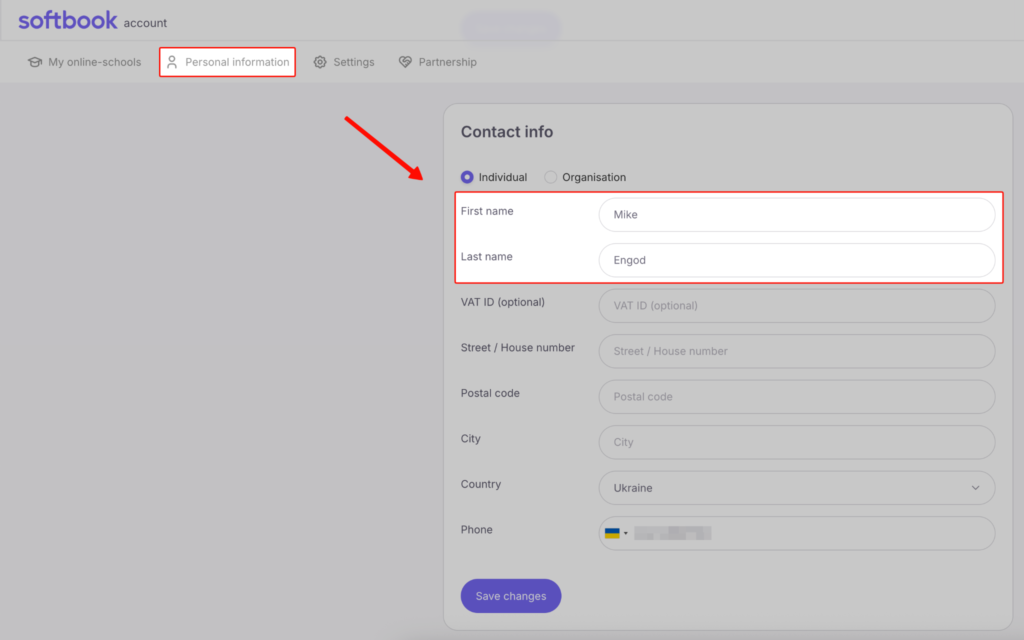
How to change your personal information (first and last name): If you need to update your personal details (for example, to generate a certificate with the correct name), go directly to your account settings: https://my.softbook.app/personal and edit the required fields.
2. Feed
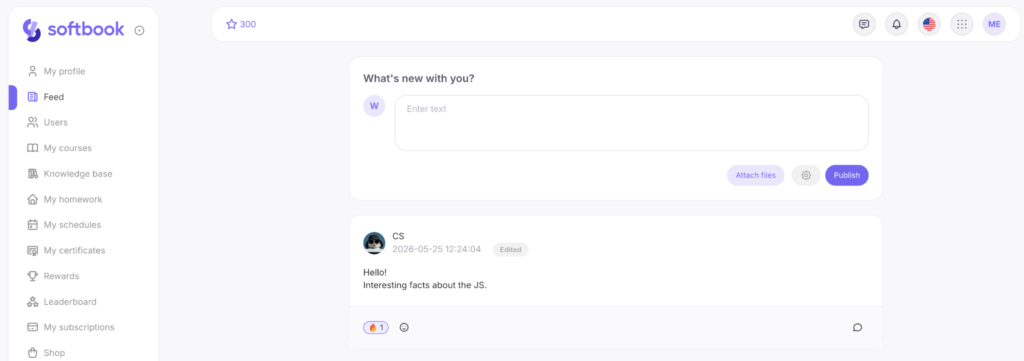
The Feed serves as your school’s news hub. Here, administrators and instructors publish important announcements, course updates, useful materials, and general news. Check the feed regularly to stay informed about important updates related to your learning.
3. Users
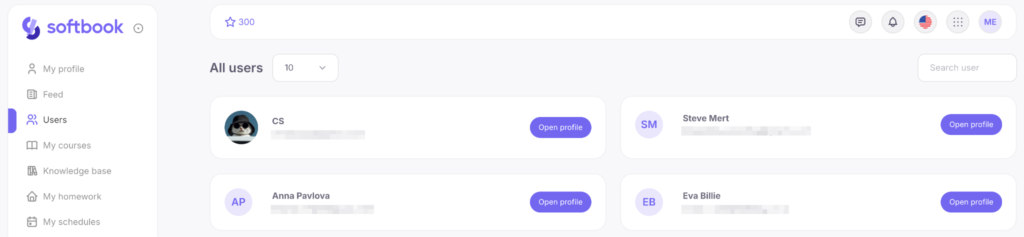
The Users section displays a list of other students enrolled in your school, as well as instructors and administrators. It is a convenient networking tool for connecting with classmates, exchanging experiences, and communicating with other members of the community.
4. My Courses
This section contains all the courses you have access to.
Which courses are displayed and in what order
- “My Courses” displays the courses you are enrolled in and the open courses of the school. Paid courses that you have not purchased are located in the “Store” section.
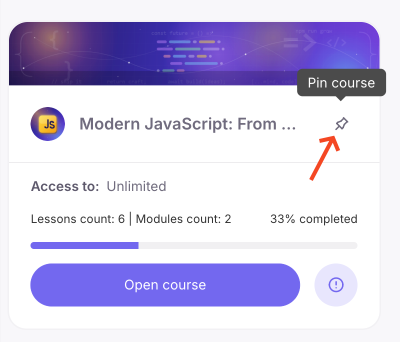
- Courses are sorted by enrollment date: new ones are placed at the top. You can also pin any course to the top of the list — to do this, click on the paperclip icon on the course card.
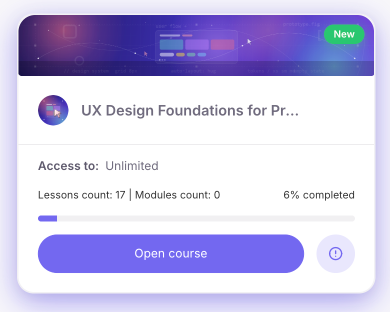
- A course that you haven’t opened yet is marked with a “New” badge. After the first opening, the badge disappears, and the course remains in its place.
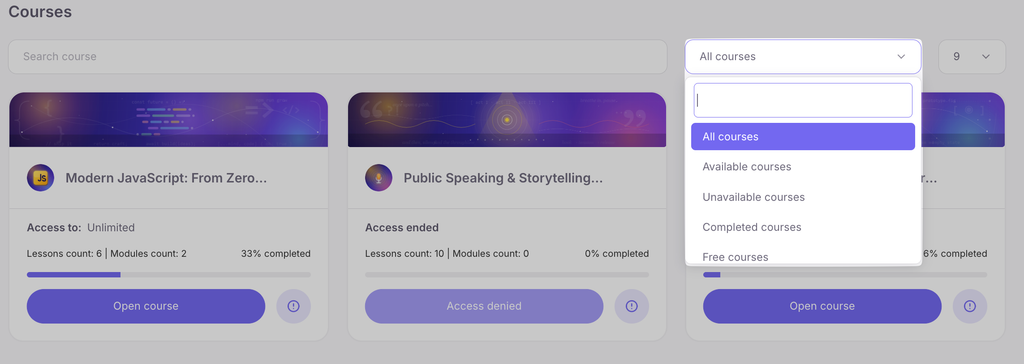
Next to the search bar, you can filter courses. The following categories are available:
- Available courses — learning programs that can be taken now.
- Unavailable courses — blocked materials or those outside the access dates.
- Completed courses.
- Free courses.
- Coming soon — closed courses that will open later.
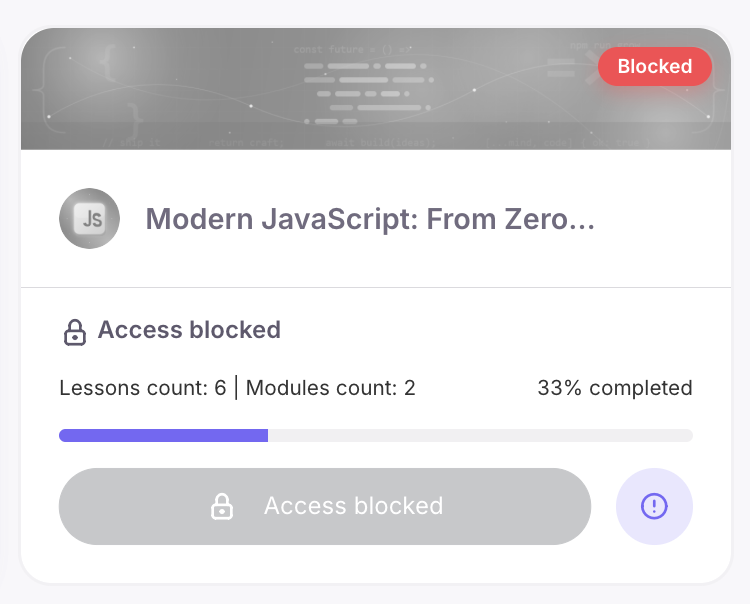
If the school has blocked your access to a course, the course card turns gray, with a “Blocked” badge and the inscription “Access blocked”, and the open button is inactive. To restore access, contact the school administration.
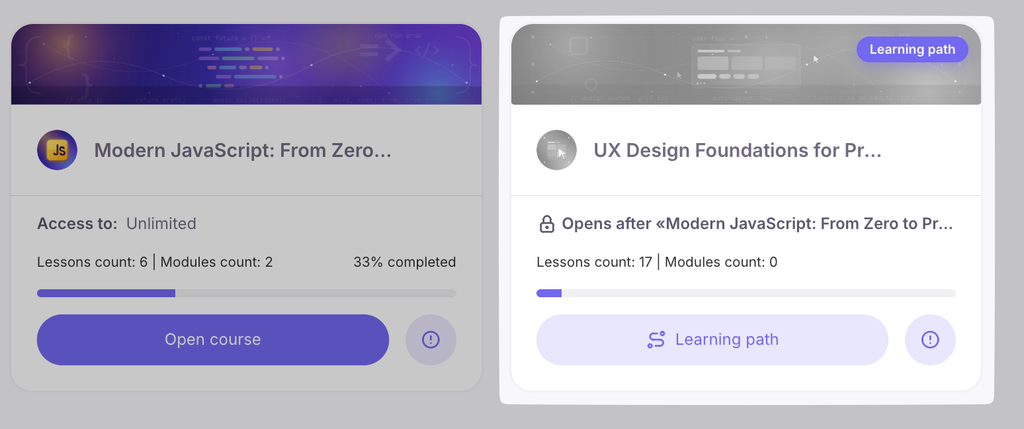
Pathway courses in “My Courses”
If you are taking a learning pathway, its still-closed courses may be displayed in “My Courses” (if the school has enabled this option). Such a course is marked with a “Pathway” badge, the card indicates when it will open (for example, “Opens after ‘Course 1′”), and the “Pathway” button leads to the route map. A closed course cannot be opened ahead of time.
How to open and start a lesson. The courses available to you are displayed on the right. Click “Open Course”. A list of modules and lessons will appear. Click the first module to view its lessons, then select a lesson to open its page. Click “Start Lesson” to begin. By clicking the exclamation mark above the button, you can view additional information, such as whether the lesson includes homework or a test, and how long the lesson will remain available.
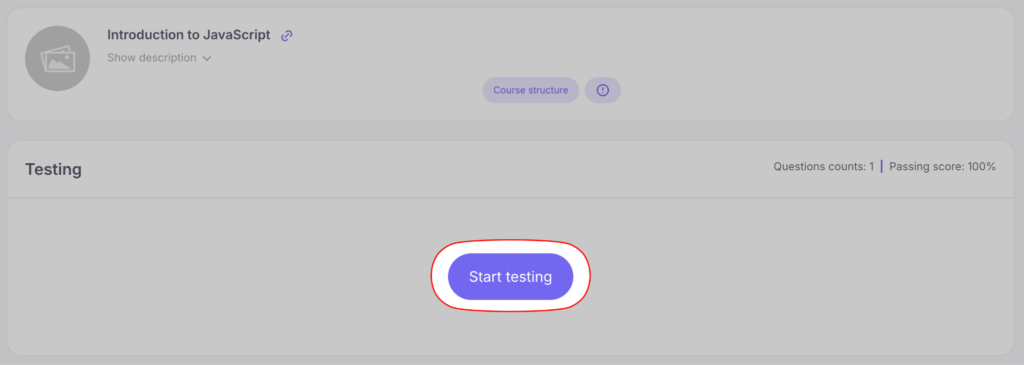
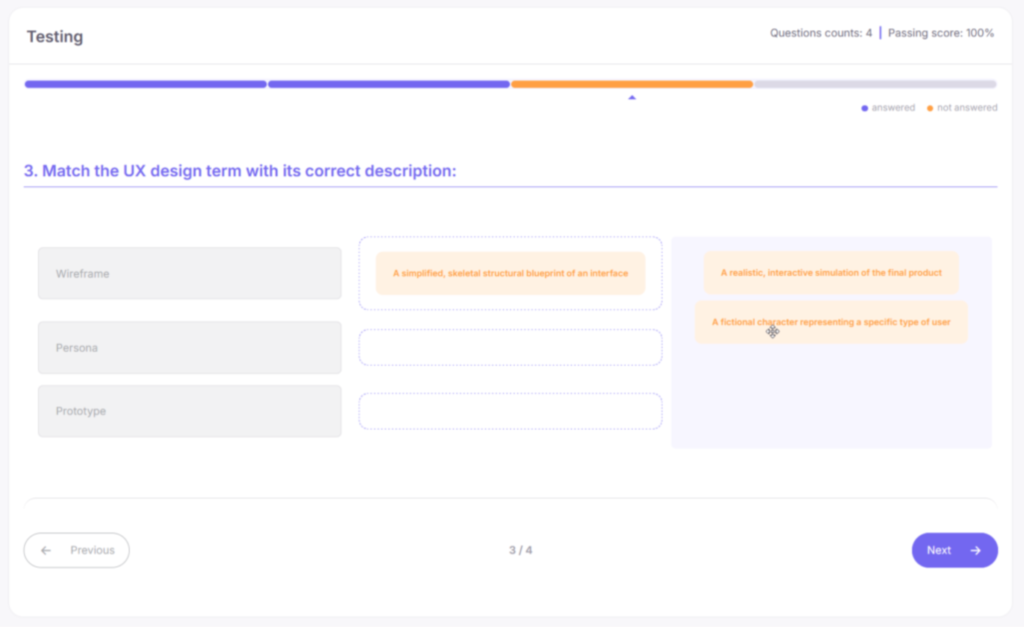
- How to complete lesson tests. Tests may include various interactive tasks, such as choosing one or multiple correct answers, filling in blanks, arranging cards in the correct order, matching items, building words from letters, or categorizing elements. Some tests have a time limit. In that case, click “Start Test” to begin (a timer will appear at the top of the page).
Select the correct answers or drag elements into the appropriate positions, then click “Finish Test”. If you achieve the required passing score, click “Complete Lesson” to continue. If you do not pass, click “Retake Test” (if retakes are allowed by the instructor).
5. My Learning Pathways
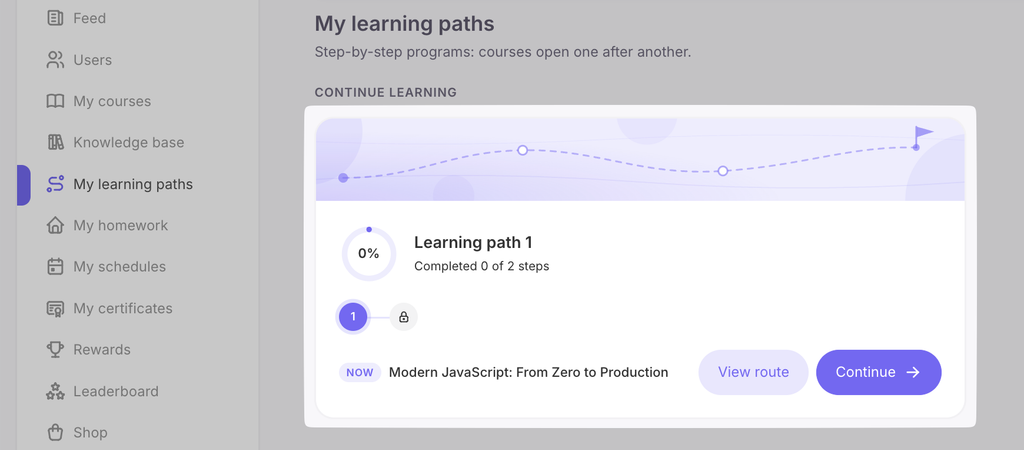
This section displays cards of your learning pathways with progress and route steps: the “View route” button opens the map, and “Continue” leads to the current course. Pathways with open registration can be started independently using the “Join pathway” button. Read more about this in the “Learning Pathways” article.
6. Knowledge Base
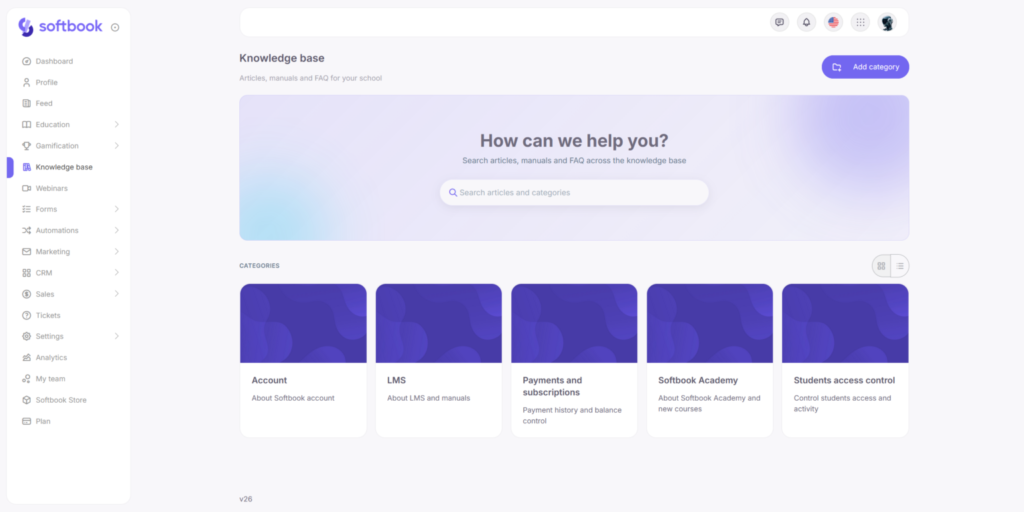
The Knowledge Base is a library of additional learning materials provided by your school. It contains helpful articles, step-by-step guides, glossaries, FAQs, and other resources that are not part of the main course curriculum but are valuable for your learning.
7. My Homework
This section stores all your homework assignments. You can filter them by course, lesson, and status.
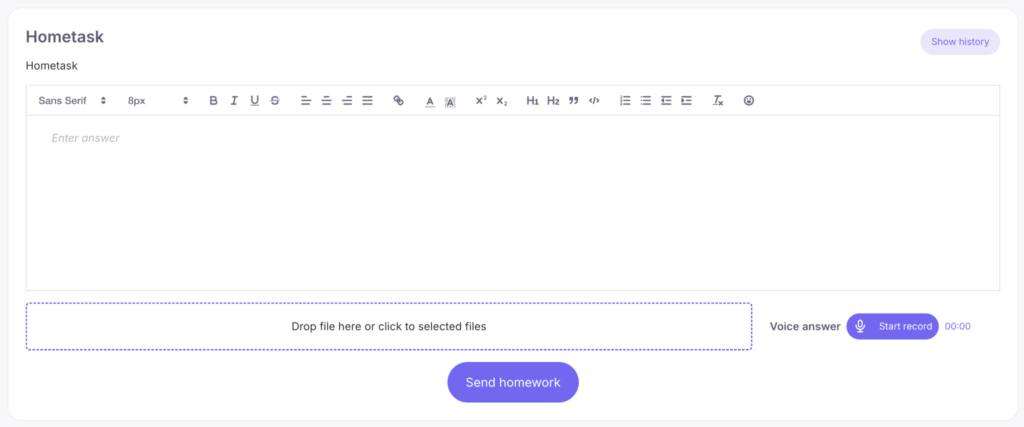
- How to submit homework. If a lesson includes homework, it will appear directly below the lesson content. Read the instructions and enter your answer in the appropriate field. To attach a file, click the dotted upload area below the text and select a file from your computer. Then click “Submit Homework”.
- Status meanings:
- “New” — Your homework has been submitted but has not yet been reviewed by the instructor.
- “Approved” — Your homework has been reviewed and accepted.
- “Rejected” — Your homework has been reviewed but not accepted (you need to resubmit it). You can view the instructor’s feedback either in this section by clicking “Result” or directly in the lesson. To resubmit, simply enter a new answer and submit it again.
8. My Schedules
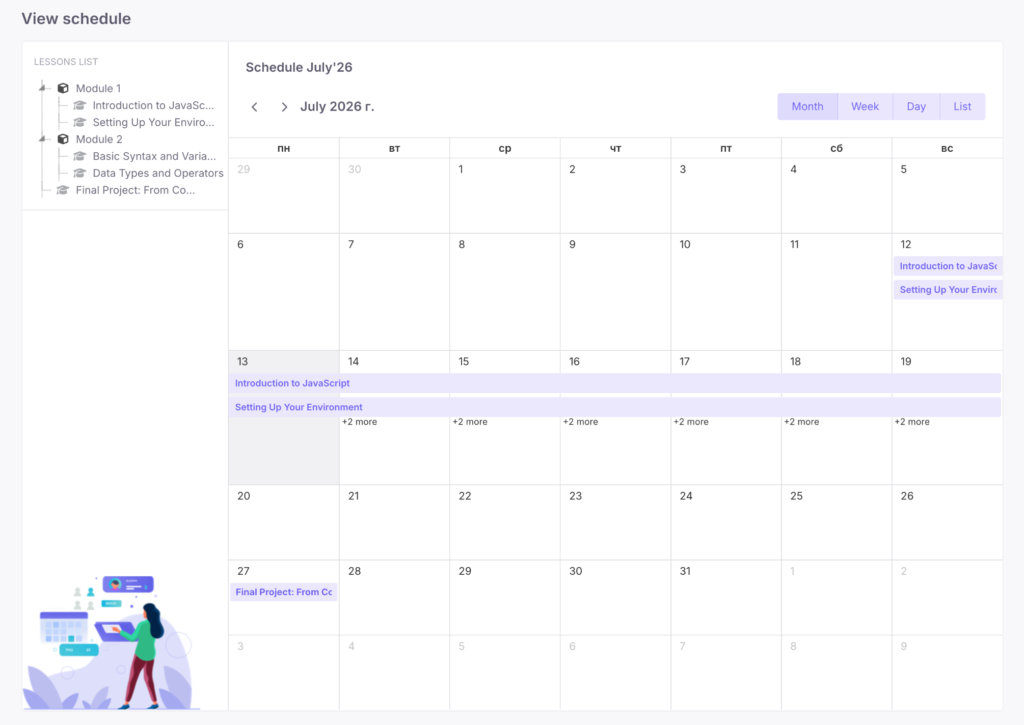
If your course follows a learning schedule, you can view it here. Click “Open Schedule” to see a calendar showing lesson release dates. You can only start a lesson once it becomes available. Lessons may also be released with a delay (for example, several days after completing the previous lesson). This is indicated by a green calendar icon on the course card.
9. My Certificates (and How to Reissue Them)
This section stores all certificates you have earned after completing courses. You can open a certificate by clicking “Open Certificate” and download it by clicking “Download Certificate”.
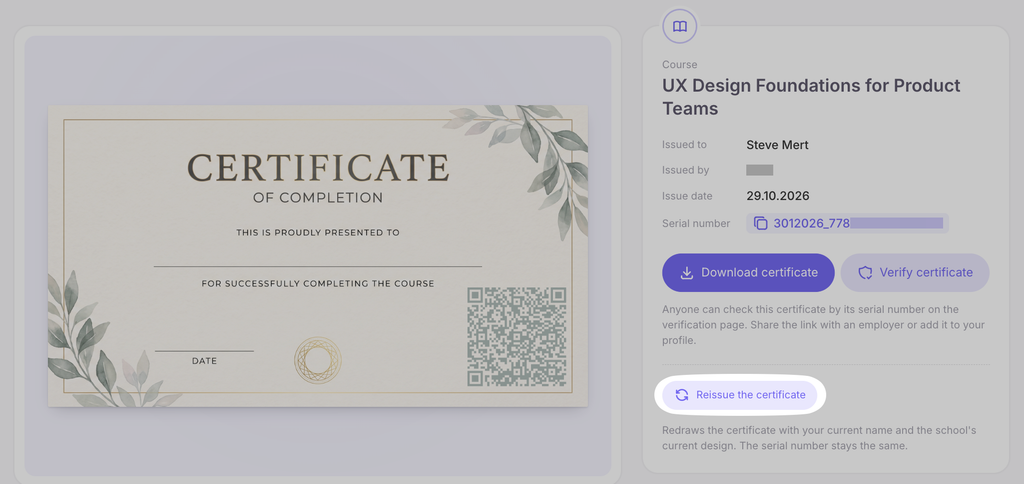
What to do if your certificate contains an incorrect name:
- Go to your account settings at https://my.softbook.app/personal and update your personal information.
- Return to the “My Certificates” section, open the certificate, and click “Reissue Certificate”. The system will immediately generate a new certificate with the updated information.
If you were promised a certificate but it does not appear, please contact your school’s support team.
10. Rewards
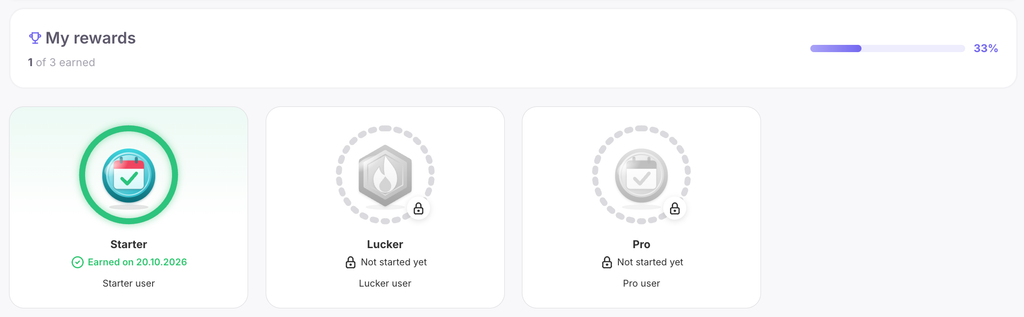
The section displays your achievements. For successfully passing tests, completing assignments, or showing activity, the school can award you points or give you special rewards.
In the “Rewards” section, the student sees all available school rewards and general statistics on how many of them have already been received (“Received X out of Y”).
Earned rewards are automatically sorted to the beginning of the list, while a special progress ring is displayed for the rest. Clicking on any reward opens its detailed description and the conditions required to earn it.
11. Leaderboard
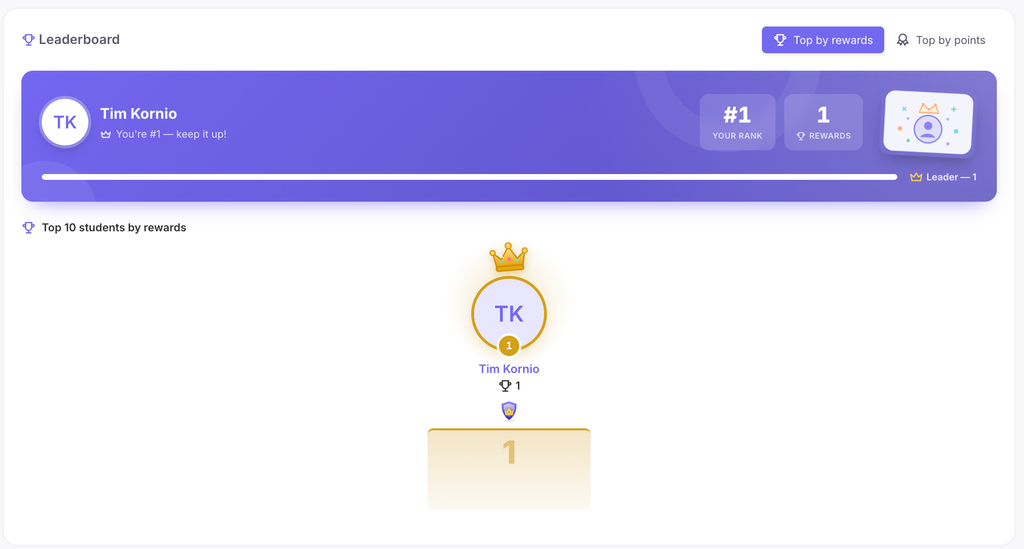
This is a ranking of the school’s students based on earned points and rewards. Here you can see your position among other students. This adds an element of gamification and motivates you to achieve better results.
The section has two tabs: “Top by Rewards” and “Top by Points.”
- At the top, the student’s own card is displayed: their current rank, the number of rewards or points, how many are left to reach the next rank, and overall progress toward the leader.
- The top three leaders are placed on a special pedestal with gold, silver, and bronze crowns, while the remaining ranks are displayed in a regular list.
- If the student is not yet among the top performers, their row is automatically displayed at the bottom of the list.
- In the “Top by Rewards” tab, the leaders’ unique badges are visible under their names. Clicking on a badge opens information on how to obtain that reward and whether the student already has it.
Students who have not yet earned any points or rewards are not included in the general leaderboard.
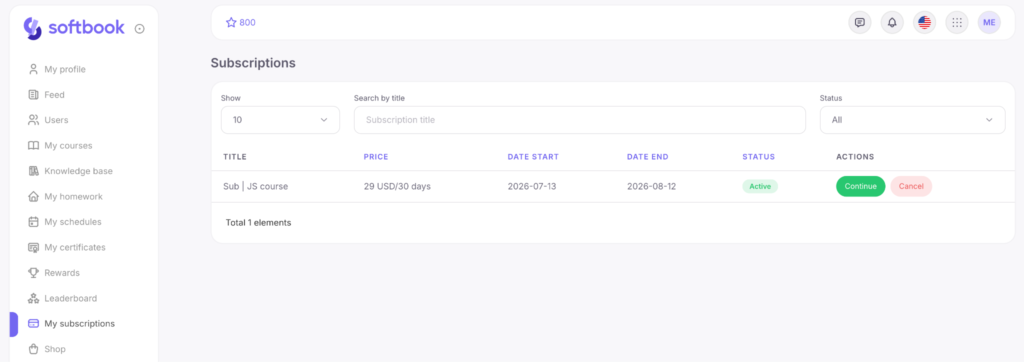
12. My Subscriptions
This section displays all your active subscriptions. You can view them, renew them, or cancel automatic renewal. Access to all courses included in a subscription is granted automatically after payment.
13. Store
Here, you can browse and purchase your school’s courses and subscriptions. Each product card displays its description, price, access period, and other information (such as the availability of a free trial for subscriptions). You can also use the search by entering the product name, or quickly filter them using a special toggle switch — choosing courses or subscriptions separately.
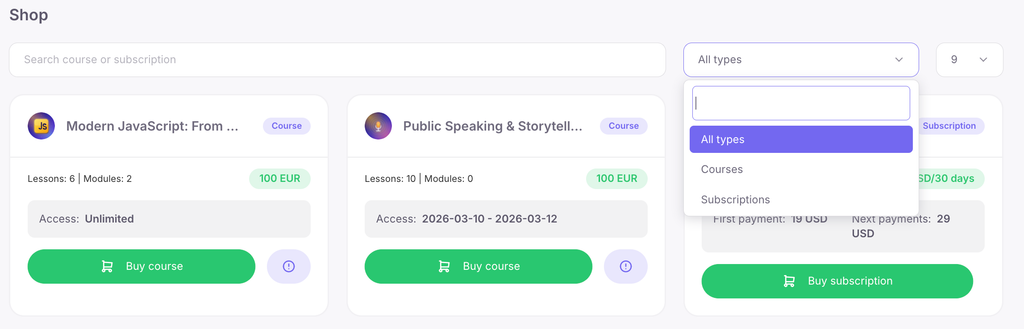
How to make a purchase: Click “Buy Subscription” or “Buy Course”, select your preferred payment method, and complete the purchase.
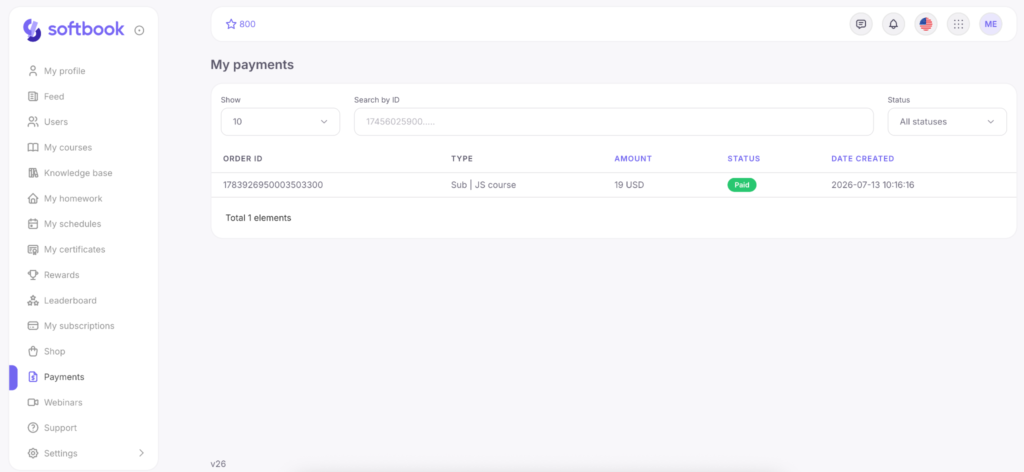
14. Payments
This section serves as your payment history. It contains detailed information about all your purchases, making it easy to track your expenses or provide payment details when contacting support.
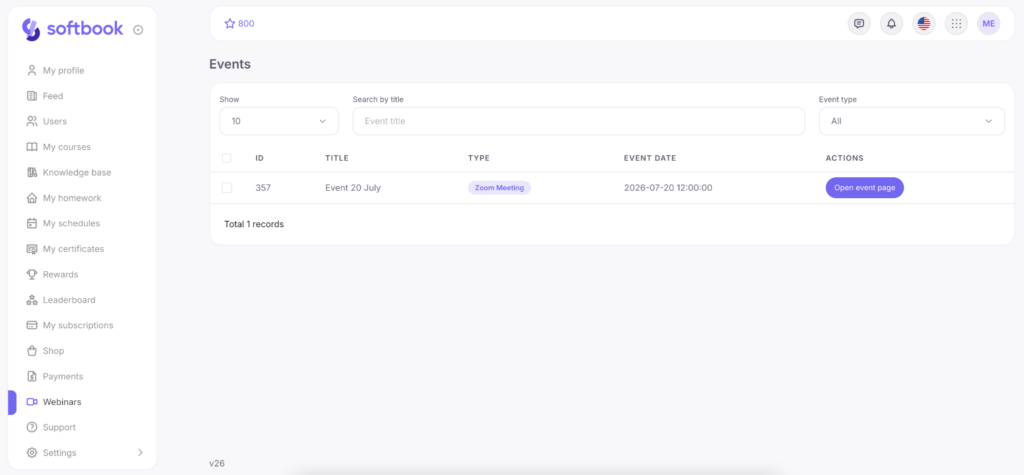
15. Webinars
This section lists all webinars available to you. You will see the webinar title, format, date, and time. To join a webinar, click “Open Event Page”.
16. Support
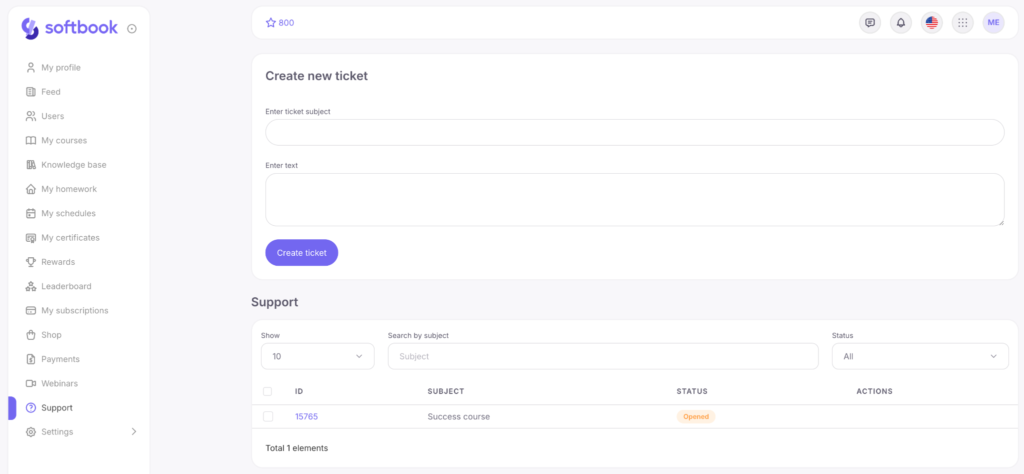
This section allows you to contact your school’s administration directly. To create a new support request, fill in the form (subject and description) and click “Create Ticket”. To attach a file, open the created ticket and click the paperclip icon. Once your issue has been resolved, click “Close Ticket”.
17. Notification Settings
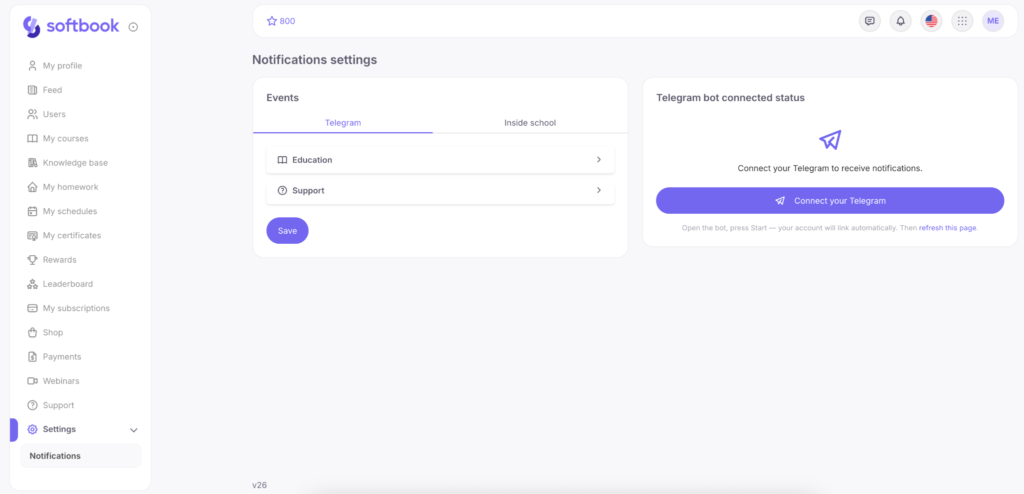
The sidebar includes a Settings section with a Notifications subsection. It is used to manage your notifications. Here, you can choose which notifications you want to receive within your personal account on the platform. You can also connect the Telegram bot to your account to receive notifications in Telegram, provided that this feature has been enabled by your school’s administration.


 Book a demo call right now!