

Security
The “Security” section contains all the necessary settings to protect your account, manage authorizations, and handle personal data. Below is a detailed description of each item.
1. Email
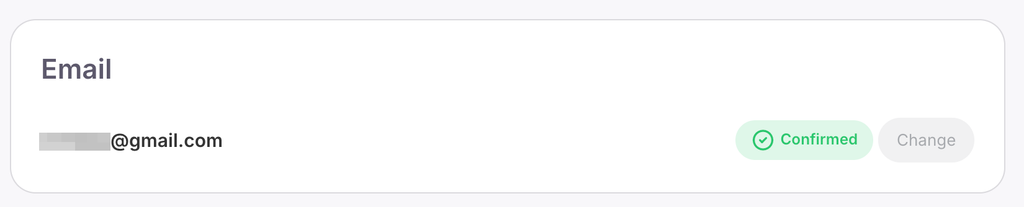
This block displays your current email address and its status (e.g., “Confirmed”).
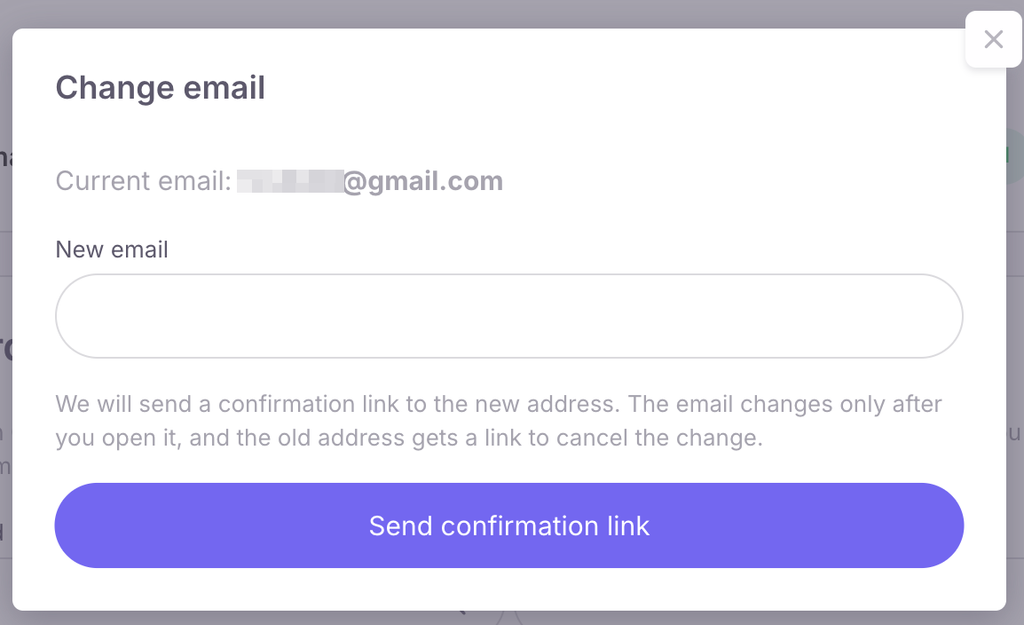
To change the address, click the “Edit” button and enter the new email in the window that appears. We will send a confirmation link to the new address and a cancellation link to the old one. Your email will only change after you open the confirmation link sent to the new address.
2. Password
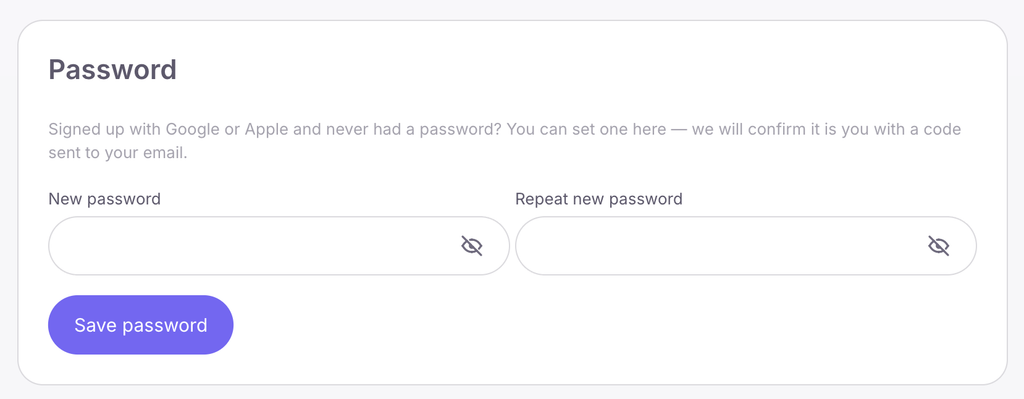
Here you can set or change your account password. If you registered via Google or Apple and never had a password, you can set one in this section — the system will first verify your identity by sending a code to your email. To set it, enter a new password, repeat it in the corresponding field, and click “Save password”.
3. Sign-in methods
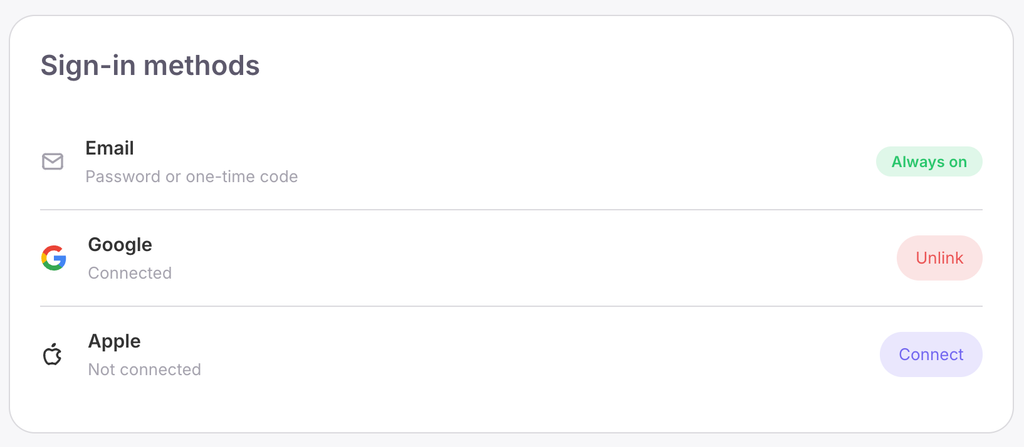
This section allows you to manage authorization methods on the platform. Email sign-in (via password or one-time code) is always enabled by default. You can also connect quick sign-in via third-party services by clicking the “Connect” button next to the respective Google or Apple accounts.
4. Active sessions
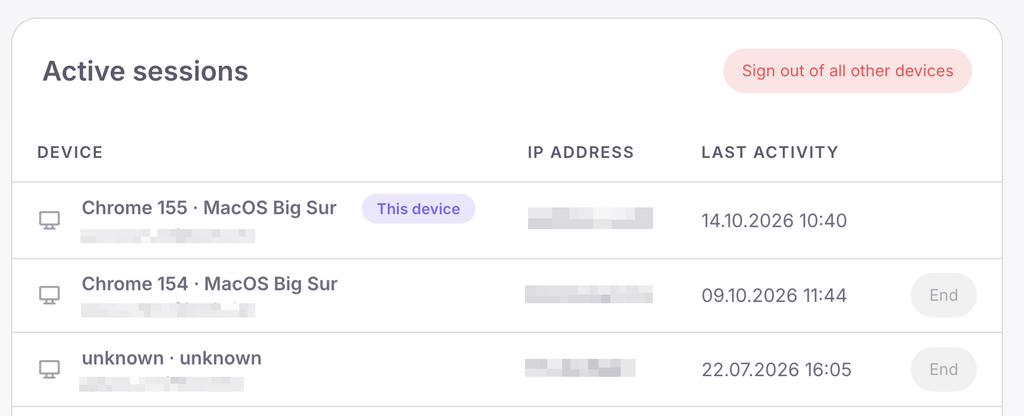
This block displays all devices currently logged into your account. Each session details the device (e.g., browser and operating system), IP address, and date of last activity, while your current device is marked with a “This device” tag. You can terminate a specific session using the “End” button or use the “Log out on all other devices” option to deauthorize all third-party logins with a single click.
5. Sign-in history
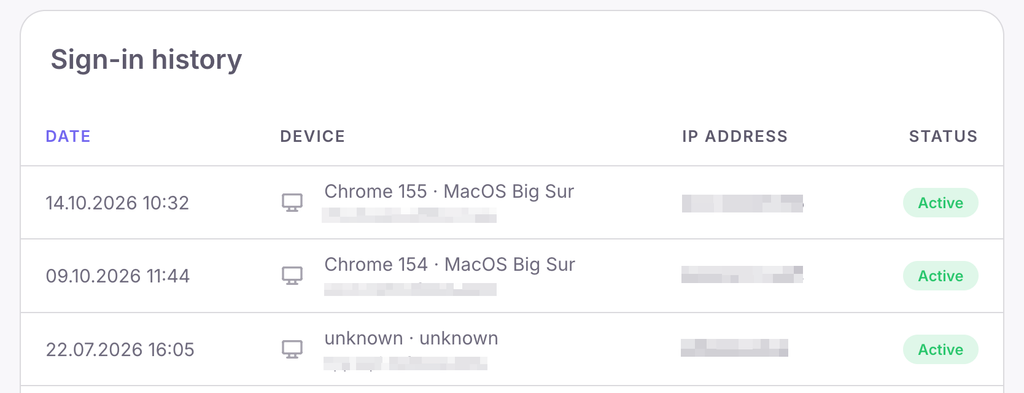
This section stores detailed statistics of your authorizations. The table records the date, device, IP address, and session status (e.g., “Active” or “Ended”).
6. Language
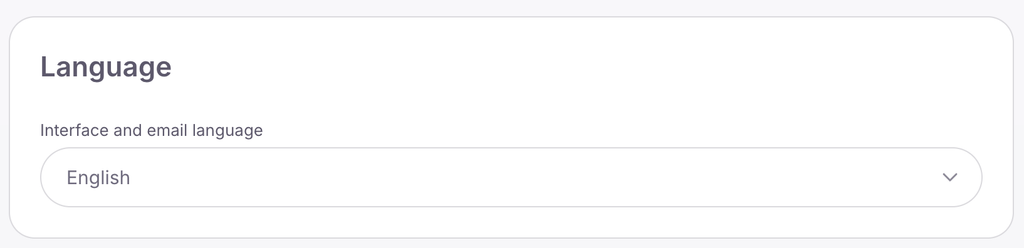
This is a block for configuring the interface and system email language. From the drop-down list, you can select one of the available languages: English, Українська, Русский, Deutsch, Français, Español, Português, or Polski.
7. Delete account
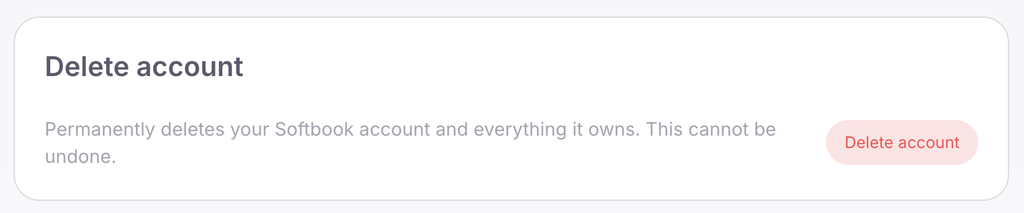
If you want to leave the platform permanently, you can irreversibly delete your Softbook account and everything tied to it. This action cannot be undone. After clicking the “Delete account” button, a confirmation window will open where the system will warn you that your balance, affiliate rewards, and payment history will be lost. You will also be logged out of all devices, including the mobile app.
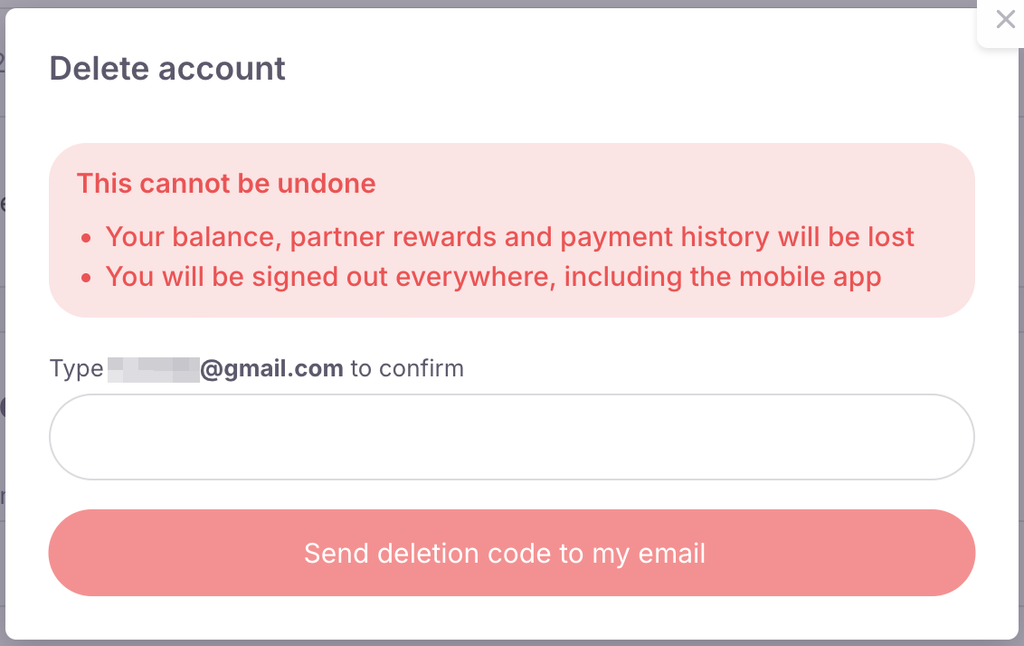
For final deletion, you must enter your email and click “Send deletion code to email”.



 Book a demo call right now!