

Billing
A section for managing the finances and services of your workspace. Issuing certificates is paid for with tokens: one token fully covers the generation, email delivery, and maintenance of the public verification page for a single document.
Current prices and all details regarding package and service costs are available at: https://softbook.app/certify
1. Balance and account status
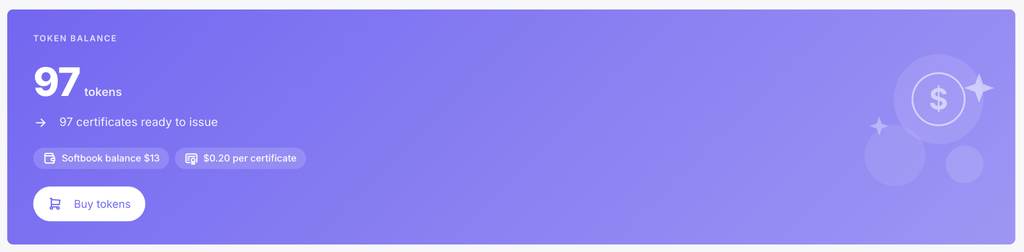
The top purple card displays the current state of your account:
- your token balance and the exact number of certificates you can issue right now;
- the current cost of a single certificate (depends on your purchase volume);
- your main Softbook account balance and the “Buy tokens” button.
2. Ready-made token packages
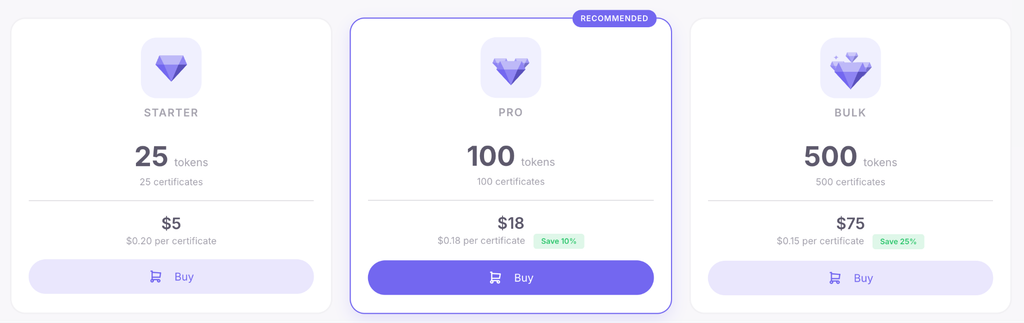
You can quickly top up your balance by choosing one of the fixed packages (the larger the package you buy, the lower the cost per certificate):
- Starter — 25 tokens;
- Pro — 100 tokens;
- Bulk — 500 tokens.
3. Pay-as-you-go (custom quantity)
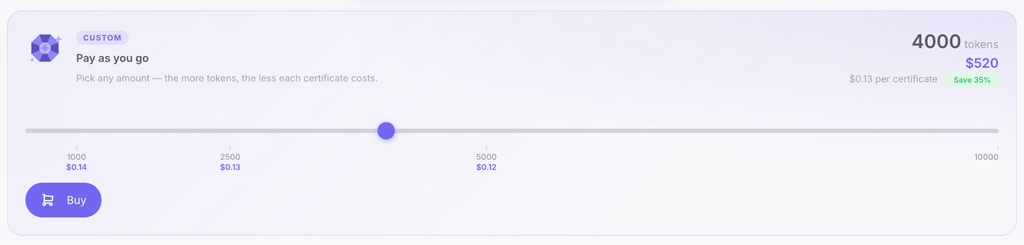
If you need a different number of tokens, use the “Pay as you go” block. Use the horizontal slider to select the exact quantity for your needs (the total amount to pay is always rounded up to whole dollars). For larger purchase volumes, the cost per certificate is additionally reduced. Choose the quantity and click the “Buy” button.
4. “Email builder” module

In the “Payment” section under the token packages, you can purchase the additional “Email builder” module (paid as a one-time payment). It unlocks the visual email builder, where you can create custom message layouts from scratch.
Payment works just like tokens: using funds from your Softbook balance, a saved card, or any Ukrainian or international bank card. After successful payment, the module is immediately unlocked in your account and remains there forever.
5. Token and transaction history
At the bottom of the page, there are two separate tables: the first is designed to track token expenses, and the second records your financial payments.
Token history
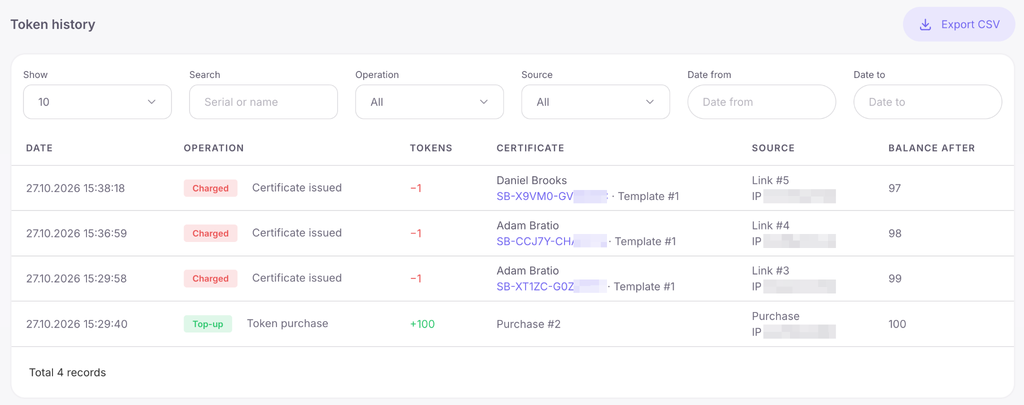
This table details every movement on your balance (e.g., deductions for issuance). You can download this data to your device by clicking the CSV Export button. For easier searching, filters are available by date (“Date from” and “Date to”), source, operation, as well as a search field for the serial number. The table displays the following columns:
- Date — date and time of the operation.
- Operation — type of action or reason for deduction.
- Tokens — number of tokens deducted or added.
- Certificate — information about the specific issued document.
- Source — the tool through which the certificate was issued.
- Balance after — your remaining token balance after completing this operation.
Purchase history
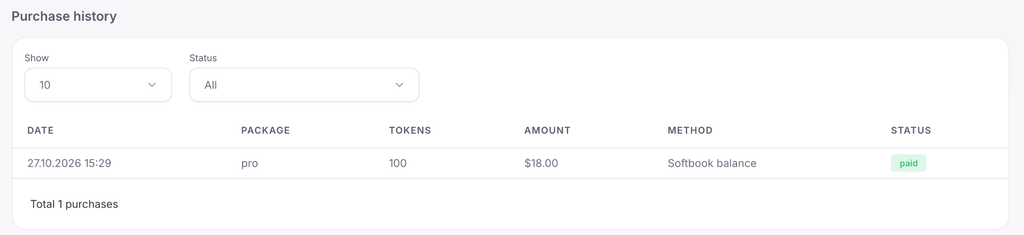
This table stores the history of all your financial transactions and account top-ups. Records can be filtered by their current status. The table contains the following columns:
- Date — date and time of the transaction.
- Package — name of the purchased token package or service.
- Tokens — number of tokens purchased.
- Amount — total payment amount.
- Method — chosen payment method.
- Status — current payment status.



 Book a demo call right now!