

Emails
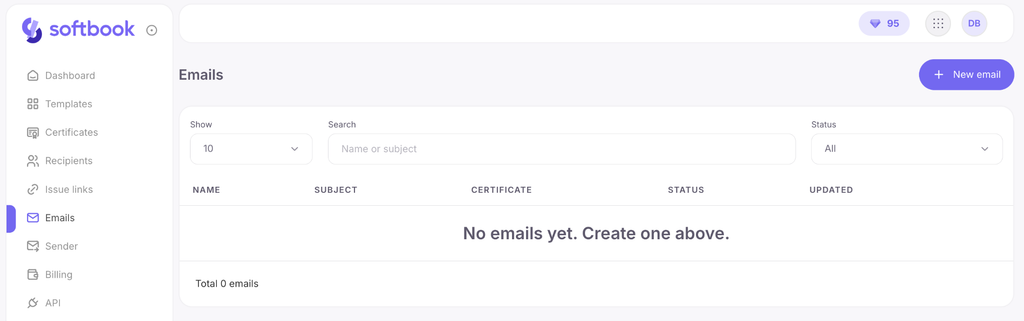
A section for managing the emails through which recipients receive links to their certificates.
Each email is strictly linked to one selected certificate template: the variables of this template (e.g., student name or course title) can be freely used in the subject and body of the message.
Two ways to create an email
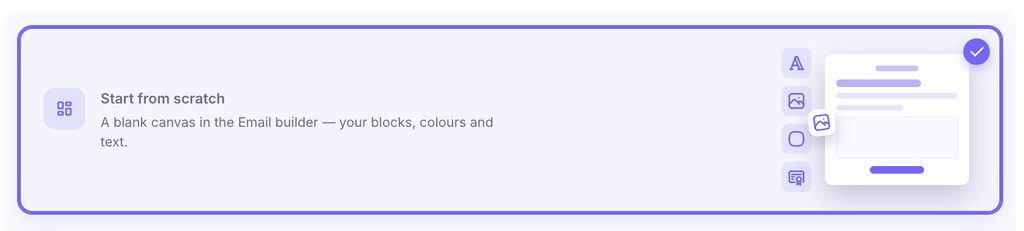
- Ready-made design (free). You have access to 12 professional layouts (Classic, Minimal, Corporate, Academy, and others). In these, you can only change the email subject, the general title, and upload your logo. All other structure and design remain fixed.
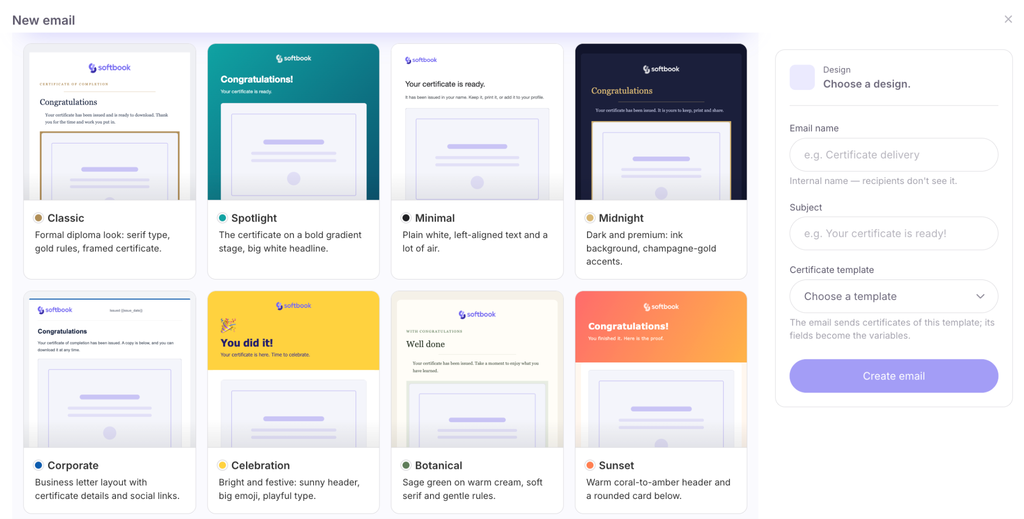
- Custom design (“Email builder” module). A full-fledged visual builder where the email is assembled from scratch: you create sections, add blocks, and customize colors, fonts, and texts yourself. The module is purchased in the “Payment” section just like tokens (via Softbook balance or bank card) and remains permanently active in your account.
Step 1. Creating a new email
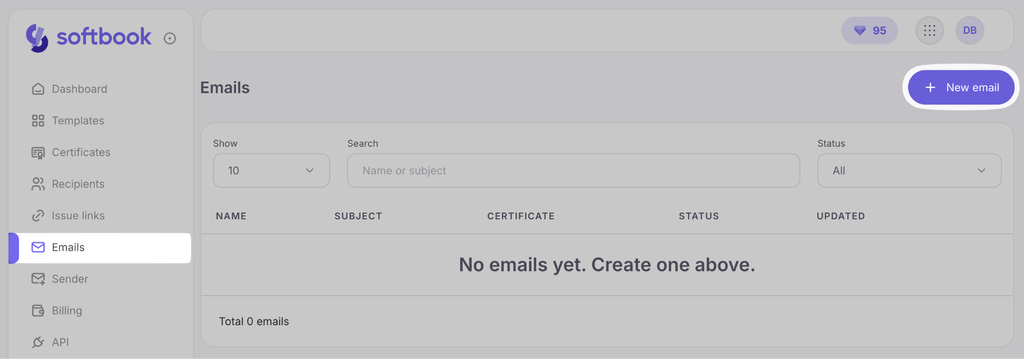
- Open the Emails section on the sidebar and click the New email button.
- In the modal window that appears, select a design. Hover over any card to scroll through its preview. The “Custom design” banner at the top opens the visual builder (if the module is purchased) or prompts you to buy it.
- On the right, fill in the email name (an internal name visible only to you), specify the subject, and select the certificate template to which this email will be linked.
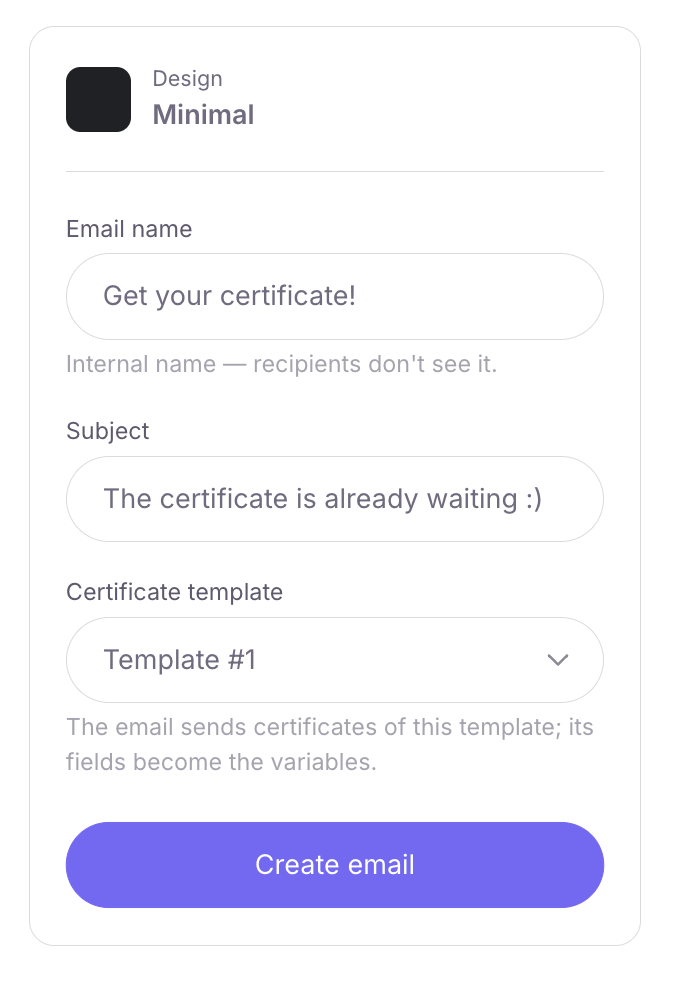
- Click “Create email”.
Step 2. Customizing a ready-made design
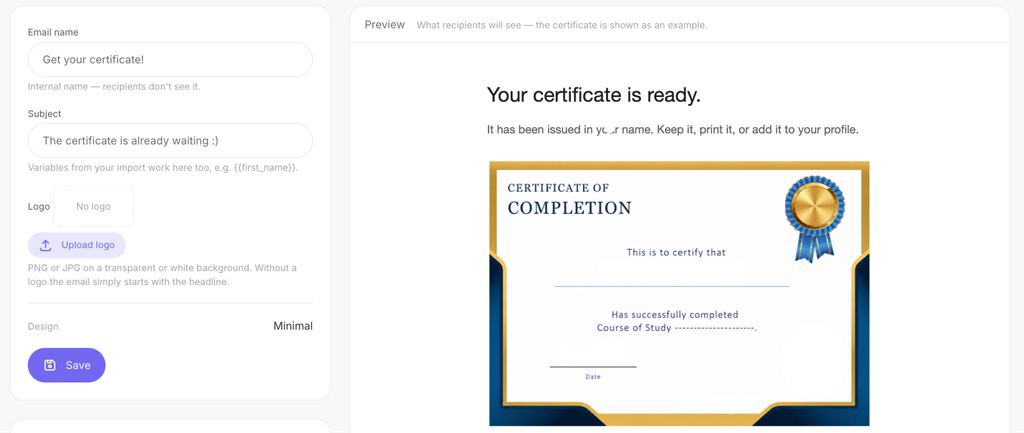
If you chose one of the 12 free layouts, a page with settings (on the left) and a visual preview (on the right) will open:
- Email subject: here you can use variables from your import file (for example, {{first_name}}).
- Logo: upload your own logo (PNG or JPG format on a transparent or white background is recommended) or completely delete this block. If the logo is deleted, the email will simply start with the heading. Note: the Softbook logo will never be displayed in your emails.
- After making changes, click the “Save” button.
Step 3. Working in the “Email builder” module
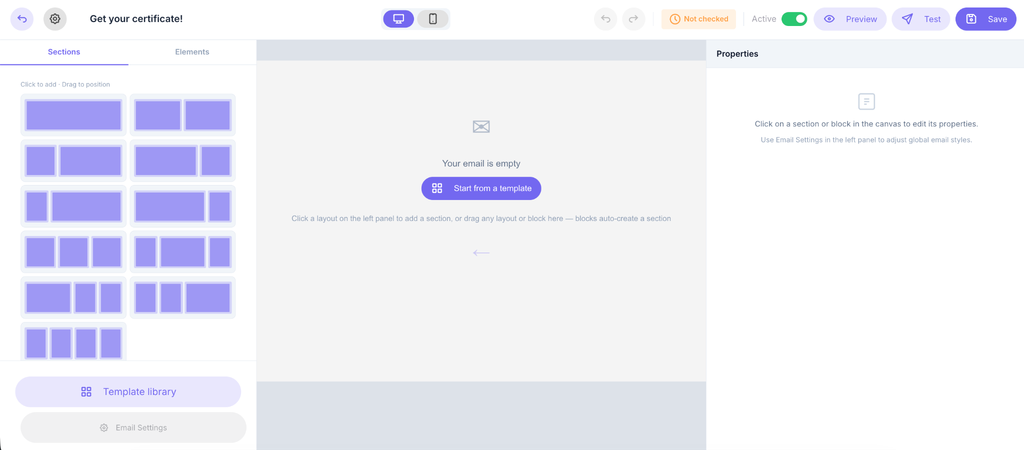
If you purchased the module, the visual editor interface will open, working on a Drag-and-Drop principle:
- Sections: on the left panel, select the desired layout (one, two, three columns, etc.) and drag it onto the working canvas.
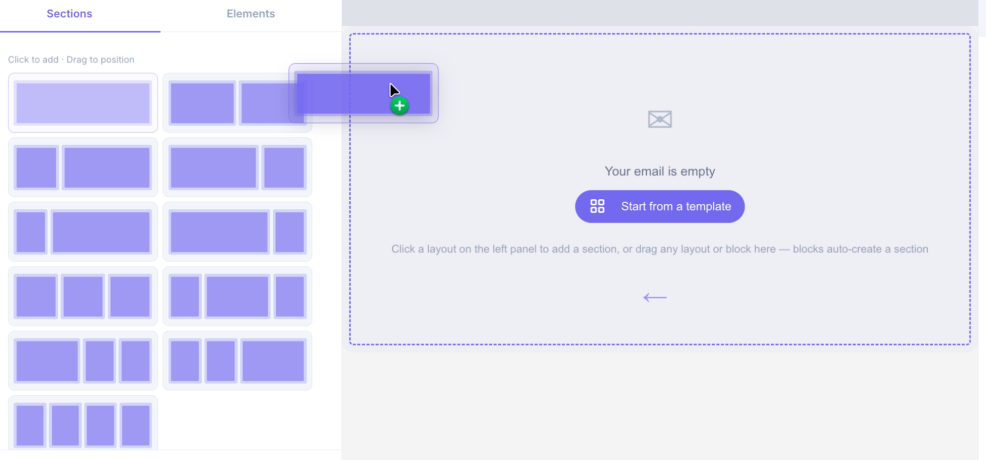
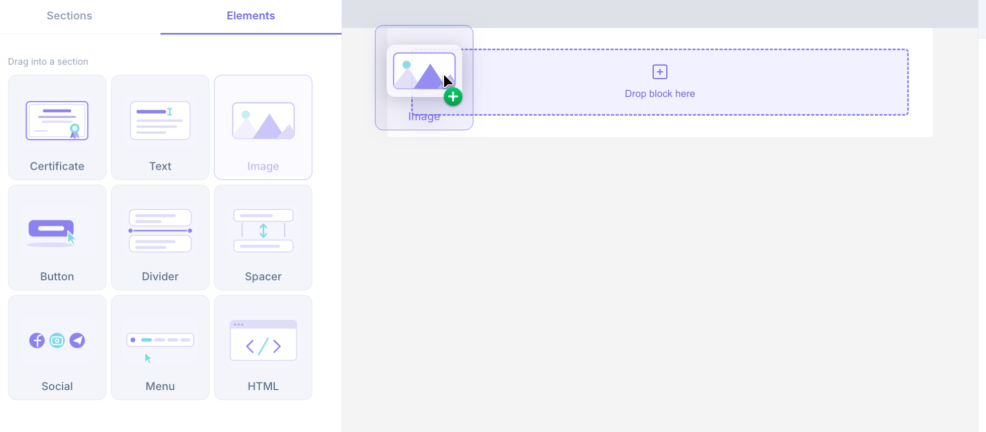
- Elements: add content to the sections — text, images, buttons, divider lines, spacers, social media icons, navigation menu, HTML code, as well as the mandatory “Certificate” block.
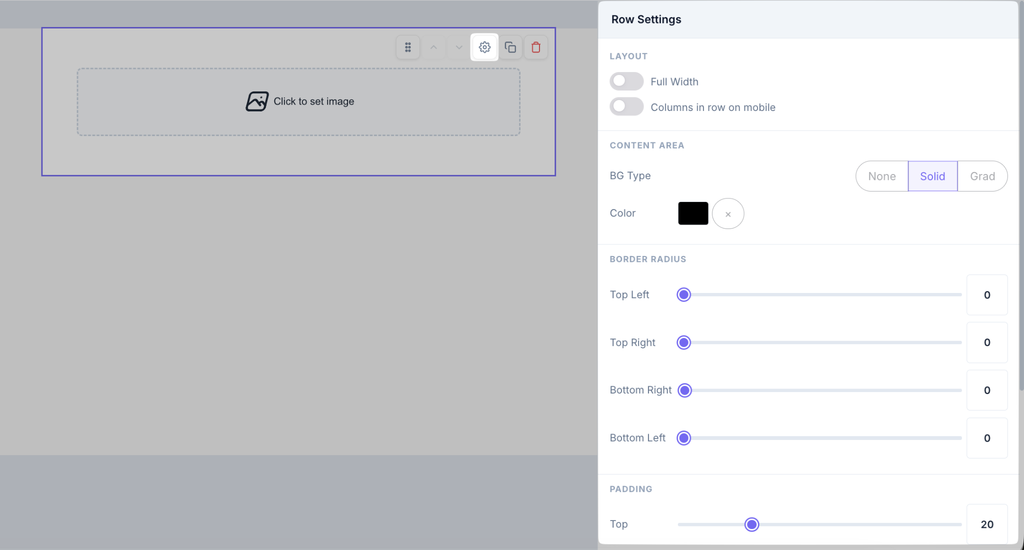
- Properties: to change the design of a specific element, click on it on the canvas — a settings panel will appear on the right.
- Global email settings: located at the bottom. Here you can set general styles — background color, standard fonts, and content width.
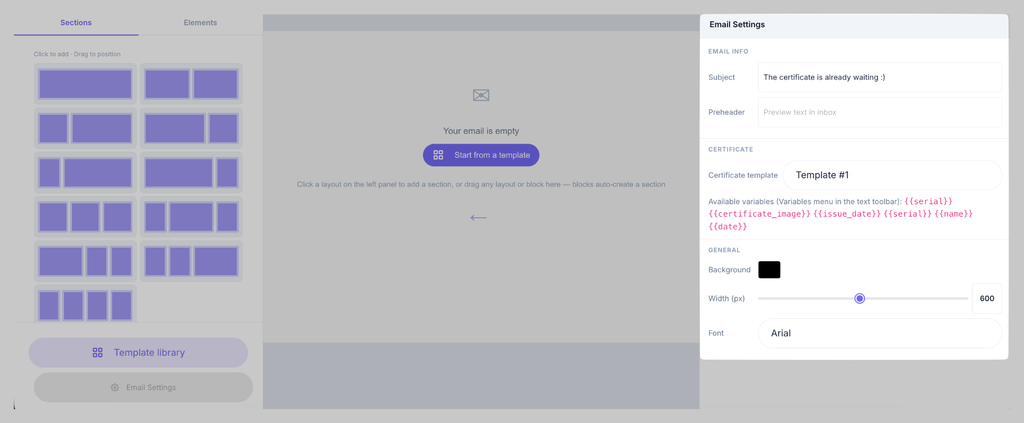
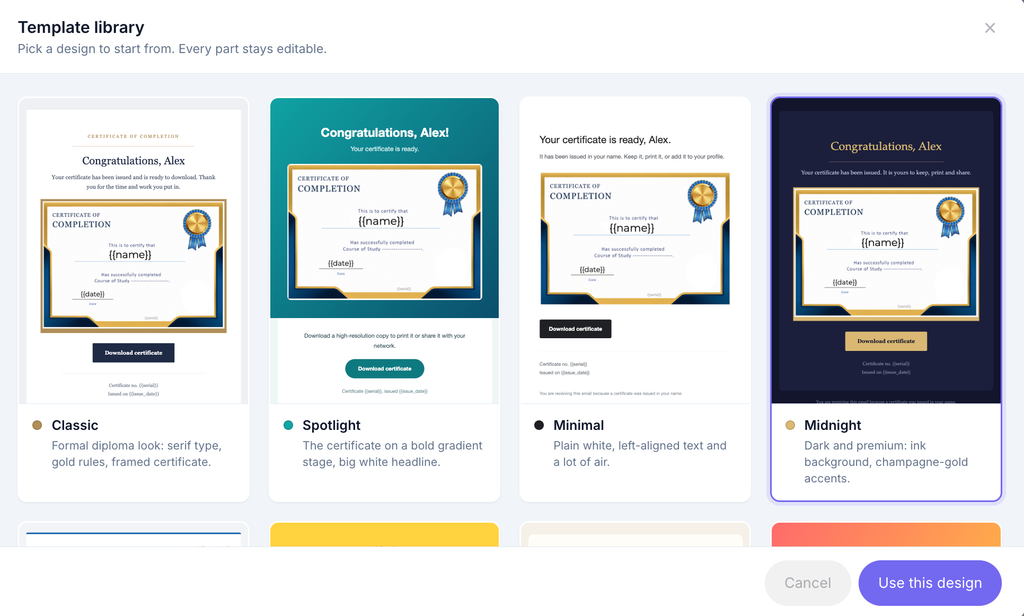
- Template library: allows you to start working from any of the ready-made designs and completely remake it for your needs.
On the top toolbar, the following are available:
- switching the preview mode (desktop or smartphone);

- undo (Ctrl+Z) and redo (Ctrl+Y) buttons;

- the final “Preview” button;

- the “Test” button, which saves the email and sends a test copy to the account owner’s email (limit — 25 tests per day);

- the “Save” button.

Personalization and mandatory builder conditions
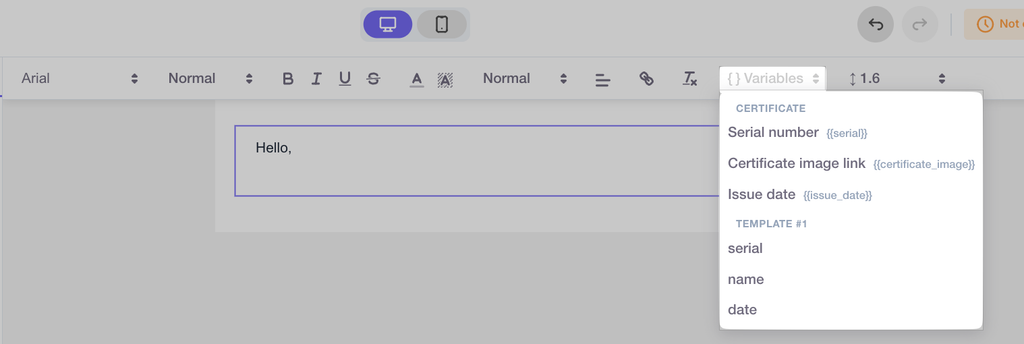
- Variables. Use the variables button in the text block to insert fields from the linked certificate template. During mass mailing, the system will automatically replace these tags with the real data of a specific student.
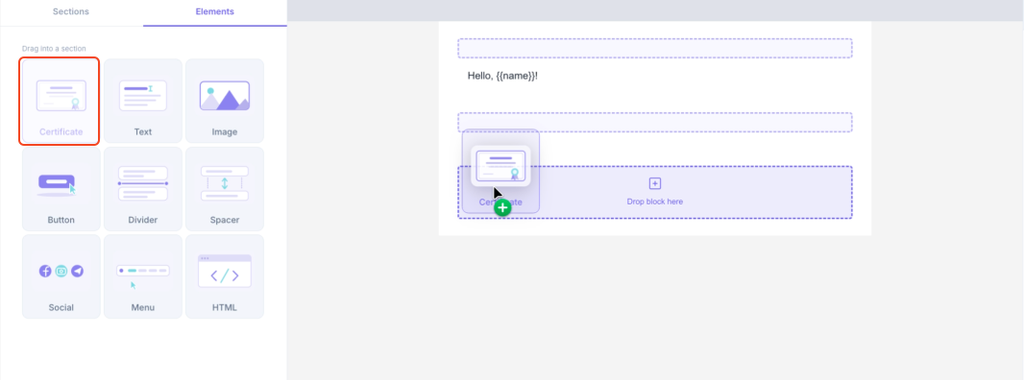
- Mandatory block. In any email created from scratch, the document itself must be placed — via the special “Certificate” block. Without this element, the email cannot be selected when launching a mass mailing. (In the 12 ready-made designs, this block is already integrated).
Email content check
To protect against spam and fraud, every created email undergoes automatic moderation directly while saving. In ready-made designs, only the subject is checked (since the email structure is written by default), while in the “Email builder” module, the entire content is checked completely.
Verification statuses:
- Verified — the email is safe and can be used in a campaign.
- Rejected — the email did not pass moderation. The reason will be indicated nearby; fix the violations and save the template again.
- Not verified — the moderation service is temporarily unavailable, try saving the email a little later.
Important: you can only send verified emails to recipients.
Managing created emails
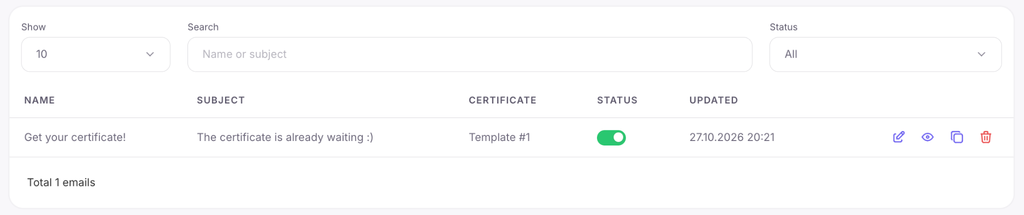
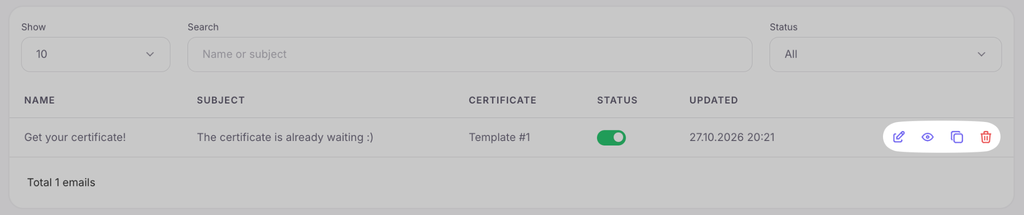
All your templates are saved in a general table in the “Emails” section. It displays their name, subject, linked certificate template, and verification status. Using the action icons, you can edit the email, preview it, create an exact copy, or delete it at any time.

 Book a demo call right now!