

Recipients
A section for the bulk generation and sending of certificates. The process consists of four steps: preparing the file, creating an import, verifying the data, and launching the email campaign.
Step 1. File preparation
Prepare a file in CSV or TXT format (use a comma or semicolon as a delimiter).
File requirements:
- The first row must contain the column names: use only Latin letters, numbers, and underscores (e.g., first_name), with no spaces or Cyrillic characters.
- The column names must exactly match the variables you placed in the selected certificate template.
- Each subsequent row represents the data of one recipient. The maximum size of a single import is 5000 rows.
- The email column is only needed if you plan to send certificates via email. Without it, the certificates will simply be generated, and you can download them or distribute them using another method.
- The system takes the certificate owner’s name from the name (or full_name) column. If such a column is missing from the file, the name is automatically formed from the first_name and last_name columns.
Step 2. Creating an import
- Go to the Recipients section and click the New import button in the top right corner.
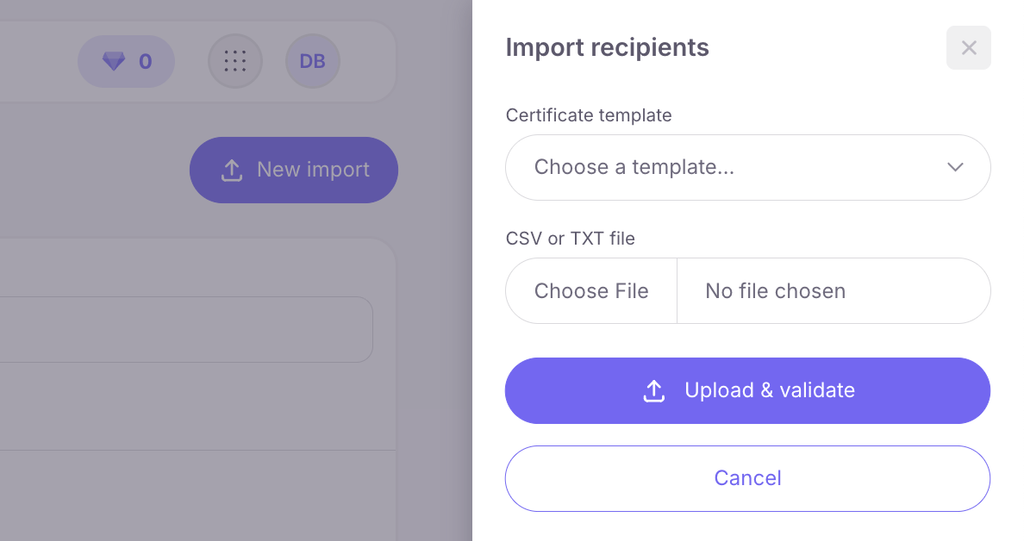
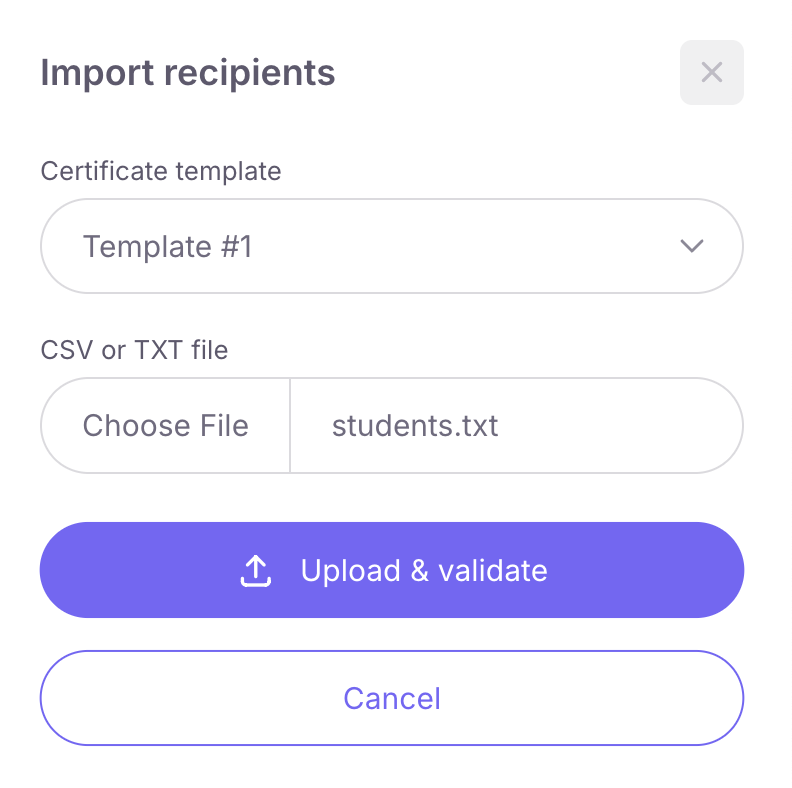
- In the side panel that opens, select the desired certificate template from the list.
- Upload the prepared CSV or TXT file from your device and click the “Upload and check” button.
Step 3. Checking the list
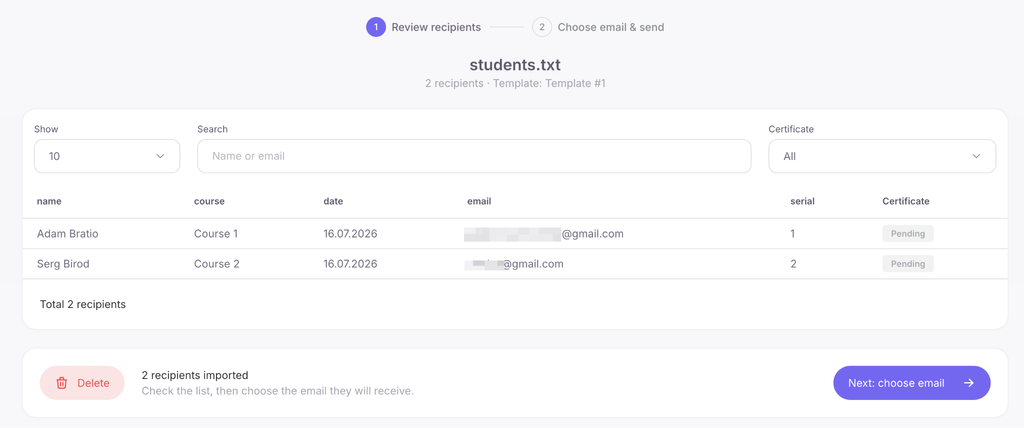
After uploading, the import page will open, showing a list of all recognized recipients. Carefully review the data. If you notice an error in the data, delete the current import (by clicking the red button with the trash can icon) and upload the corrected file again. If all the data is correct, click the “Next: select email” button.
Step 4. Selecting an email and sending
At this stage, select the email design in which the recipients will receive their certificates:
- the standard Softbook email (in English);
- or one of your own emails that you created and linked to this certificate template. Note: the list only displays emails that have successfully passed the automatic content check.
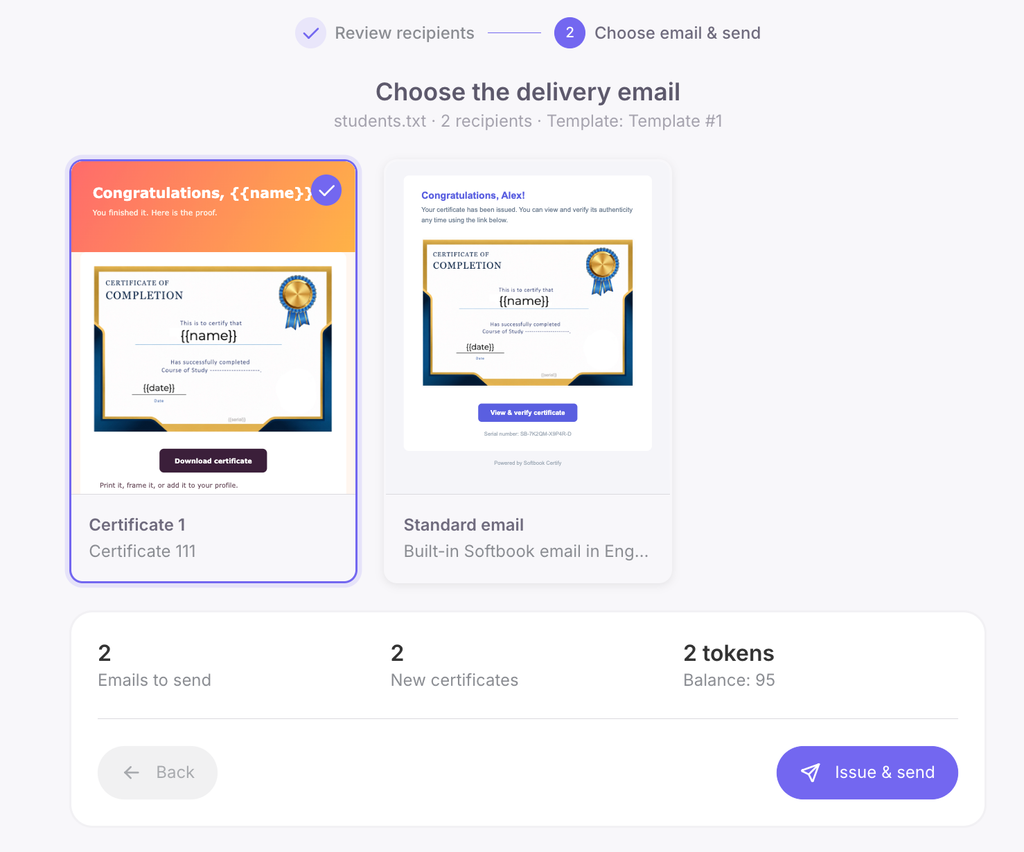
Below the email selection, the system will show a summary: how many emails will be sent, how many new certificates will be generated, and how many tokens will be deducted from your balance. To launch, click the “Issue & send” button.
The send button will be inactive if:
- you have not connected or verified your own sender domain (this is done in the “Sender” section);
- the email address of your Softbook account is not verified (check your inbox, an email with a link is sent after registration);
- there are not enough tokens on your balance for the operation — the system will show exactly how many tokens are needed and provide a link to top up.
Token deduction and limits
- Costs 0 tokens: If the recipient already has this certificate (the same template and the same data in the file), the re-issuance is free of charge. In addition, if you make changes to the template design less than 14 days after issuance, the certificate is redrawn for free. If more time has passed, a new certificate is issued for 1 token, and the old one remains valid.
- Email limits: The same certificate can be sent via email a maximum of 3 times, and the interval between sends must be at least 7 days.
Status tracking and pause
After launching, you will see the overall progress of the campaign, and in the recipients’ table — the current status of each email (sent, delivered, opened, error). Emails that failed to deliver (“error” status) can be resent by clicking the “Retry failed” button — tokens are not deducted again for this.
Pause during import. If you run out of tokens during a bulk issuance, the process is automatically paused. To continue, top up your balance and be sure to click the “Resume” button — the sending will not resume automatically. The sending can also be paused by the system if your emails receive too many bounces or spam complaints. In this case, contact the support team.



 Book a demo call right now!