

Issue links
A tool for creating special links that users can follow to claim their certificates independently. This is highly convenient for distribution via messengers, social networks, or thank-you pages.
Important: a token is deducted from your balance only after the recipient actually opens the link for the first time. Opening the same link again displays the already issued certificate — a token is not deducted a second time. An issued certificate can be accessed via the link even after the link itself is revoked or deleted.
How to create an issuance link:
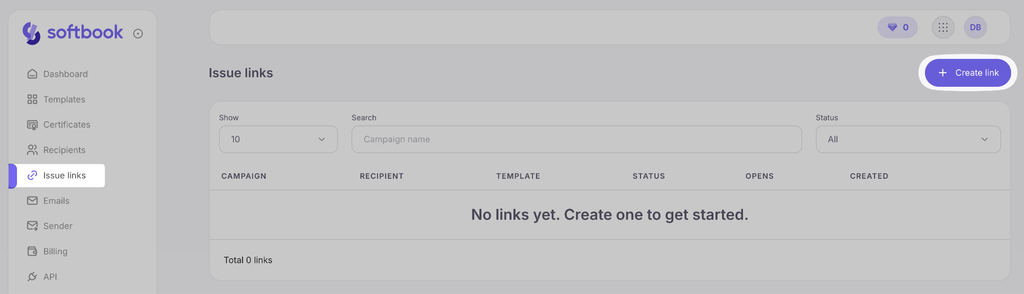
- Go to the Issuance links section on the sidebar and click the Create link button in the top right corner.
- In the window that appears, fill in the Campaign name field (e.g., “Webinar Dec 2026”). This will help you easily find the link in the future.
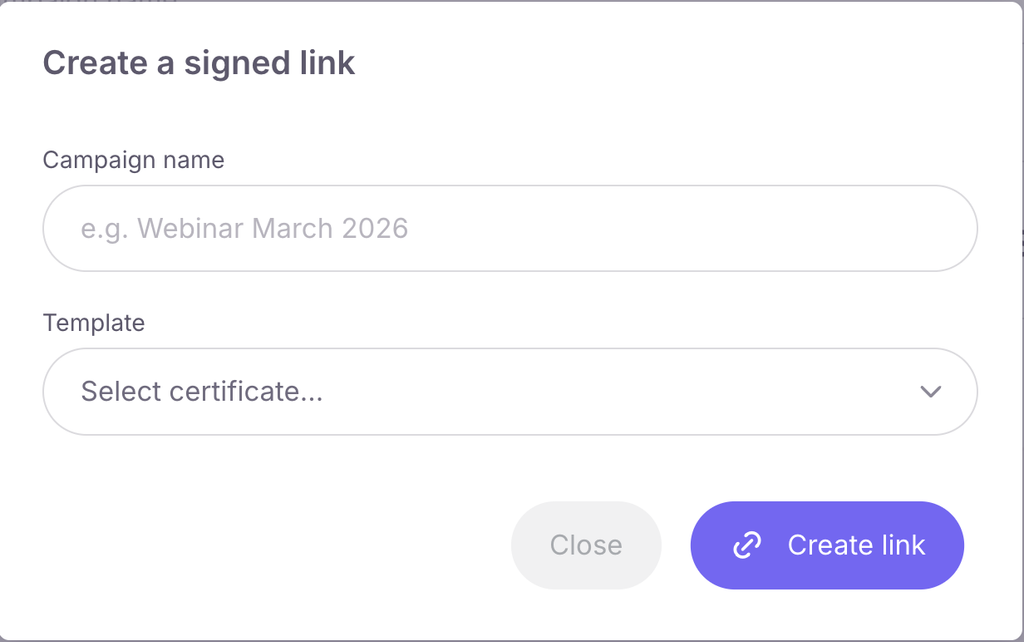
- Select the desired design from the Template drop-down list.
- After selecting a template, the system will prompt you to fill in the corresponding variable fields for this specific certificate.
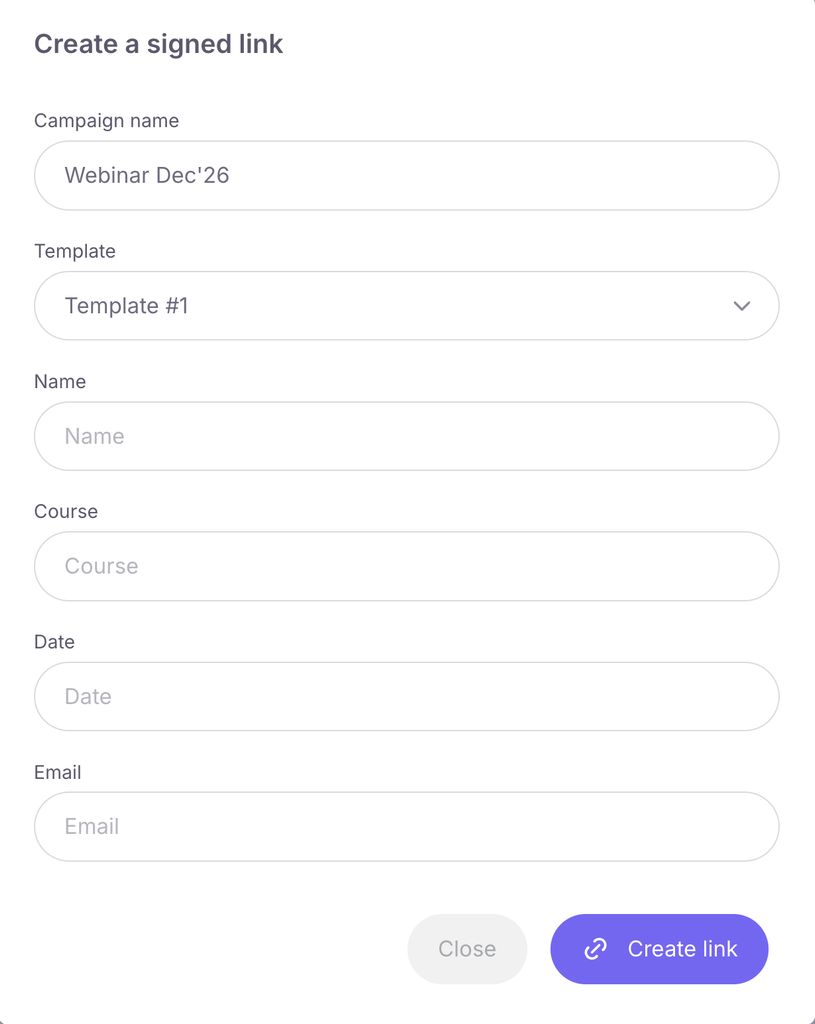
- Click the purple Create link button to generate it.
- A confirmation will appear immediately after this. Click the Copy button to instantly copy the link and send it to the student. To exit, click the Close button.
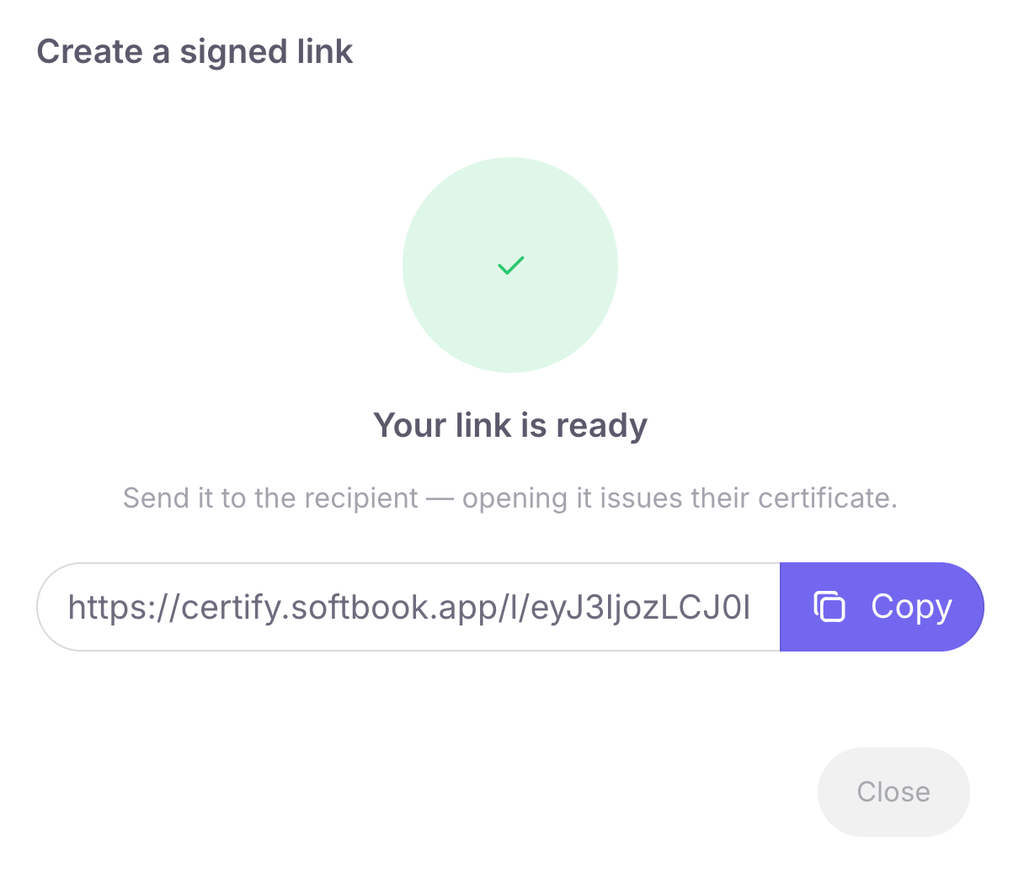
Managing generated links
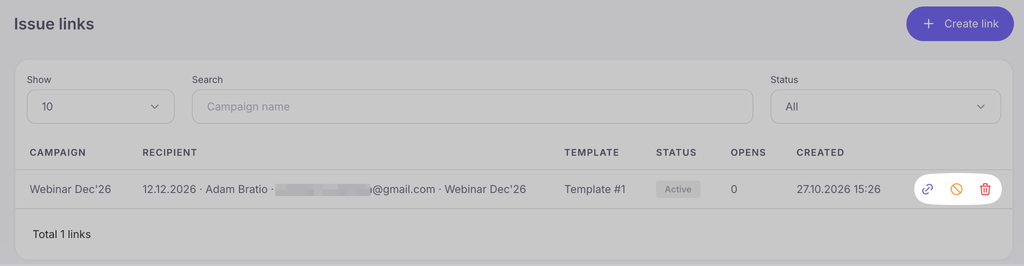
All created links are saved in a general table on the section page. The table contains basic information: campaign name, template, creation date, and the current link status (Active, Revoked, or Issued).
Opposite each record on the right are action buttons:
- Copy (document icon) — click to copy the ready link and send it to the student.
- Revoke (crossed-out circle icon) — the link immediately stops issuing new certificates (becomes invalid). Already issued certificates remain valid.
- Delete (trash can icon) — the record disappears from the list, and the link permanently stops working. Already issued certificates also remain valid.
What the student sees after opening the link
When a user clicks your link, a certificate is automatically generated for them. On the opened page, they will see the ready document and its unique serial number.
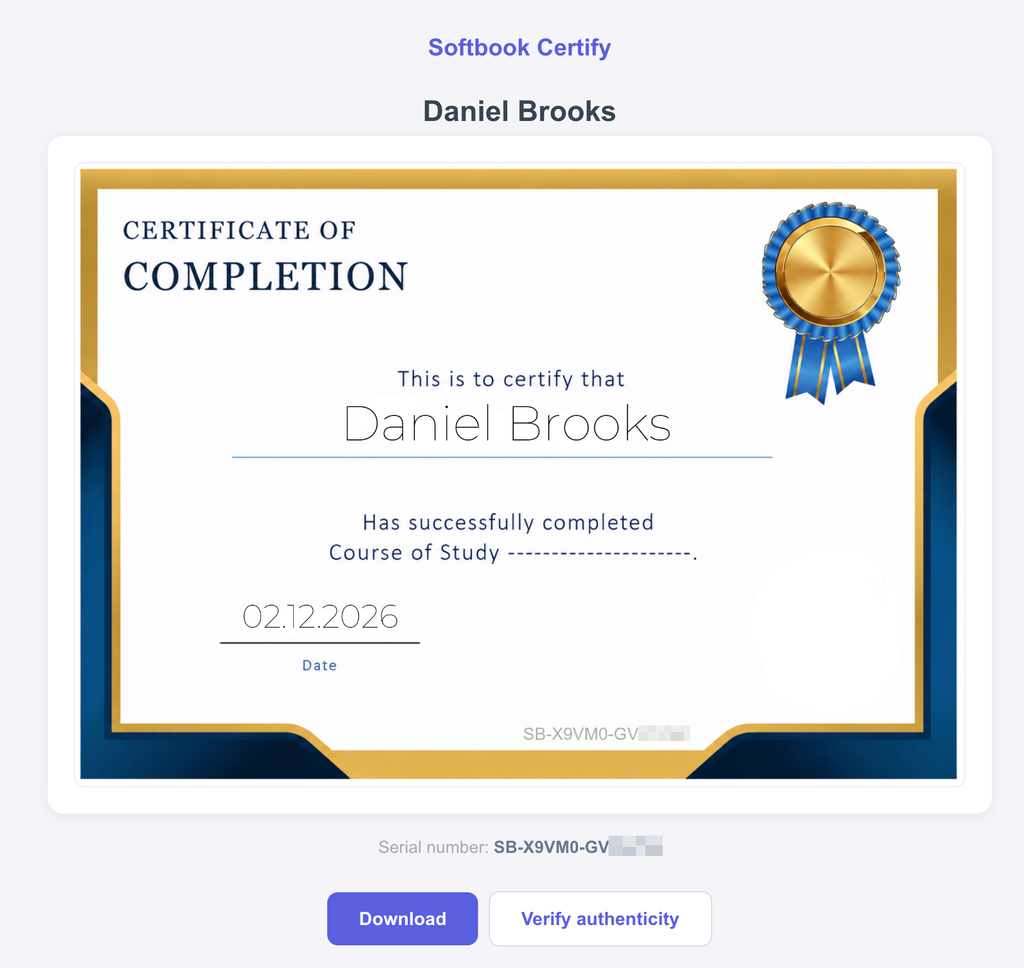
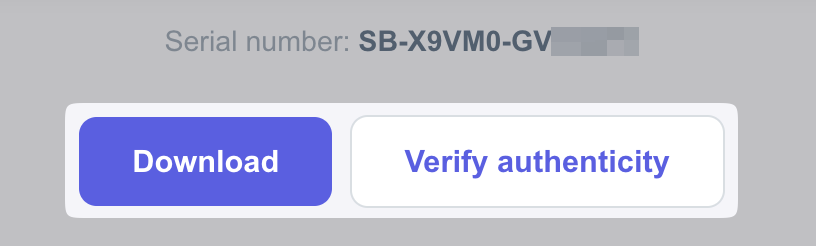
Below the certificate, two actions are available to the student:
- Download — the ability to save the certificate file to their device.
- Verify authenticity — a button to navigate to the public document authentication page (Verify).



 Book a demo call right now!