

Templates
A section for creating and managing certificate designs.
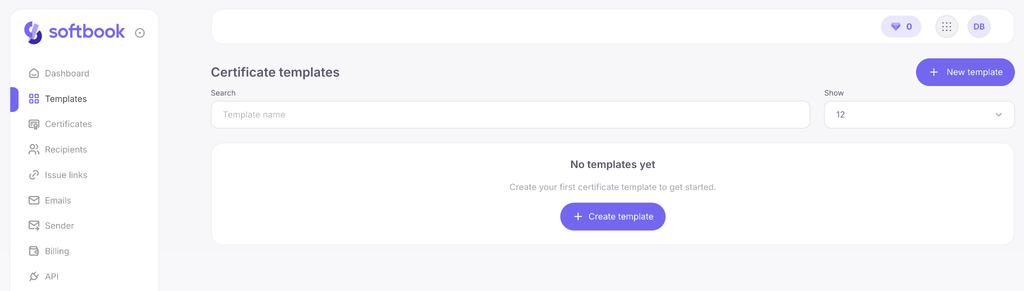
You can create several templates for different programs and reuse them. In the built-in visual editor, you can customize the background, add text, a logo, a QR code for authenticity verification, and place variable fields.
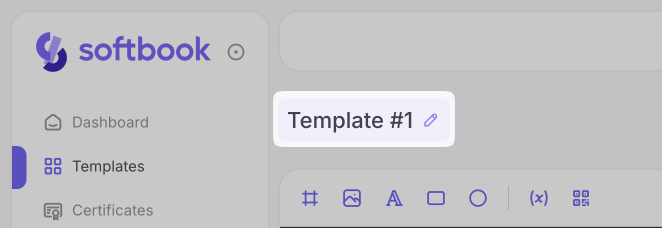
The template name can be changed directly in the editor’s header — just click on it, enter a new name, and it will be saved automatically.
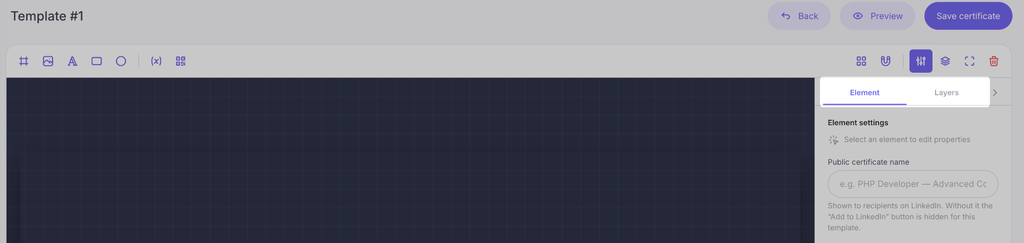
After creating a new template or editing an existing one, the editor page will open with a workspace and toolbars. On the right, there is a panel with two tabs:
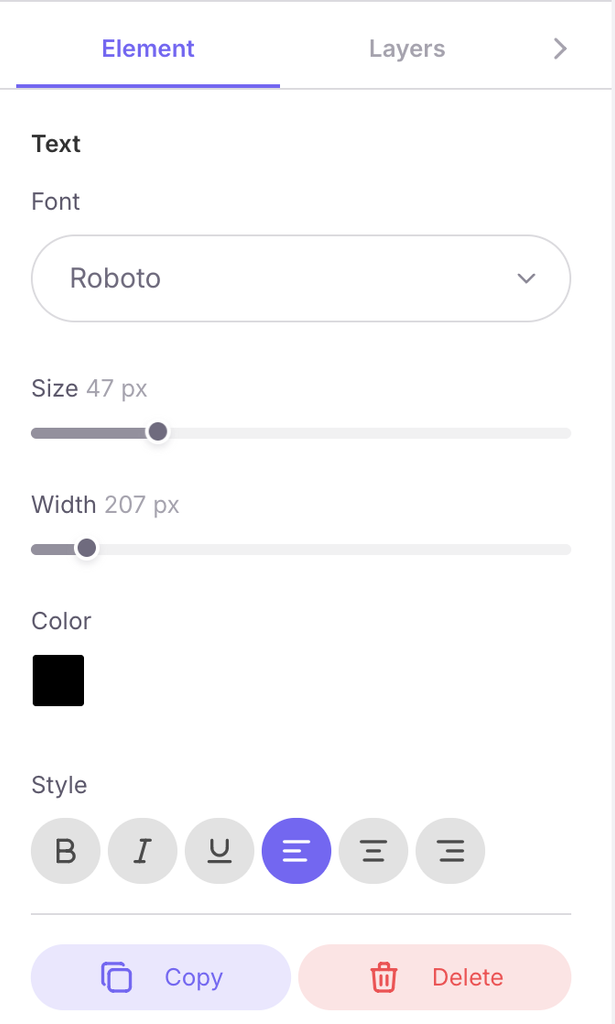
- Element — settings for the selected object (font, color, size, copy, delete). When no object is selected, here you can specify the Public certificate name — the name that recipients will see (e.g., “PHP Developer — Advanced Course”).
- Layers — the order and list of all added objects.
1. Canvas navigation
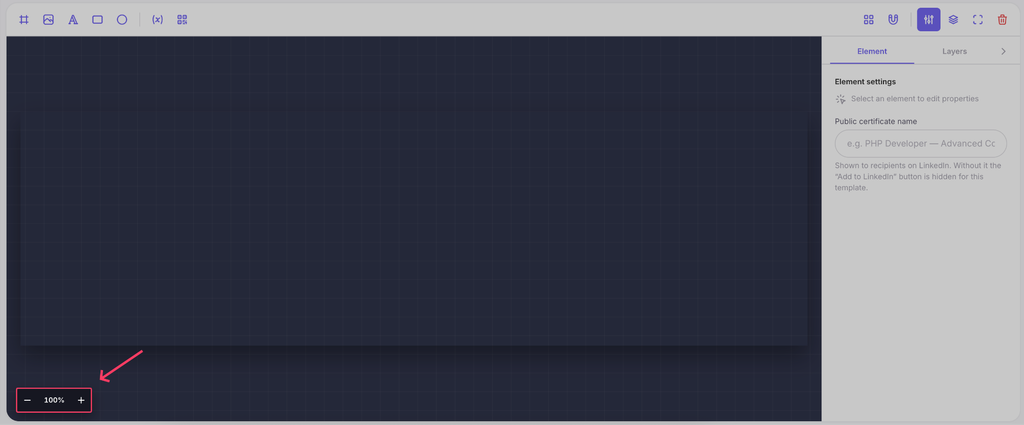
Scale and movement. You can scale the canvas using the mouse wheel or the “−” and “+” buttons in the corner of the screen (clicking on the scale percentage automatically fits the canvas to the screen). To move the canvas, hold down the Spacebar and drag with the mouse (or drag while holding the right or middle mouse button).
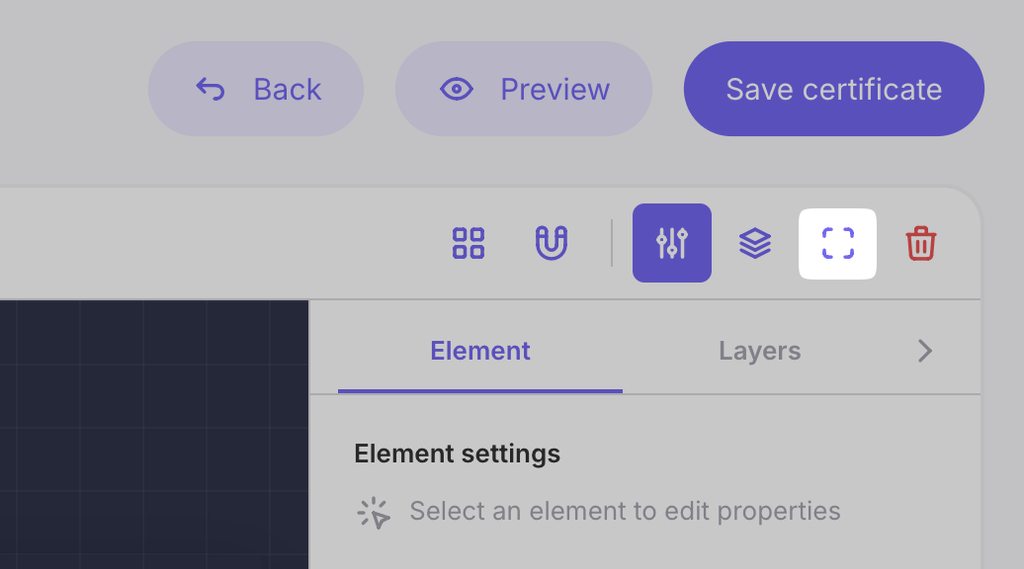
The “Expand editor” button allows you to expand the workspace to full screen.
2. Adding design elements
- Background. Click “Add background” and upload an image that will become the base of the layout.
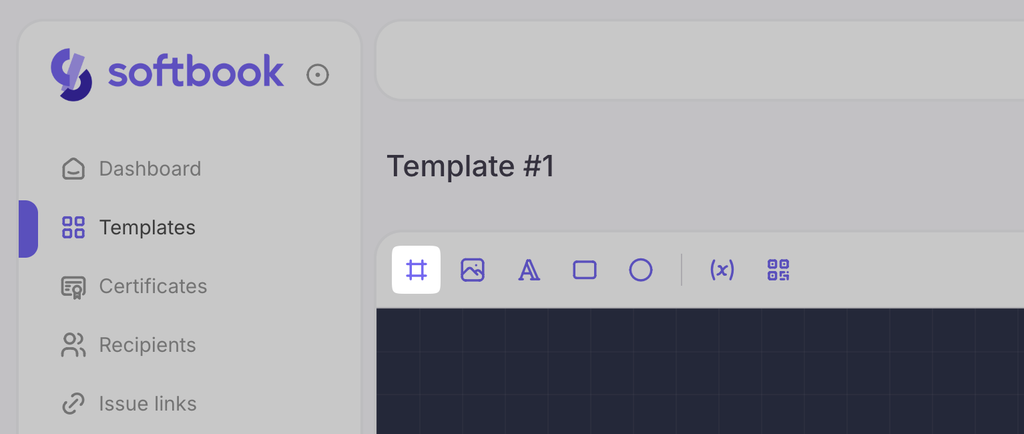
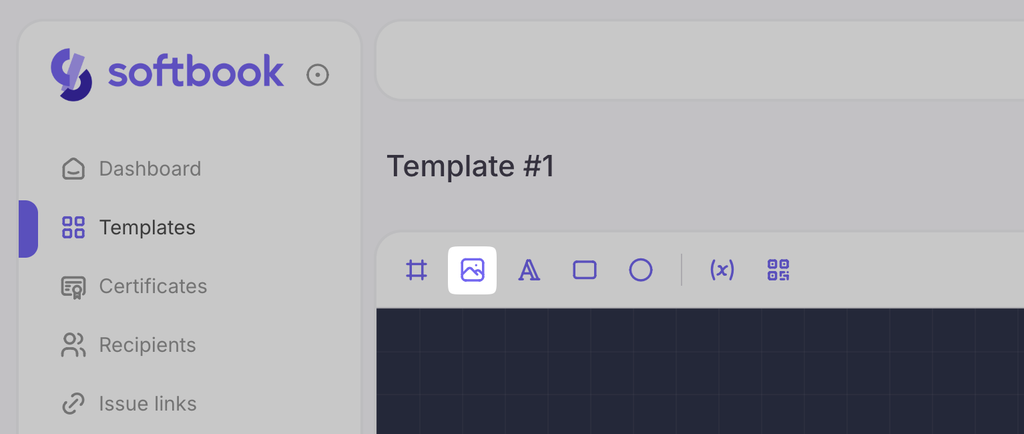
- Image. Click “Add image” to insert a logo or other graphic elements. The size of the uploaded image can be changed — just select it and drag by the corner.
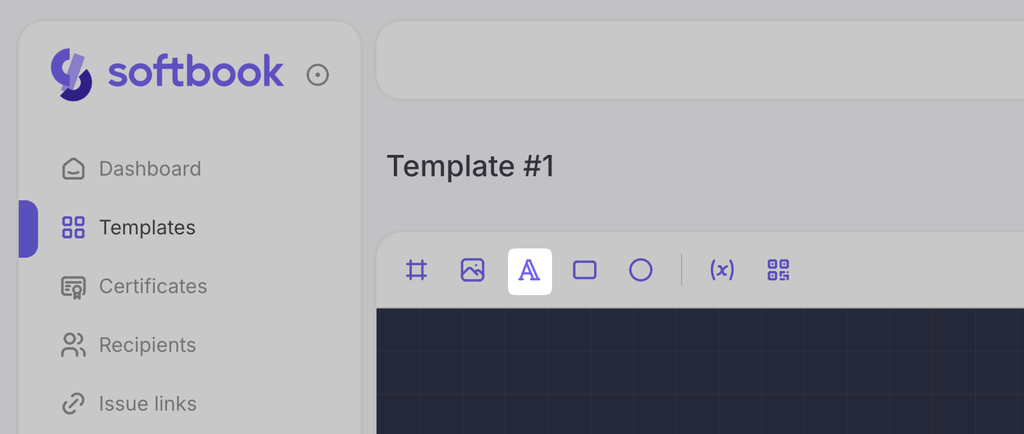
- Text. Click “Add text”. In the right settings panel, you can manage the font, size, color, style, and alignment of the text. Any element can be deleted both in the workspace and by selecting it in the layers tab.
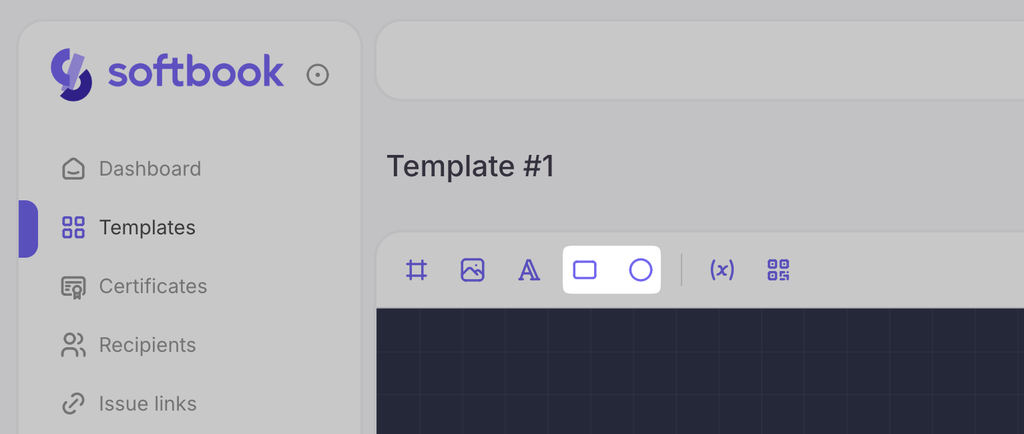
- Shapes. If you need to add a rectangle or a circle, choose the appropriate tool and place the shape. When scaling with the cursor, the shapes change proportionally. If you hold down the Shift key while resizing, the proportions will become free (arbitrary).
3. Variables and personalization
Certify uses a flexible system of variables to automatically fill in student data during bulk issuance. To add personal data (course name, date, etc.), enter the exact column name from your recipient file (import list) into the text field and enclose it in double curly braces. For example: {{course_name}}.
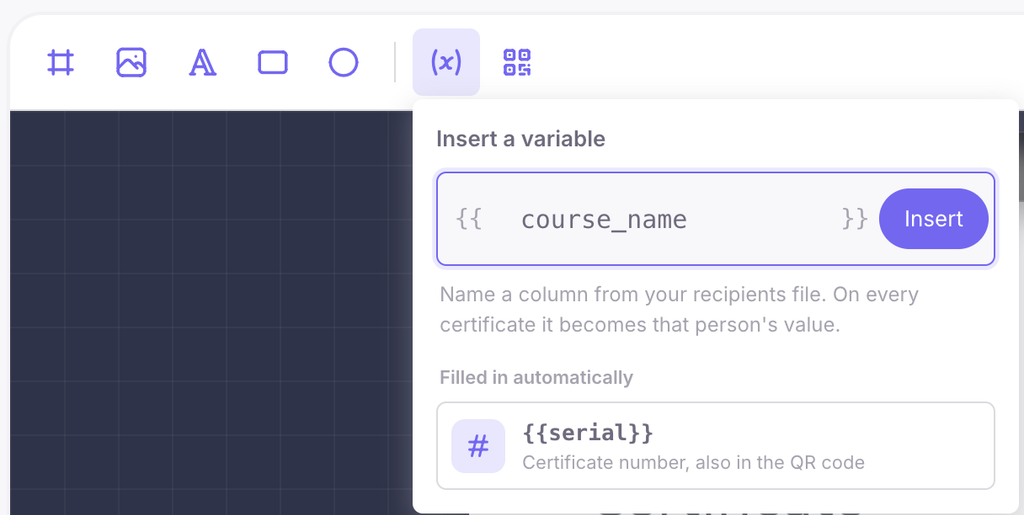
Note: The system looks for the recipient’s name in the name or full_name columns. If they are missing, the name is automatically concatenated from the first_name and last_name columns.
When issuing certificates, the system recognizes these tags, and each {{key}} will be automatically replaced with the value from the corresponding column for each specific person. Place these text variables in the desired locations on the layout.
4. QR code for verification
In addition to variables, you can place a QR code on the layout, which will contain a link to the public certificate verification page. It allows employers and partners to verify who, when, and for what exactly received this document. Each issued certificate will have its own unique QR code.
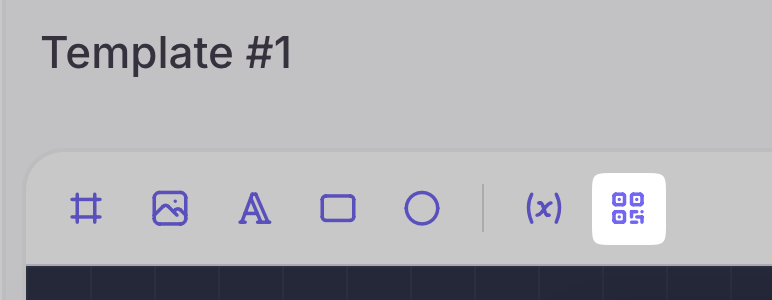
In the settings of this element, you can:
- change the dot style;
- choose the color mode (solid or gradient);
- upload a logo to display in the center of the QR code.
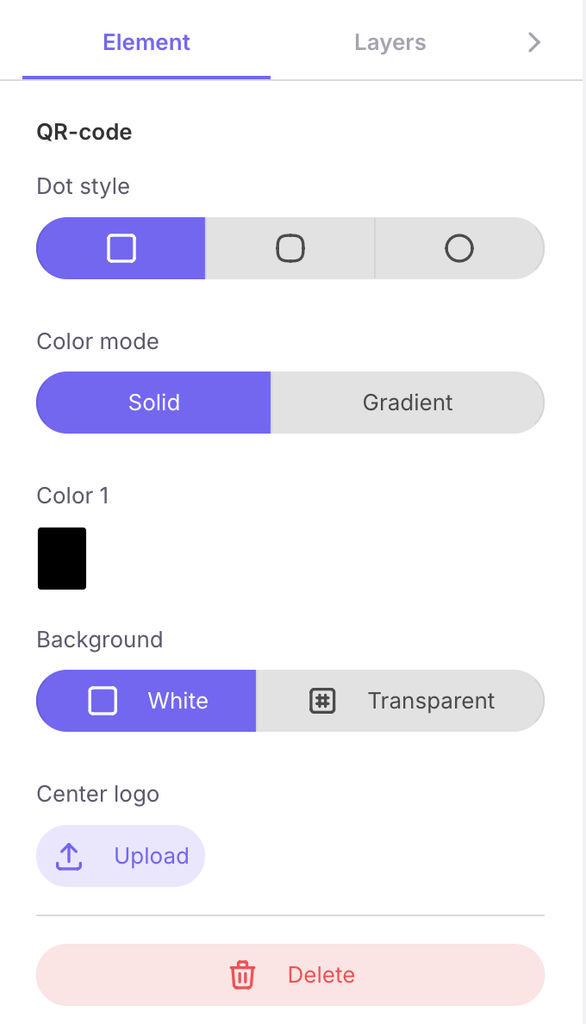
5. Layout and alignment tools
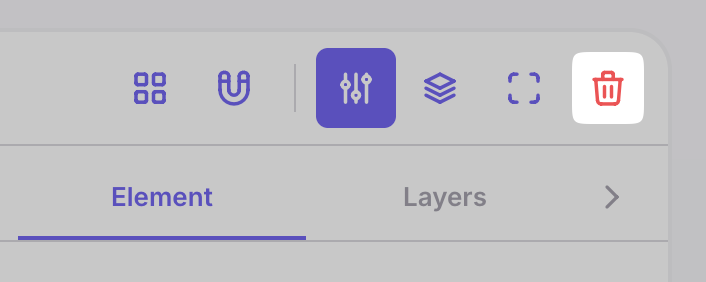
- Alignment. A special tool for symmetrical placement of objects. For example, an added logo can be automatically aligned exactly in the center of the document.

- Show grid. The button activates guide lines over the layout. The grid has a snap-to-grid function for objects, which helps to position and align all elements as accurately as possible.
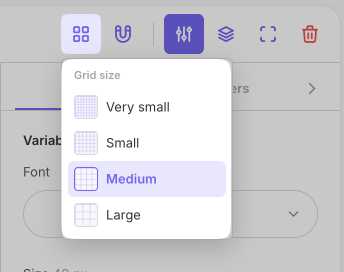
- Clear layout. Completely removes all added elements from the editing field. Attention: the editor does not have an undo function (Ctrl+Z). Clearing the layout and deleting elements cannot be undone, so we recommend saving the template before making major changes.
6. Preview and test issue
Next to the save button is the “Preview” button. It shows the certificate with sample values for each variable, allowing you to visually evaluate the final display of all layers.
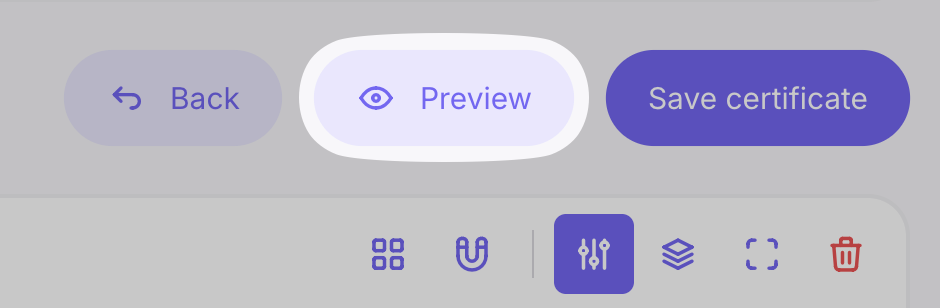
From there, you can also make a test issue (free): the certificate will be generated with a “TEST – NOT VALID” watermark, and tokens are not deducted. A test certificate is marked as invalid on the verification page. The limit for such issues is 20 per day.

When the design is finished and all variables are placed in their correct locations, click the “Save certificate” button. Your template will be saved in the general list. It is now completely ready for use and will remain available for further editing.


 Book a demo call right now!