

Sender
A section for configuring sending parameters. Here, you connect your corporate email (domain) and configure how your company details are displayed in emails.
1. Connecting your own domain
To send certificates via email, you need to connect and verify your own domain (e.g., certificates@yourschool.com). Email campaigns are unavailable without a verified domain. Issuance via links and the API works even without a domain.
Import from Softbook LMS. If you have a school on Softbook and the sender domain is already verified there, you can import it in one click without reconfiguring DNS.
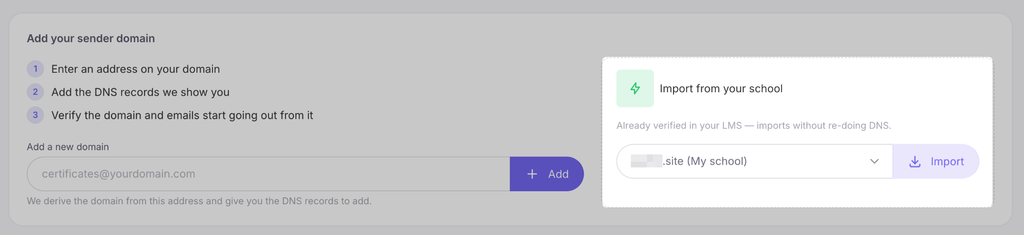
The school’s email and sender name are imported along with the domain.

If you are connecting a domain from scratch:
- In the “Add your sender domain” block, enter the desired email address with your corporate domain in the corresponding field and click the purple + Add button.
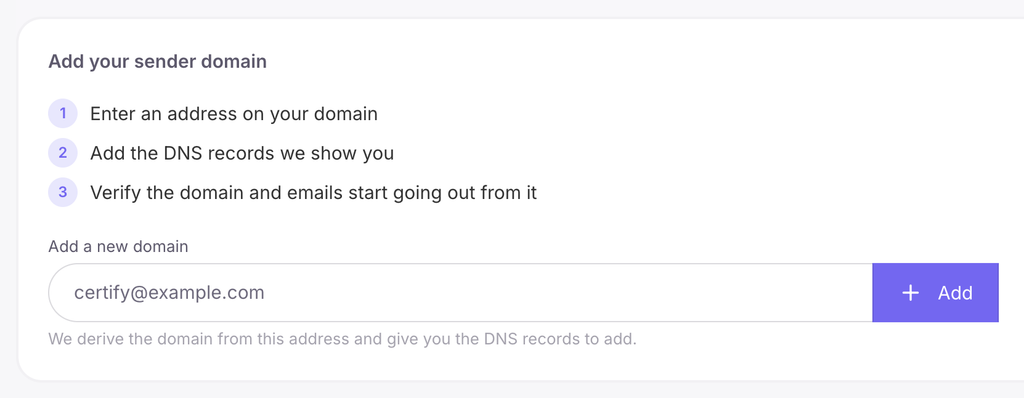
- A new page will open with DNS record settings (while waiting, the domain will have the “Awaiting DNS” status). The system will automatically generate unique records that you need to add on the side of your hosting provider or domain registrar:
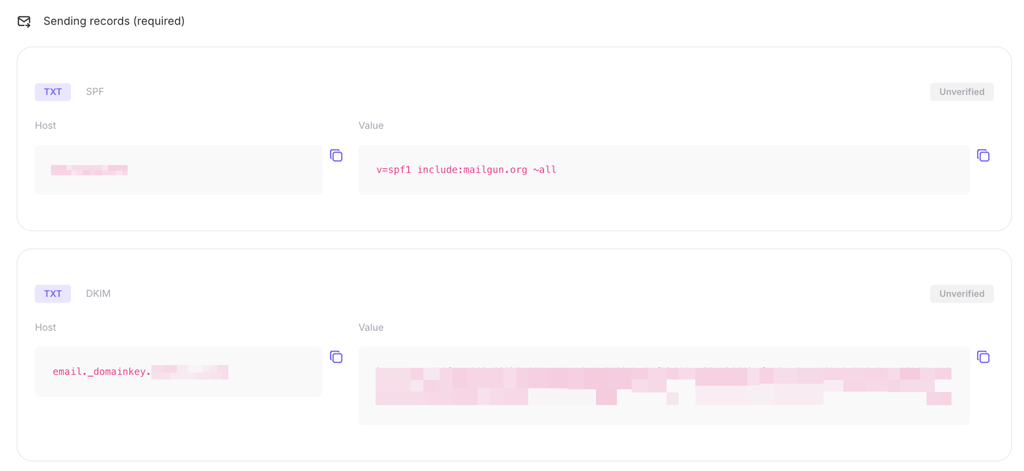
- Sending records (mandatory): two TXT records (SPF and DKIM). These are required to confirm that you actually own the domain and ensure your emails don’t end up in spam.
- Tracking record (recommended): a CNAME record that allows you to accurately track email open statistics.
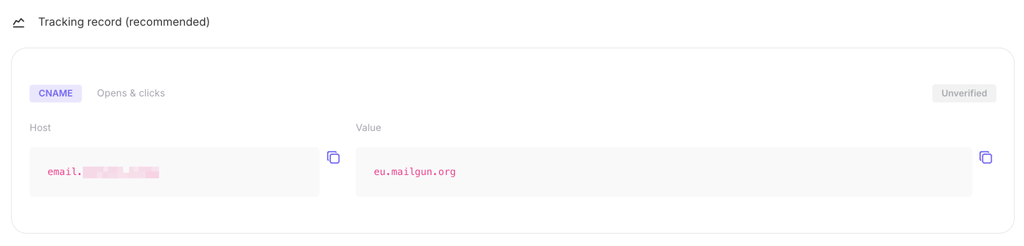
- Copy the values from the Host and Value fields using the copy icons on the right and paste them into your domain management panel.
- After saving the records with your registrar, return to Certify and click the purple Verify DNS button at the bottom of the page.
Please note: DNS record updates can take anywhere from a few minutes to 24 hours. After successful verification, the domain status will update, and the email campaign feature will become available.
2. Sender settings
On this same page, you can also configure additional parameters:
- Sender name: enter the name of your company or school. This is the exact text the student will see in their inbox in the “From” field.

- Timezone: select your timezone from the drop-down list (Europe/Kyiv is set by default). This setting ensures that certificate receipt dates are recorded and displayed on the document according to your local time.

After making any changes in this block, be sure to click the Save settings button.



 Book a demo call right now!