


Tasks
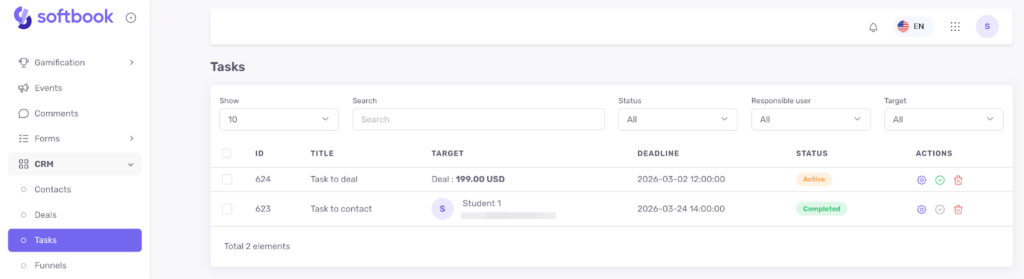
The Tasks section is designed to manage and monitor work with contacts and deals in your online school’s CRM system. It displays all tasks created from contact and deal cards.
A task can be created in a contact card or a deal card.
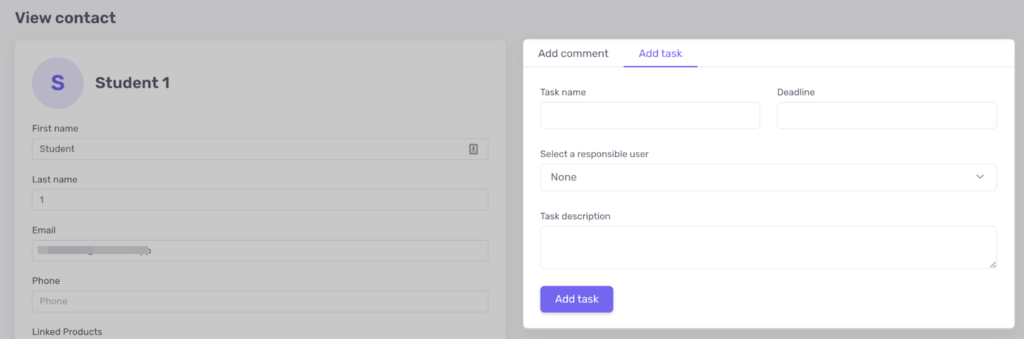
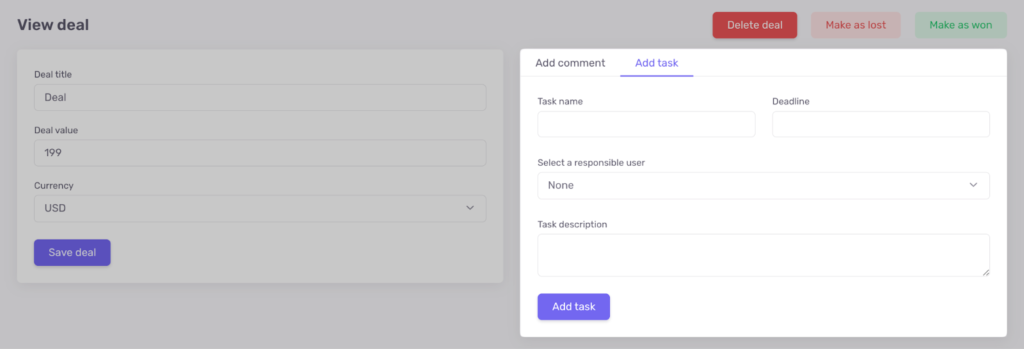
When creating a task, you must specify:
- Task name
- Deadline
- Description
- Responsible user
When creating a task, you can leave it unassigned, assign it to yourself, or assign it to a specific team member — an administrator or instructor. Unassigned tasks are displayed according to CRM user access permissions.
In the Tasks section, all entries are displayed in a table showing:
- Task name
- Target — the contact or deal linked to the task
- Deadline
- Status
If the task is linked to a deal, the target displays the amount and currency. If linked to a contact — the name and email.
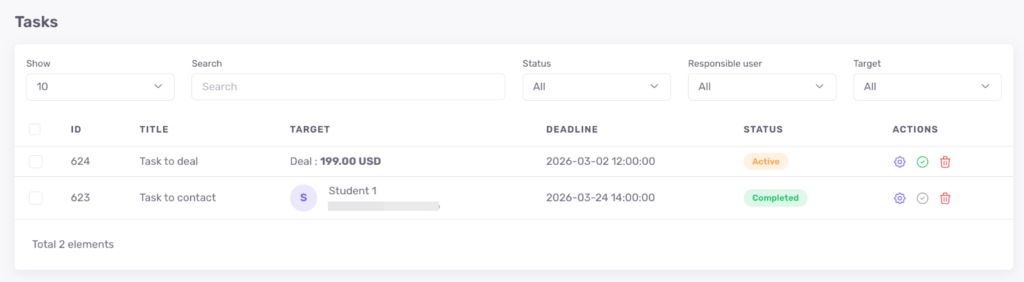
The system provides the following task statuses:
- Active
- Completed
- Overdue
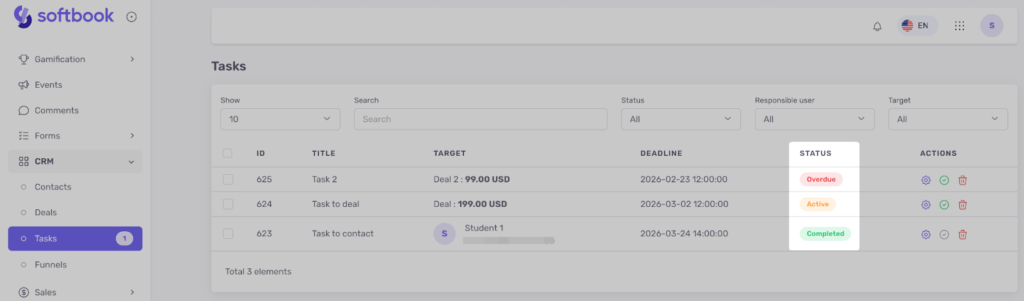
The Overdue status is assigned automatically when the deadline has passed.
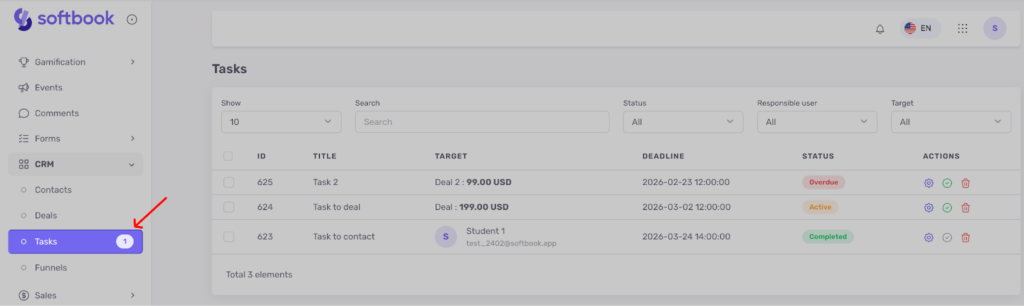
Next to the Tasks subsection, an indicator shows the number of overdue tasks.
The Tasks section also includes search by task name, contact name or email, filters by status, responsible user, and target type (Contacts or Deals).
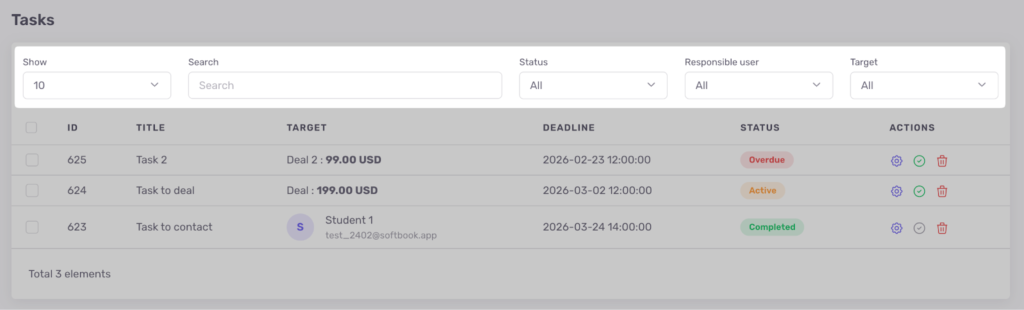
When selecting Active, overdue tasks are also displayed.
When selecting Overdue, only overdue tasks are shown.
The following actions are available in the task table:
- Complete task
- Edit
- Delete
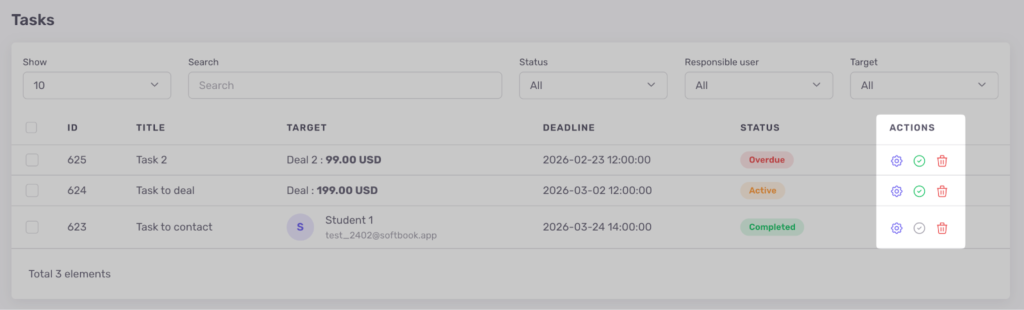
When completing a task, you must specify the result. After that, the task changes to Completed status.
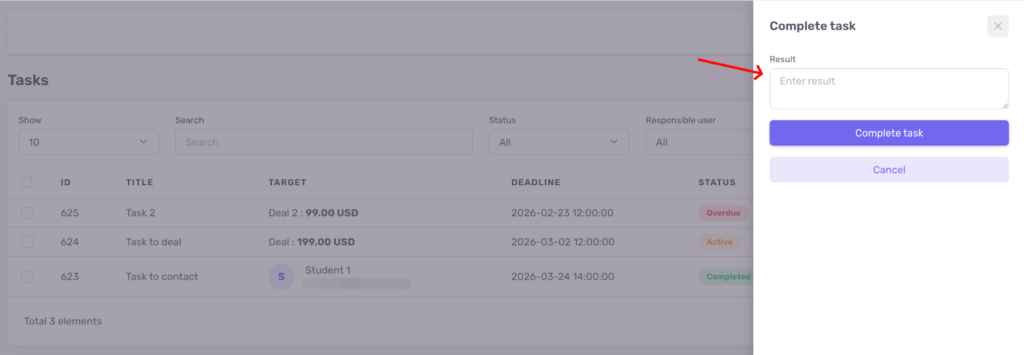
A completed task cannot be completed again, but it can be edited or deleted.



 Book a demo call right now!