

- How to create course on Softbook
- Creating a course with AI
- Setting up a course
- Creating a module
- Filling a lesson with content
- Changing the order of blocks in the lesson
- Creating testing
- Creating homework
- Learning paths
- Adding students
- Adding students using API
- Student groups
- Homeworks
- Certificates
- Plans
- Announcements
- Schedules
- Feedback
- Accesses
- Comments
- Video protection
- Content protection
- Mobile app for the school team
- General settings
- Email Settings
- Domain Settings
- Dashboards
- Webhooks
- Custom fields
- API
- Branding
- Notifications
- AI Connector
- Overview
- Education
- CRM
- Sales
- Team Actions
- Course Analytics
- Lesson Analytics
- Testing statistics
- Mobile app for the school team
Settings
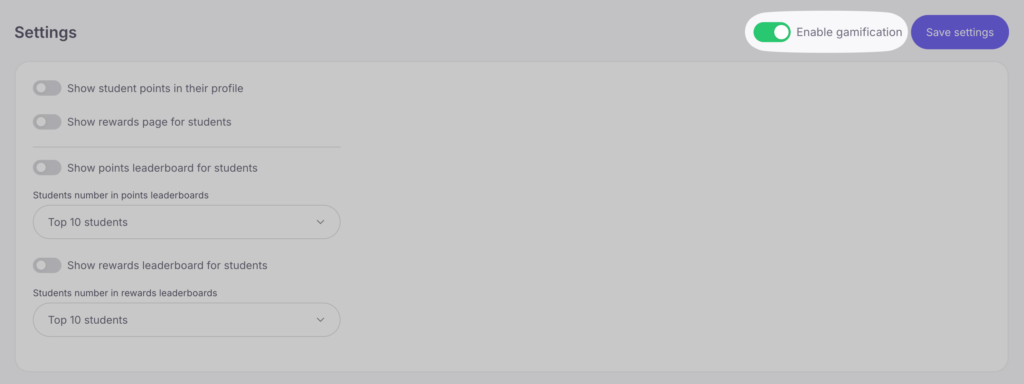
To make gamification features available in your school, enable the “Enable gamification” toggle and click “Save settings”.
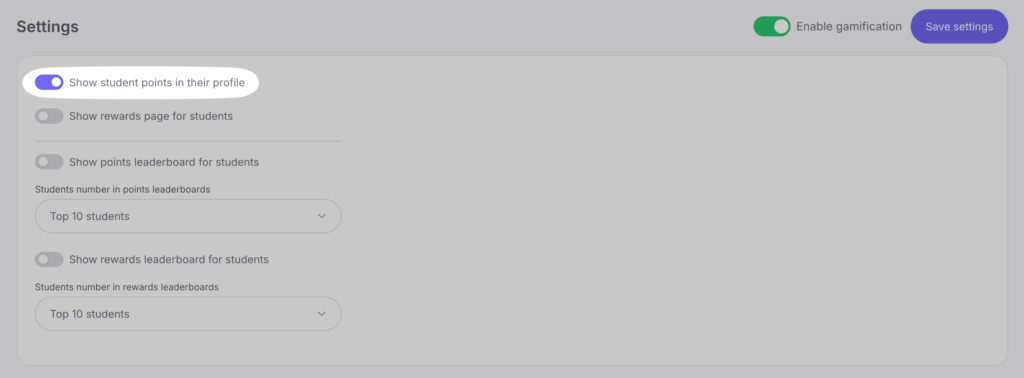
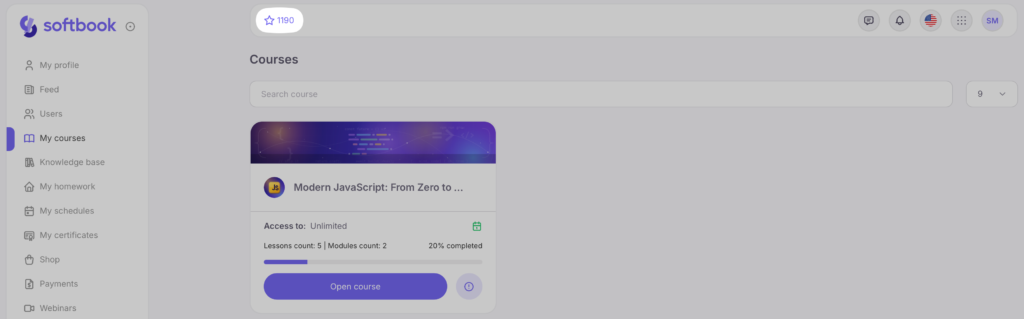
Show student points on their profile — if you enable this option, a small icon showing the student’s earned points will appear on their main dashboard.
Here’s how it looks from the student’s side:
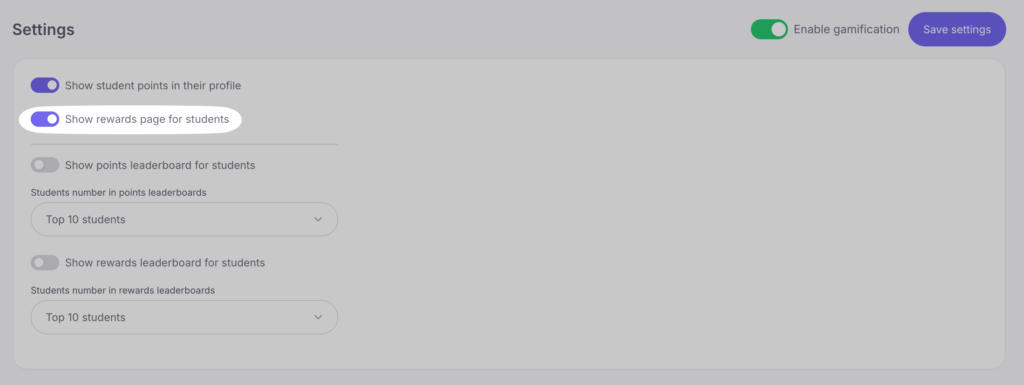
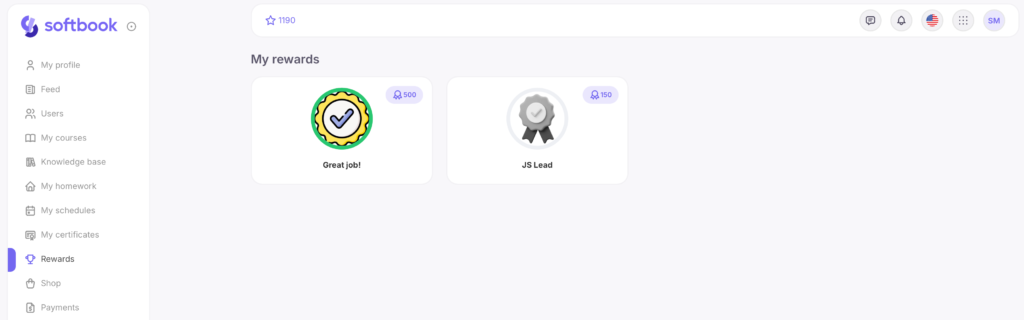
Show rewards page for students — if you enable this setting, a “Rewards” section will appear in the student profile, where they can view available rewards.
Here’s how it looks from the student’s side:
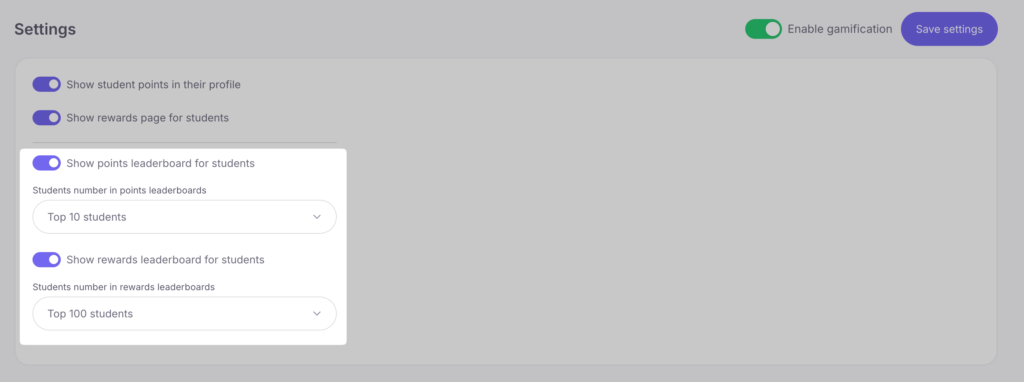
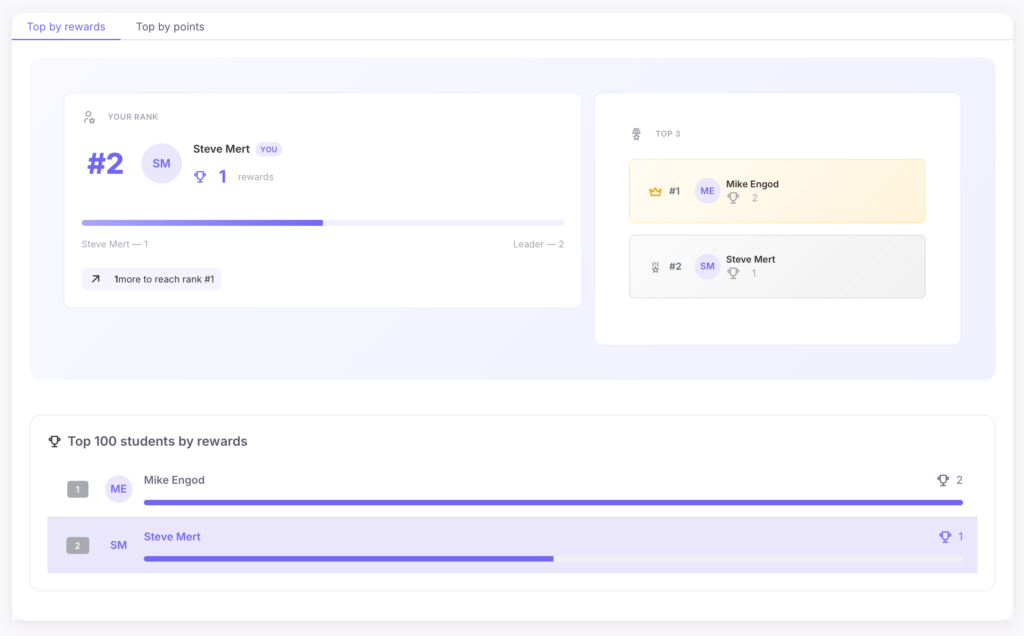
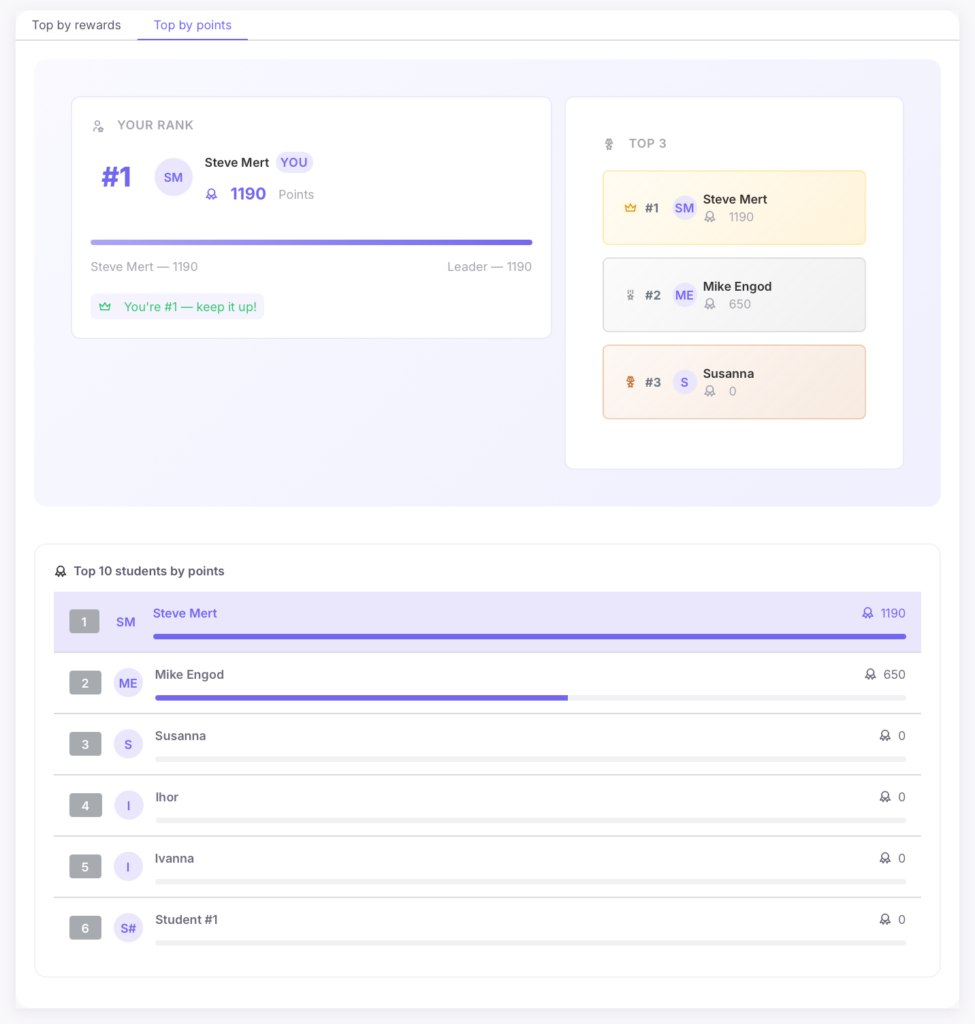
Show points leaderboard for students, Show rewards leaderboard for students — if you turn on these toggles, a “Leaderboards” section will appear in the student interface, displaying student rankings by points and/or rewards.
You can also choose how many students will appear in the list (Top-10, Top-25, Top-50, etc.).
Here’s how it looks from the student’s side:



 Book a demo call right now!