


Creating testing
21.06.2023
Let’s move on to the next stage – testing. Like the others, this block has a main part for editing and key options for setting up:
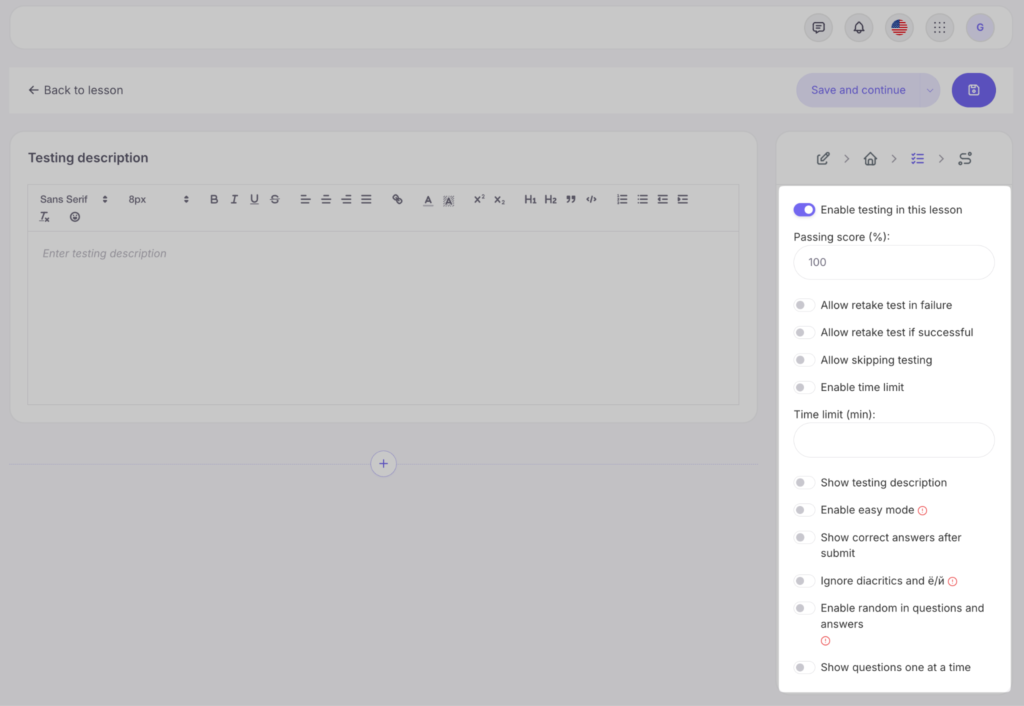
- Enable testing in this lesson – enable if a test is planned in the lesson.
- Passing score – set the number of correct answers as a percentage for the system to pass the test for the student (50% – half, 100% – all) and allow them to proceed.
- Allow retake test in failure – if the student fails the test, they can retake it multiple times.
- Allow retake test if successful – for those who like to beat their own records.
- Allow skipping the test – allows the student to complete the lesson and move on to the next lesson without taking the test.
- Enable time limit – a limit on taking the test in minutes.
- Show testing description – data about the test for students: number of questions, passing score, is there a time limit.
- Enable simplified mode – if the test has several correct answers, the student’s answer will be counted if it contains at least one correct option.
- Show correct answers after submit – a parameter that shows the answer options chosen by the student and the correct options after the test is completed.
- Ignore diacritics and ё/й – when enabled, Café = Cafe, and ёлка = елка. Very useful for language courses where the meaning matters more than the keyboard layout.
- Enable random in questions and answers – enables random order. Important: drag-and-drop tasks (ordering, matching, spelling, categorization) are always shuffled automatically for each student. Other question types are shuffled only when this option is enabled.
- Show questions one at a time – changes the interface so the student sees only one question at a time, with a progress indicator displayed at the top of the screen.
For most question types, the general principle is the same: enter the question text in the appropriate field, add answer options, and mark the correct answer (or answers).
Explanations can be added to both correct and incorrect answer options, which will be shown to students during the test.
Below is a list of available question types:
- Single correct answer. A classic choice format: the student sees a list and can select only one option.
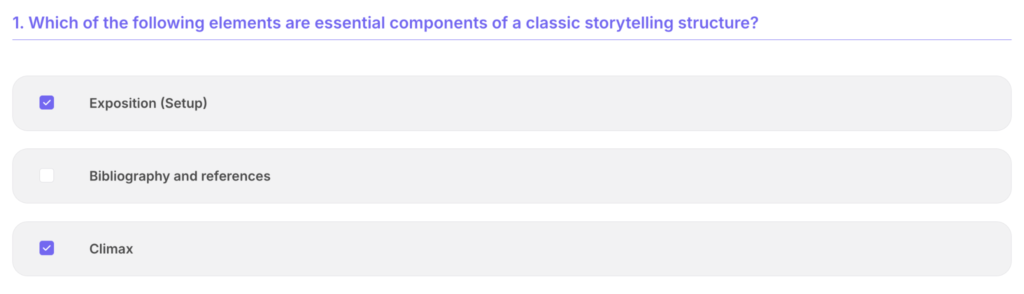
- Multiple correct answers. The student selects the correct options. The system will accept the answer if all correct options are selected and no extra ones are chosen.
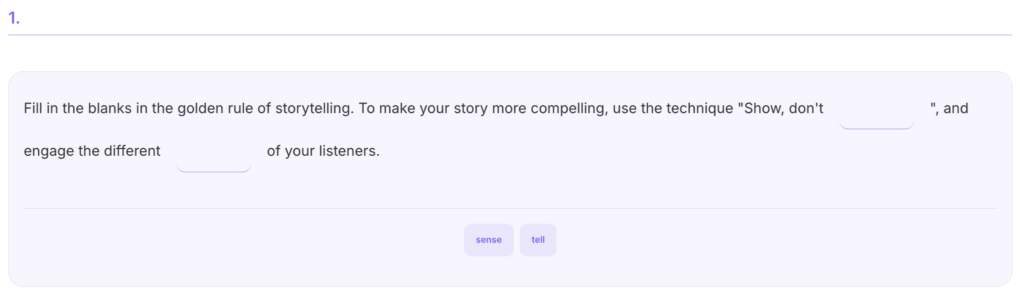
- Fill in the blanks. The student drags words from the “word bank” into empty sentence fields. Synonyms can be specified inside the blank using | (for example: color|colour|цвет), and distractor words can be added to the word bank.
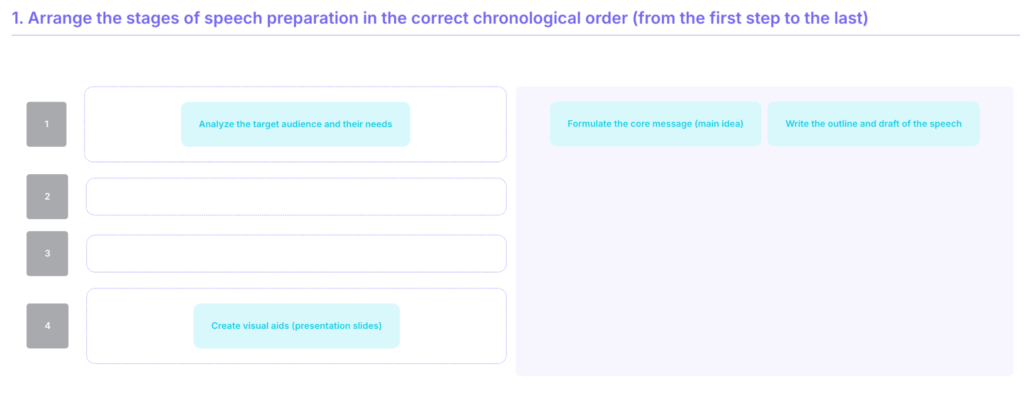
- Order / Sorting. The student drags cards (process steps, dates, words) from top to bottom into the correct sequence.
- Matching. The student matches concepts from the left column with definitions in the right column. Identical values can be repeated (for example, “verb” for three different terms).
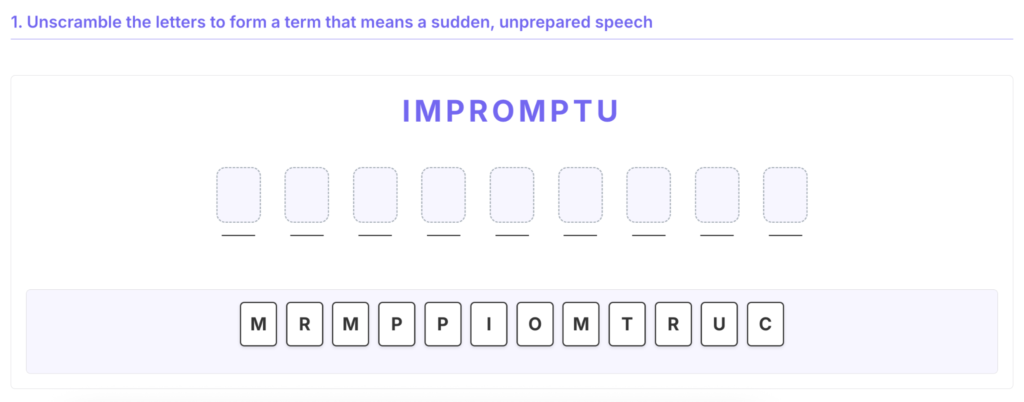
- Write the word. The student builds a word from shuffled letters by dragging them into empty fields. Distractor letters can be added for increased difficulty.
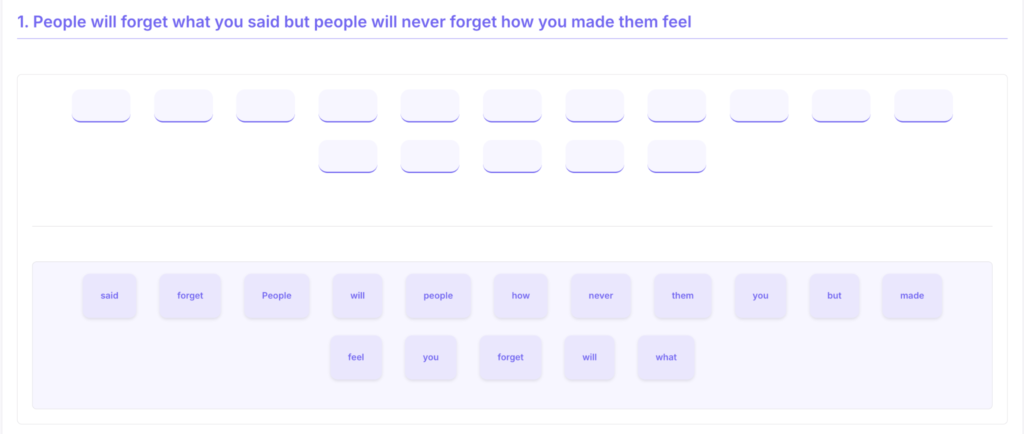
- Sentence builder. The student builds a sentence from shuffled words. The system automatically splits the reference phrase into tiles. Punctuation marks are ignored.
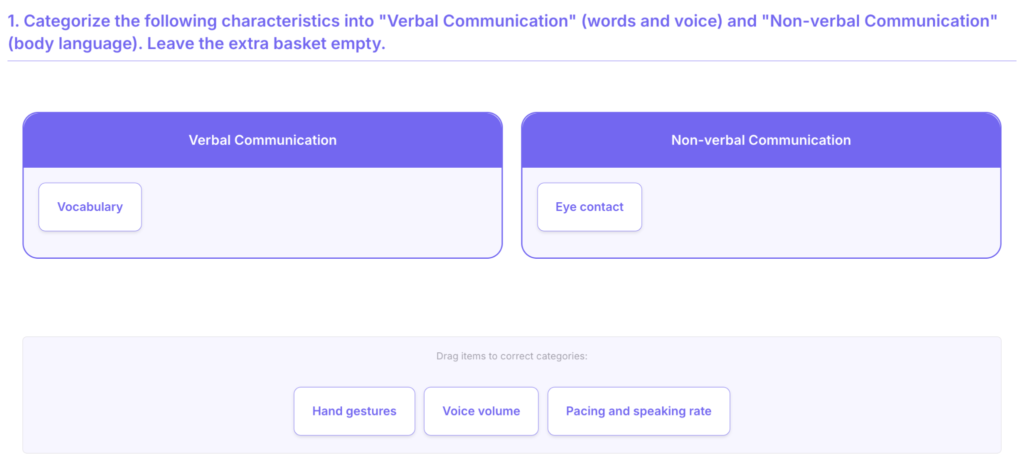
- Categorization. The student distributes tiles across several categories (baskets). An empty category can serve as a “trap” to test knowledge.
When you’ve finalized all the test questions with answer options click “Save and Continue”. Congratulations, the lesson has been created!



 Book a demo call right now!