

Social
Education
- How to create course on Softbook
- Creating a course with AI
- Setting up a course
- Creating a module
- Filling a lesson with content
- Changing the order of blocks in the lesson
- Creating testing
- Creating homework
- Learning paths
- Adding students
- Adding students using API
- Student groups
- Homeworks
- Certificates
- Plans
- Announcements
- Schedules
- Feedback
- Accesses
- Comments
- Video protection
- Content protection
- Mobile app for the school team
Gamification
Knowledgebase
Webinars
Forms
Automations
Marketing
CRM
Sales
Tickets
Settings
- General settings
- Email Settings
- Domain Settings
- Dashboards
- Webhooks
- Custom fields
- API
- Branding
- Notifications
- AI Connector
Analytics
- Overview
- Education
- CRM
- Sales
- Team Actions
- Course Analytics
- Lesson Analytics
- Testing statistics
- Mobile app for the school team
My team
Softbook Store
Zoom integration
27.04.2023
If you want to integrate Zoom with your online school to host webinars and virtual meetings, just follow these simple steps.
1. Go to the Softbook Store section in the side menu of your platform.
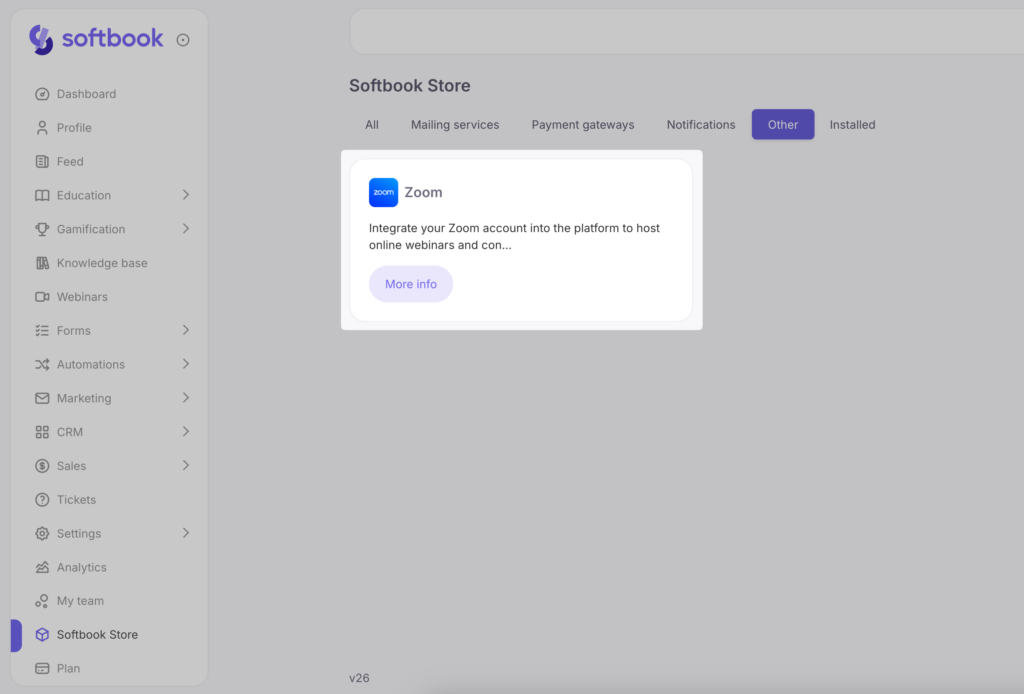
2. On the Zoom card, click More Information, then click Install.
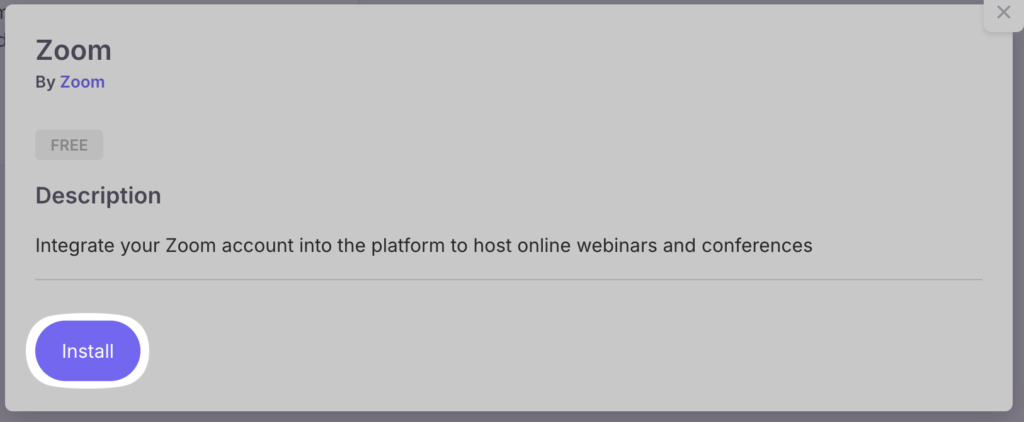
Once the installation is complete, you’ll need to connect your Zoom account:
1. Click Connect.

2. You’ll be redirected to the Zoom authorization page. If you’re already logged into your Zoom account, you can continue without signing in again.
3. On the access permissions page, check the box Allow this app to use my shared access permissions, then click Allow to complete the integration.
All set! Your Zoom account is now successfully integrated with the Softbook LMS.



 Book a demo call right now!