


- Mobile app for the school team
- Creating a course with AI
- How to create course on Softbook
- Setting up a course
- Filling a lesson with content
- Creating homework
- Creating testing
- Changing the order of blocks in the lesson
- Creating a module
- Adding students
- Adding students using API
- Student groups
- Homeworks
- Certificates
- Plans
- Announcements
- Schedules
- Feedback
- Accesses
- Comments
- Video protection
- Content protection
- General settings
- Domain Settings
- Email Settings
- Dashboards
- Webhooks
- Custom fields
- API
- Branding
- Notifications
- Mobile app for the school team
- Overview
- Education
- CRM
- Sales
- Team Actions
- Course Analytics
- Lesson Analytics
- Testing statistics
Course Analytics
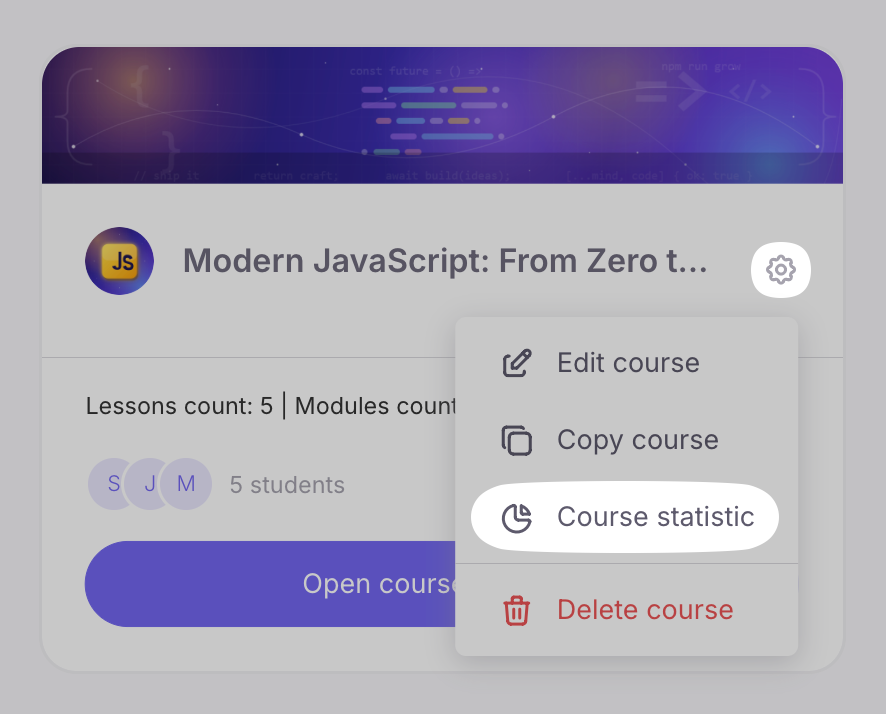
To see analytics for a specific course, go to the “Courses” section. A page with course cards will open. Select the desired course and click on the gear icon in the upper right corner of its card. A list of available functions will open. Find the “Course Statistics” item among them.
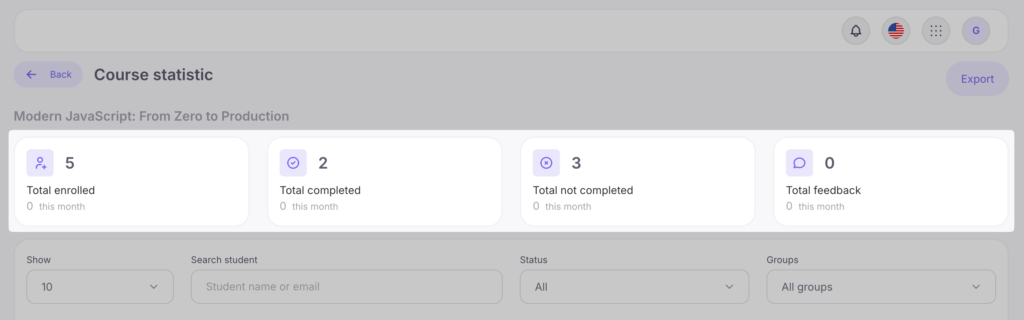
The statistics page will open. At the top of the screen, below the course title, you will find quick analytics cards. They allow you to instantly assess overall performance and contain the following information (with additional statistics displayed for the current month):
- Total Enrolled — the total number of students who have been granted access to the course.
- Total Completed — the number of students who have fully completed the course.
- Total Not Completed — the number of students who are still in the learning process or have stopped progressing.
- Total Reviews — the total number of reviews submitted by students for this course.
Below the analytics cards, there is a detailed list of students enrolled in the course.
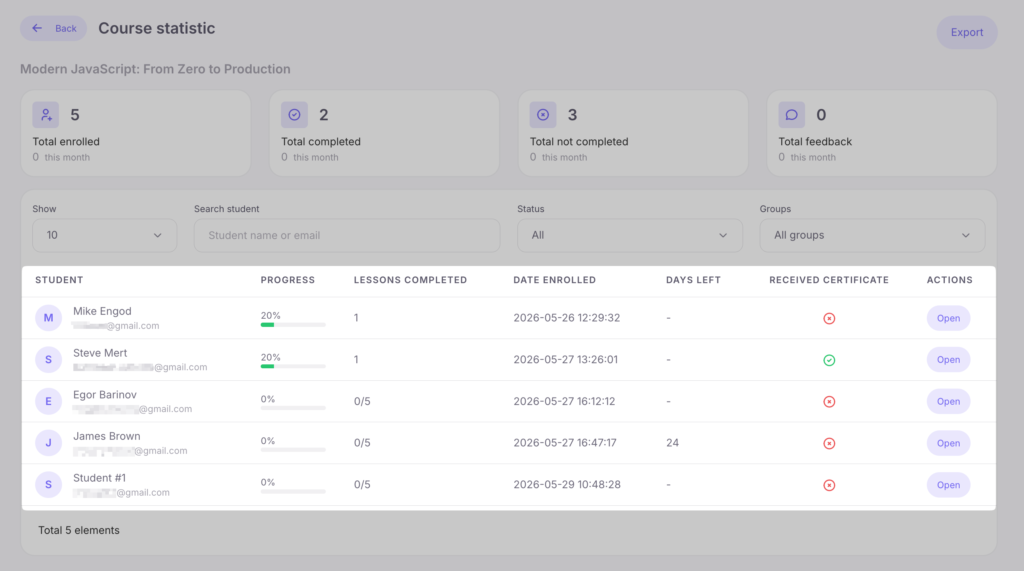
Next to each student’s name are data on their progress, the number of completed lessons, the enrollment date, number of days of course access, and whether they received a certificate. Students can also be filtered by the following parameters: all, completed the course, in progress, received a certificate, groups.
Any filtered data can be exported to a CSV file and downloaded.



 Book a demo call right now!