

Branding
In the “Settings” section, there is a subsection called “Branding” where you can replace the default Softbook LMS logo with the logo of your online school, customize its display and upload a school icon. Also in this section you can change the default platform colors to your own.
Logo and icon
The logo can be made either single-part or two-part. A single-part logo consists of a single element, while a two-part logo consists of two separate parts. If a single-part logo is set above the toolbar, it will be hidden when the toolbar is collapsed.
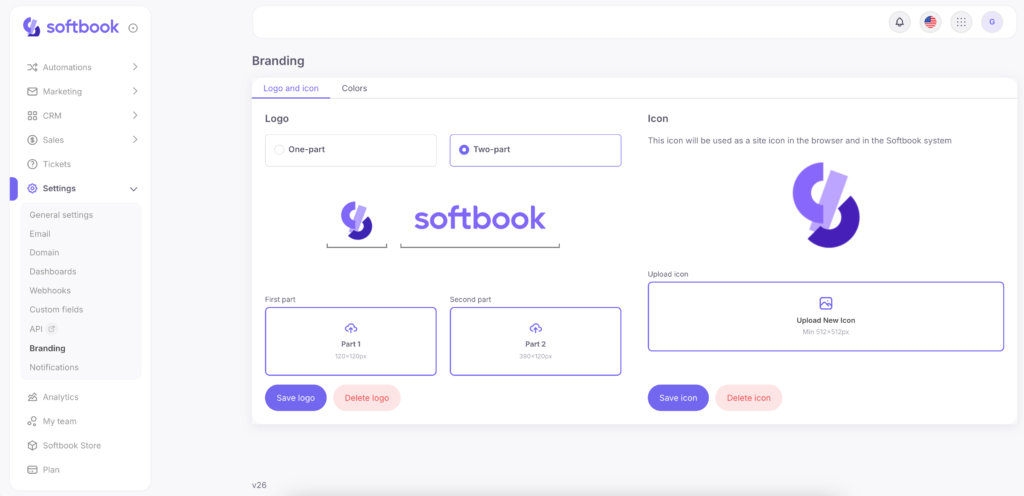
If a two-part logo is set, the shorter part of the logo will be displayed above the toolbar when it is collapsed. Knowing these options, you can prepare an image that best suits your online school.
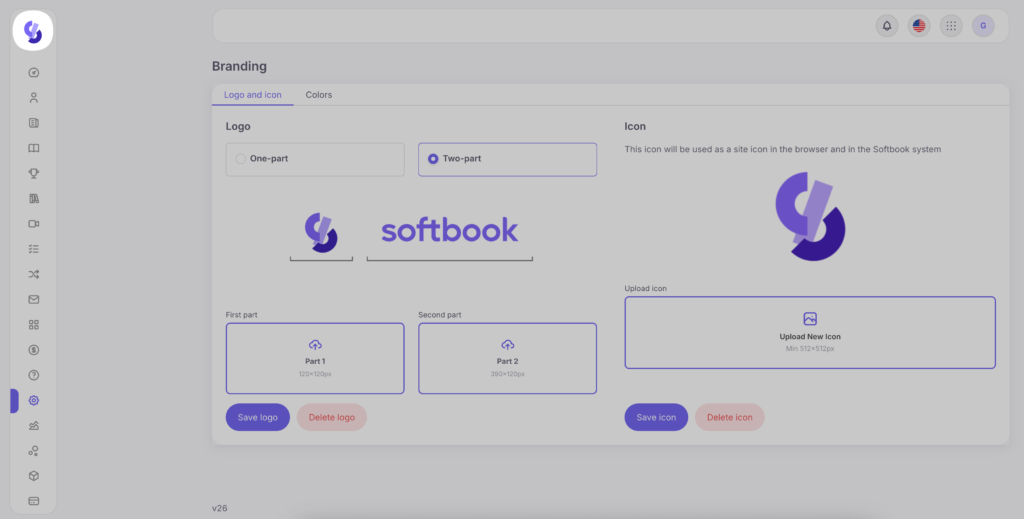
The online school icon is a favicon, which is the website icon displayed in the browser tab. It is also visible in the list of your online schools in the user account and in the Softbook menu.
Colors
Before changing colors, make sure to upload your online school logo. Once the logo is uploaded, the Colors section will become available.
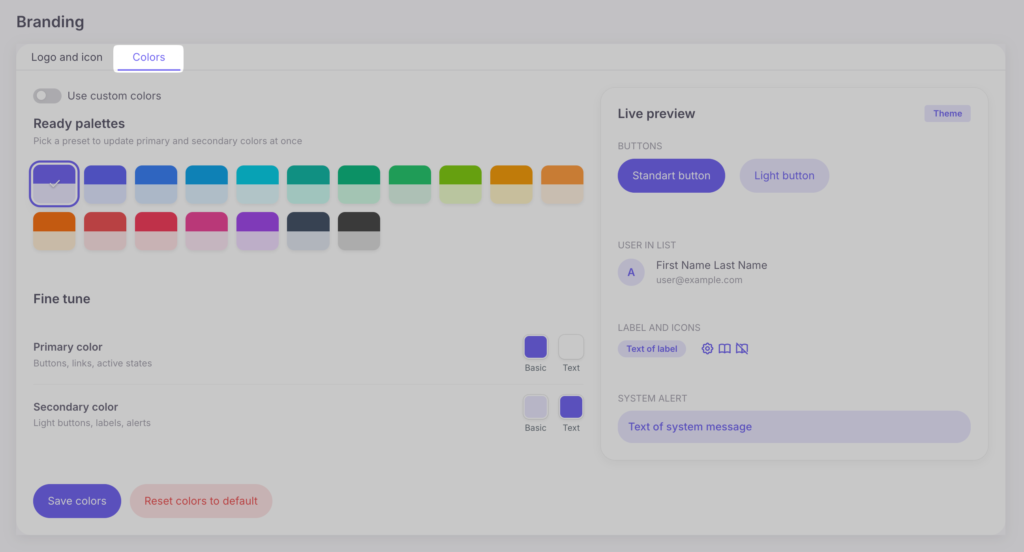
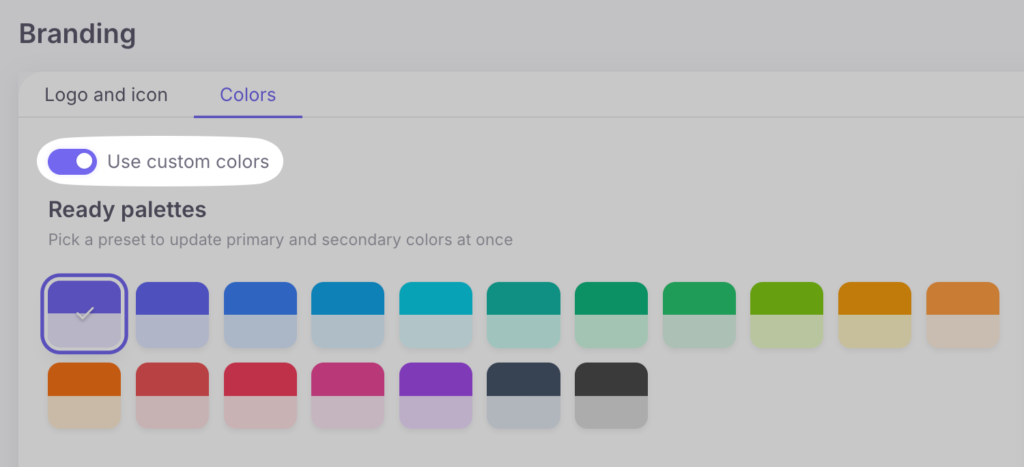
To start configuring the design, enable the “Use Custom Colors” toggle.
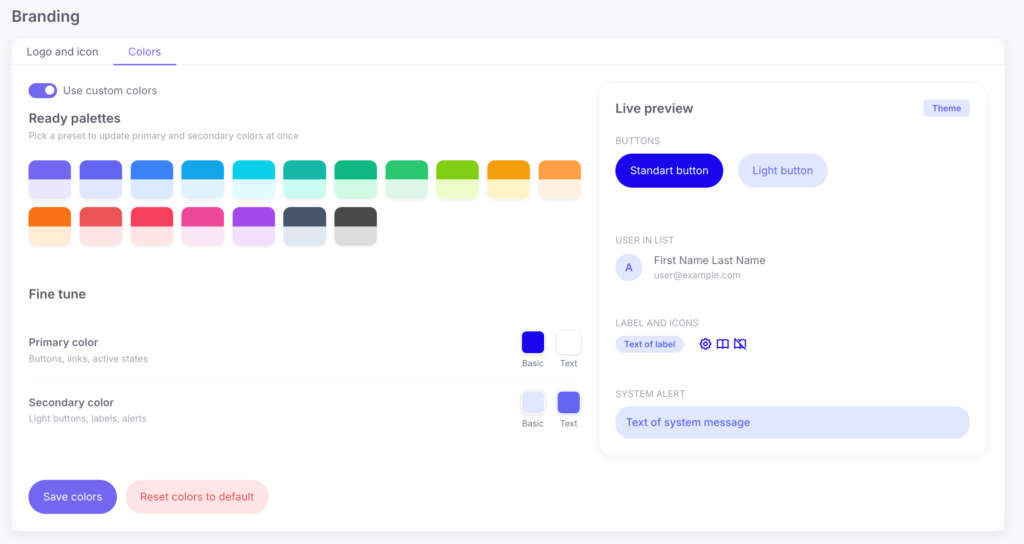
The new interface is divided into convenient sections for working with the design:
- Ready-Made Palettes — a panel with a collection of predefined color presets. Selecting any of them automatically and harmoniously updates the platform’s primary and secondary colors with a single click.
- Advanced Customization — a section for manually selecting colors. Here, you can choose a base color and text color for two categories:
- Primary Color — used for standard buttons, links, and active element states.
- Secondary Color — used for light buttons, labels, and system notifications.
- Preview — a large preview window on the right that displays, in real time, how the updated interface elements (buttons, user appearance in lists, labels, icons, and system notifications) will look using your selected colors.
If needed, you can revert back to the default platform colors. To do this, turn off the “Use custom colors” toggle and click “Save colors”.
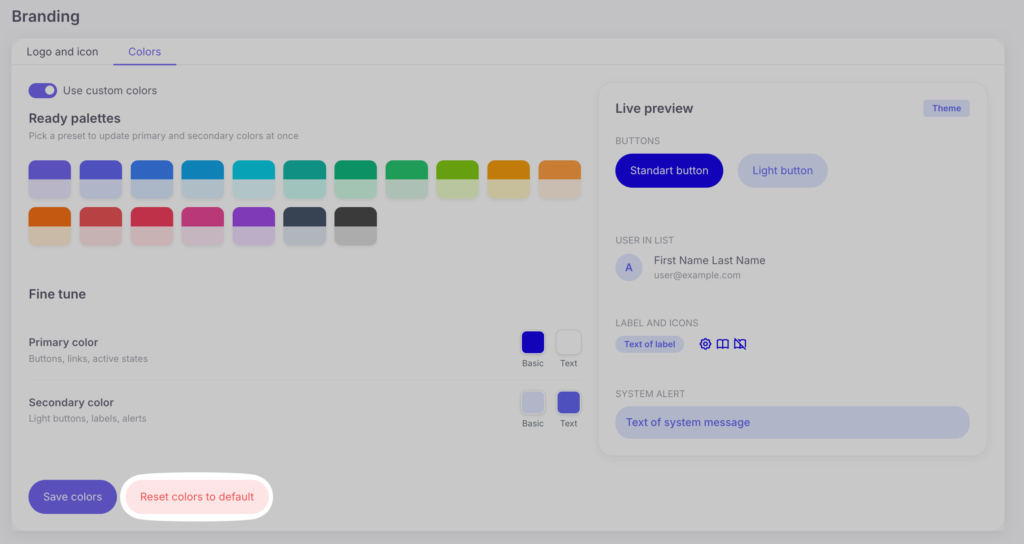
You can also completely reset your custom colors to the standard ones. To do this, click “Reset colors to default”. The system will then “forget” your colors and will not save them.
That’s all 💜 Now you know how to completely change the look of the platform – from logo to colors.



 Book a demo call right now!