

- Mobile app for the school team
- Creating a course with AI
- How to create course on Softbook
- Setting up a course
- Filling a lesson with content
- Creating homework
- Creating testing
- Changing the order of blocks in the lesson
- Creating a module
- Adding students
- Adding students using API
- Student groups
- Homeworks
- Certificates
- Plans
- Announcements
- Schedules
- Feedback
- Accesses
- Comments
- Video protection
- Content protection
- General settings
- Domain Settings
- Email Settings
- Dashboards
- Webhooks
- Custom fields
- API
- Branding
- Notifications
- Mobile app for the school team
- Overview
- Education
- CRM
- Sales
- Team Actions
- Course Analytics
- Lesson Analytics
- Testing statistics
Email Settings
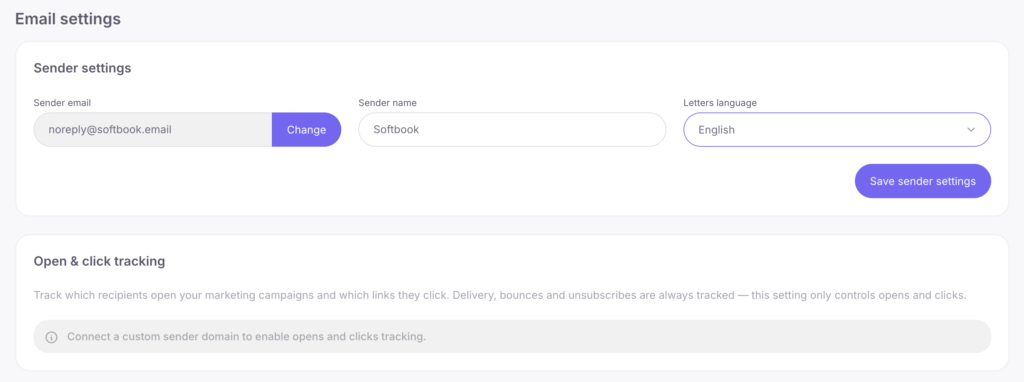
- Sender email – a field with the email address from which service messages are sent (by default, it is noreply@softbook.email).
- Sender Name – a field with the sender’s name for the school’s emails (for example, Softbook Info).
- Language — a setting field for selecting the language. There are 8 available options: English, Ukrainian, Polish, Russian, Spanish, Portuguese, German, and French.
The email address from which your school sends service messages can only be changed to a corporate one. To do this, click the “Change” button next to the “Sender” item.
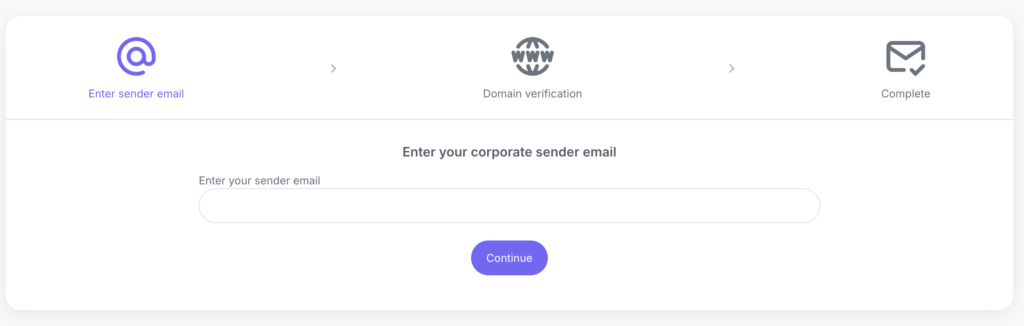
A settings page will open. Enter the new address of your corporate email in the field and click the “Continue” button.
The system will provide a line with instructions on what needs to be done next. Follow the instructions and enter the required data in the appropriate fields.
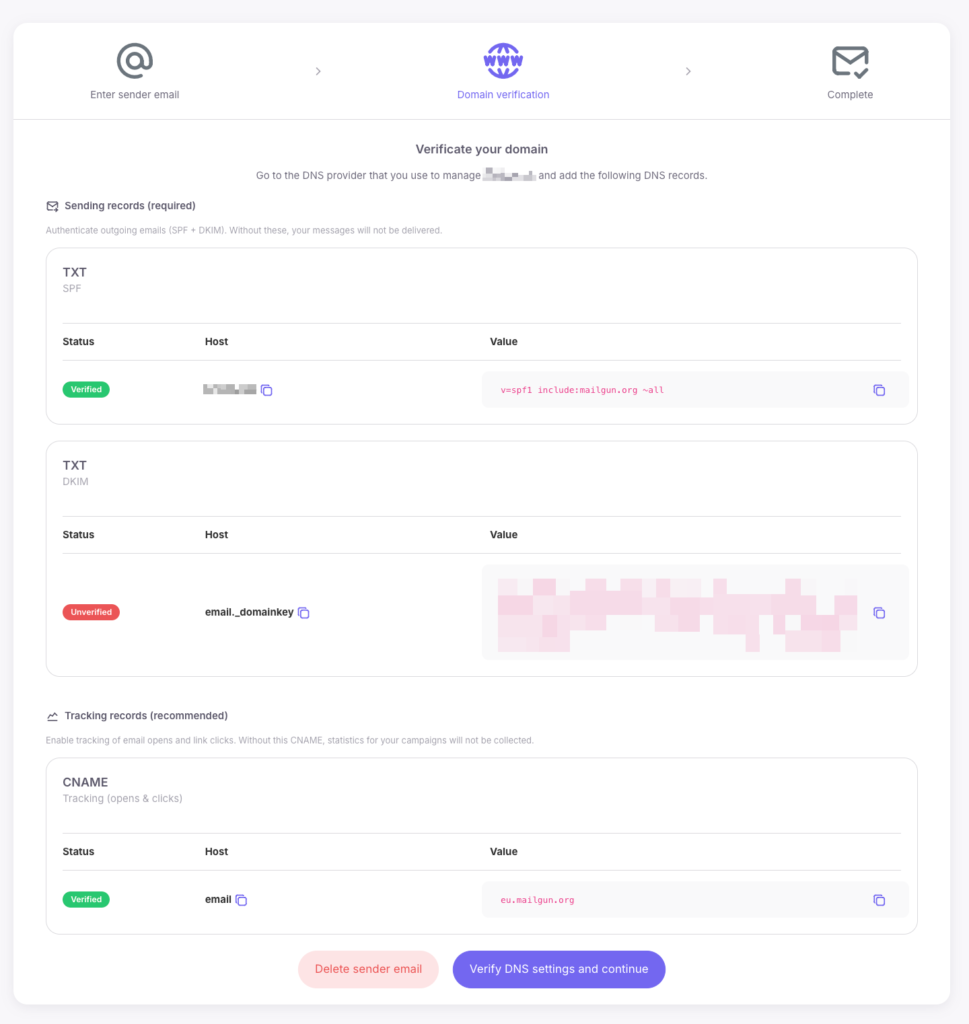
When adding records to your domain’s DNS settings, pay special attention to the “Tracking records” section. Be sure to add it to enable tracking of email opens and link clicks. Without configuring this CNAME record, analytics for your email campaigns will not be collected.
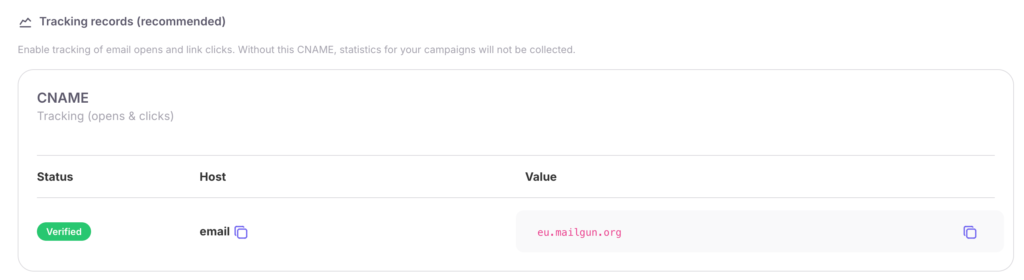
Then click the “Verify DNS Settings and Continue” button. The system will check everything and apply the new email settings.
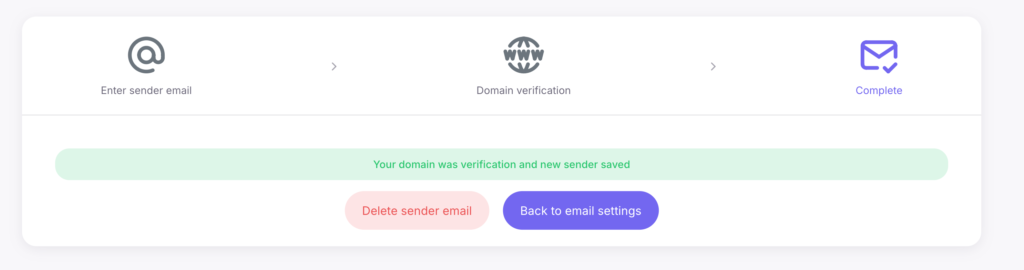
That’s all. Now you know how to add your email to your online school. We wish you productive work on the platform!



 Book a demo call right now!