

Notifications
In the “Settings” section, there is a subsection called “Notifications”. Here you can configure the events for which you will receive notifications either via Telegram or through the LMS notification bell.
You can set up the notification bell right away. There are three sections available where you can activate notifications:
- Learning: Notifications for new homework assignments.
- Sales: Notifications for new orders and newly paid orders.
- Support: Notifications for new inquiries and new messages in inquiries.
Select and activate the desired options, then click the “Save” button.
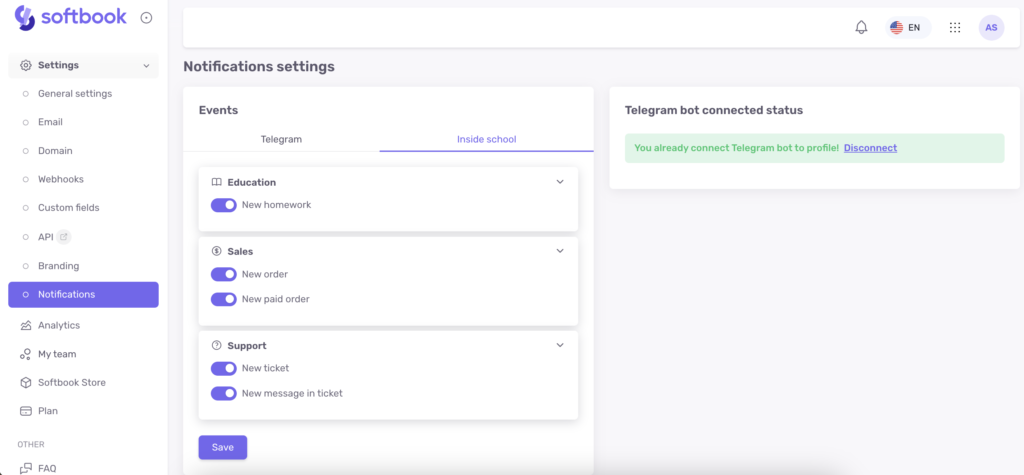
To connect Telegram notifications to your online school, click on the active link “Connect Telegram?” located on the right side of the “Telegram Bot Connection Status” block.
You will be redirected to the Softbook Store page in the “Notifications” section. Click on the “More Information” button on the Telegram Bot card. There you will find instructions for connecting the bot:
1. Create a Telegram bot for your school through @BotFather. Each school can create its own bot, attach its own logo, and configure it to receive notifications for students directly from this Telegram bot on behalf of your school.
2. Copy the bot token provided by @BotFather and paste it into the Telegram app settings in Softbook Store. Enable the app and save the settings.
3. Then return to “Settings” → “Notifications.” In the “Telegram Bot Connection Status” section, click the “Connect Telegram” button. You will be automatically redirected to your bot — click “Start”, and your account will be synchronized with the school.
All other school participants (team members and students) connect notifications in the same way by clicking the “Connect Telegram” button in their personal accounts.
4. After successfully connecting, go to the “Notification Events” → Telegram section to select the events for which you want to receive notifications. Each online school user performs this step independently by enabling the required options in the corresponding subsections. Please note that the available list of events depends on the user’s role in the system:
Education
- New homework assignment
- Student enrolled in a course
- Student removed
- Students imported
- Mass student deletion
CRM
- Contact added
- Contact removed
- Mass contact deletion
- Deal added
- Deal removed
Sales
- New order
- New paid order
Team
- Employee added
Support
- New inquiry
- New message in the inquiry
For example, if you want to receive notifications in your Telegram bot when new orders appear in your school, activate the corresponding option in the Sales subsection and click the “Save” button
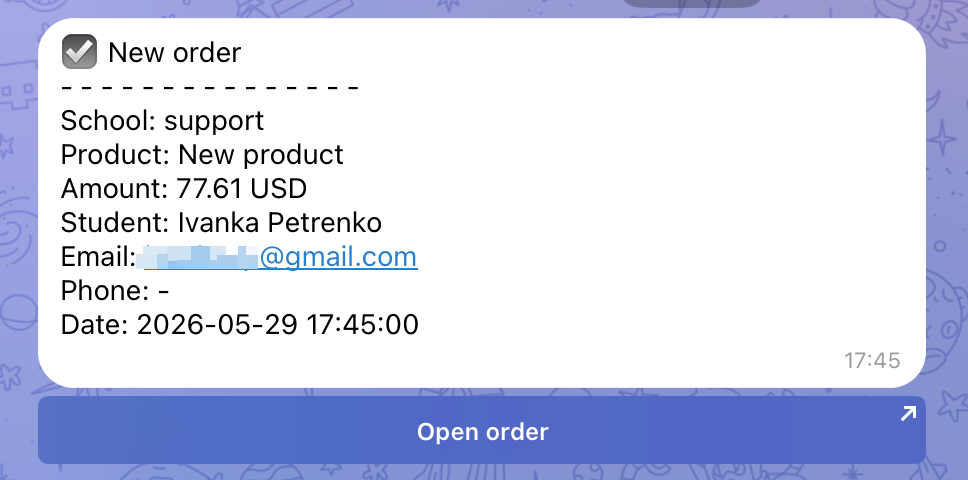
Now, let’s test the notification. Open the page of your product and submit a request there. The bot will immediately send you a notification about the new order, including the following details:
- Payment information
- School name
- Product ordered
- Amount
- Student’s name and contact details
- Date and time of order creation
- “View New Order” button that opens the order card directly in the browser
Important: The school owner has access to the full list of notification settings for monitoring purposes. Other team members such as administrators and instructors have a limited set of notification settings.
Now you know how to set up the necessary notifications to ensure smooth and efficient operation of your school.



 Book a demo call right now!