


Certificates
A certificate is documentary proof that its holder has attended a certain course and has mastered knowledge and skills at a sufficient level. A certain category of people like to take courses just for the sake of another certificate with their name on it. The rest use them as a quick confirmation of their skills. Anyway, if you have already created a course and teach your students, create a small reward for them in the form of a certificate. Sometimes this document can be free advertising for your course in the future.
If you want to give your students certificates for courses completed, follow the instructions on how to create them:
1. Click on the “Education” section, find and open the “certificates” item.
2. On the page that opens, find the “Add certificate” button in the upper right corner.
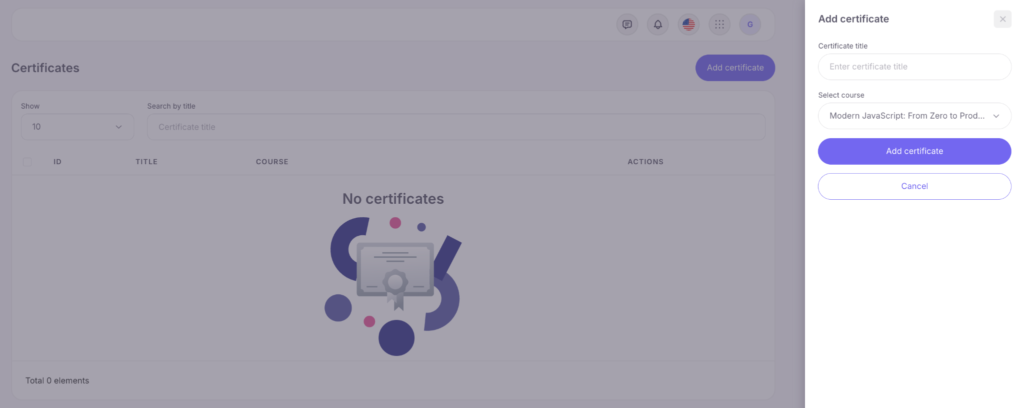
Fill in the fields of the form that opens. Type in the name of the certificate, select the course for which students can receive this certificate (or choose the “Without course (for learning paths)” option if you are creating a template for a learning path), and click on the “Create certificate” button.
3. On the “Edit certificate” page that opens, select the certificate template image you want to use, click the “Select Style” button and set the settings for it:
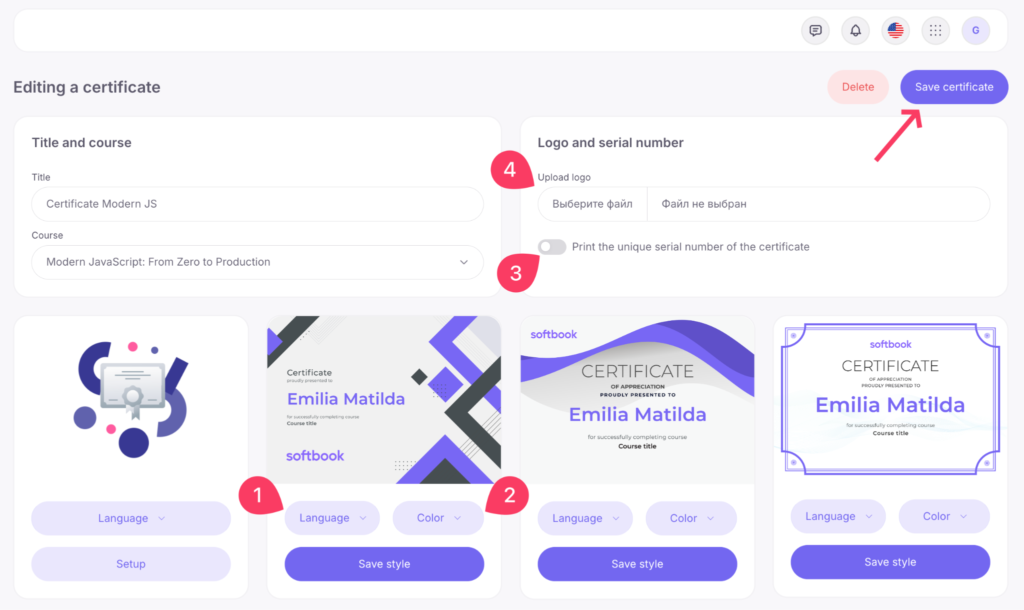
1) Language selection – contains 3 languages: Ukrainian, English and Russian.
2) Select the main color of the template (available only for the first four templates).
In the original certificate, instead of the template name of the student will pull up the real surname and name of the student and the name of the course he/she took, and you have assigned to the course.
3) Activate “Put a unique certificate serial number at the bottom” if you want all certificates in your courses to have it. It can be verified by this number. Students will be able to prove the authenticity of the certificate, that it was produced on the Softbook platform at a particular school.
4) Under “Upload your logo to be automatically placed on the certificate”, upload your school’s logo to turn the certificate into a branded document. The LMS Softbook logo appears on the preview only as a reference point.
When all settings are done, click on the “Save” button.
In addition to templates, a certificate builder is available in the Certificates section. This is a builder where you can create your unique certificate for the course or learning path.
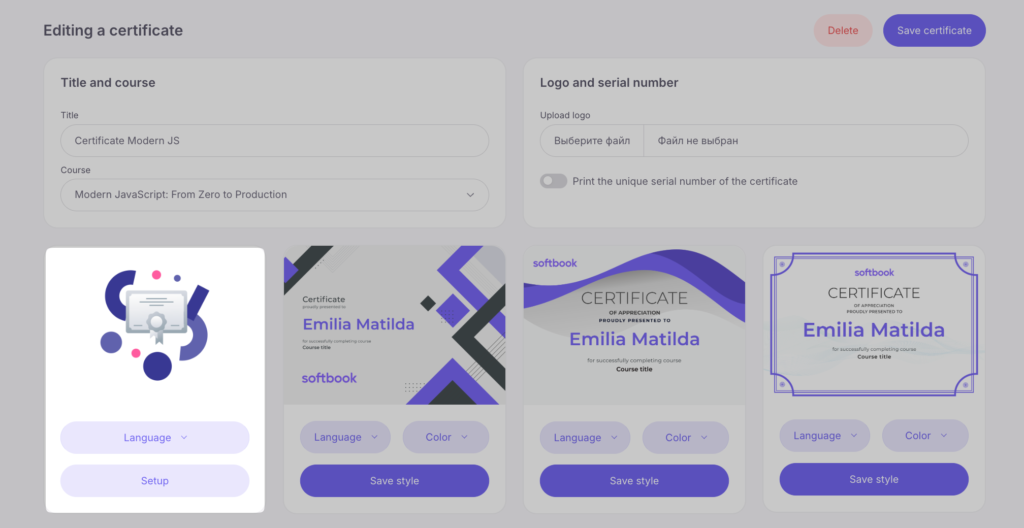
Click on the “Setup” button. You will see the certificate editor page with a workspace.
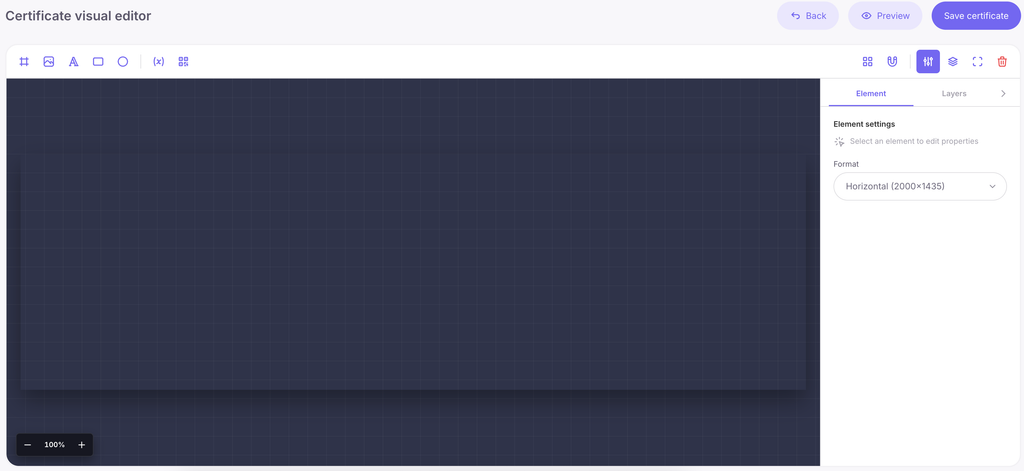
The editor interface:
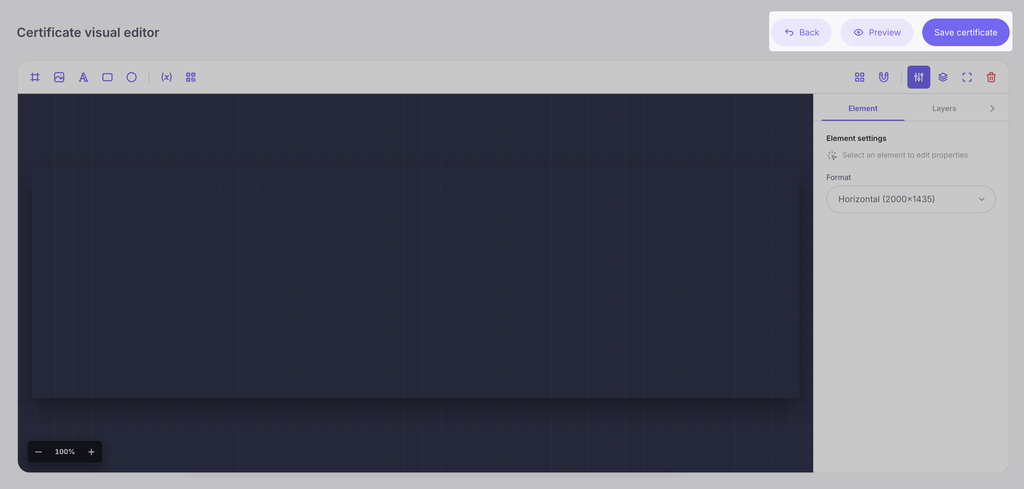
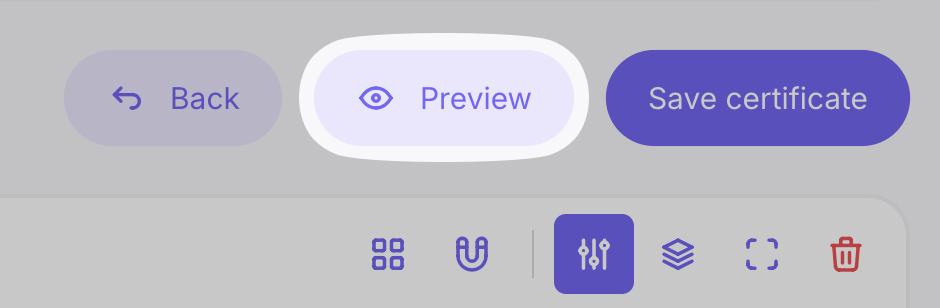
– At the top, there are the “Back”, “Preview”, and “Save certificate” buttons.
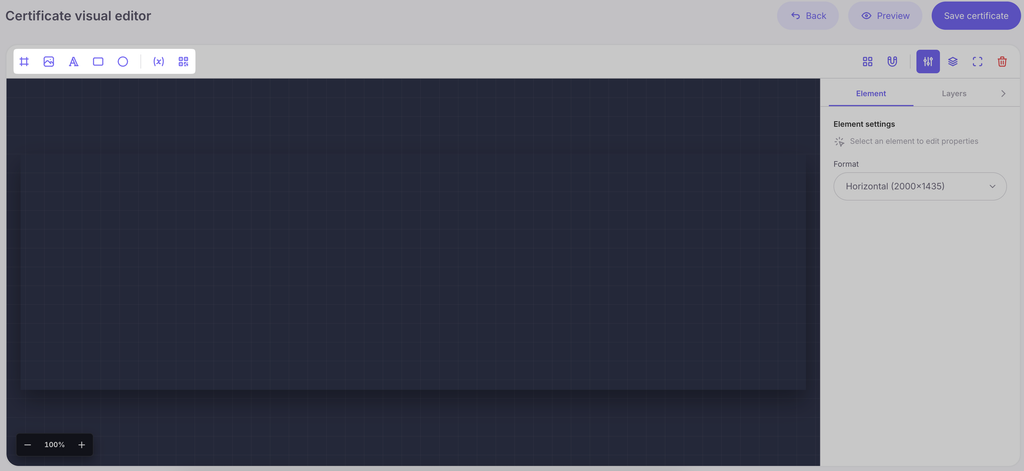
– The toolbar above the workspace contains the buttons: “Add background”, “Add image”, “Add text”, “Add rectangle”, “Add circle”, “Insert variable”, “QR-code”.
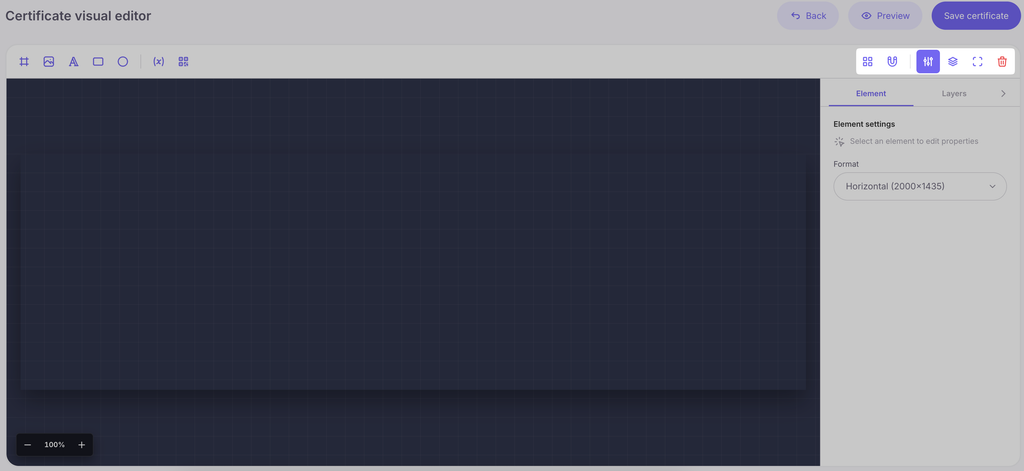
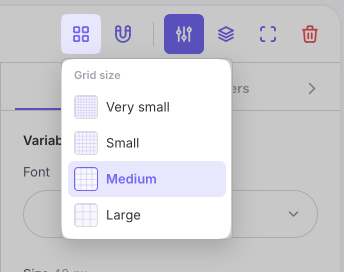
– On the right side of the toolbar, there are the buttons: “Show grid” (with grid size selection), “Snap to grid”, “Element settings”, “Layers”, “Expand editor” (full screen), and “Clear layout”.
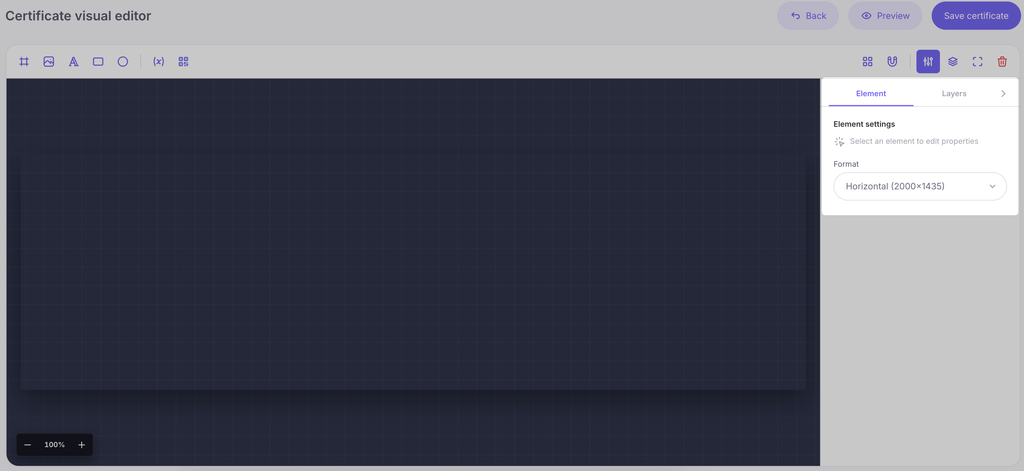
– The right sidebar has two tabs: “Element” (contains settings for the selected element and the “Certificate Format” selection) and “Layers” (list of base layers and layers with variables).
– Scale: In the lower-left corner of the workspace, there are “Zoom out”, “Fit to screen”, and “Zoom in” buttons.
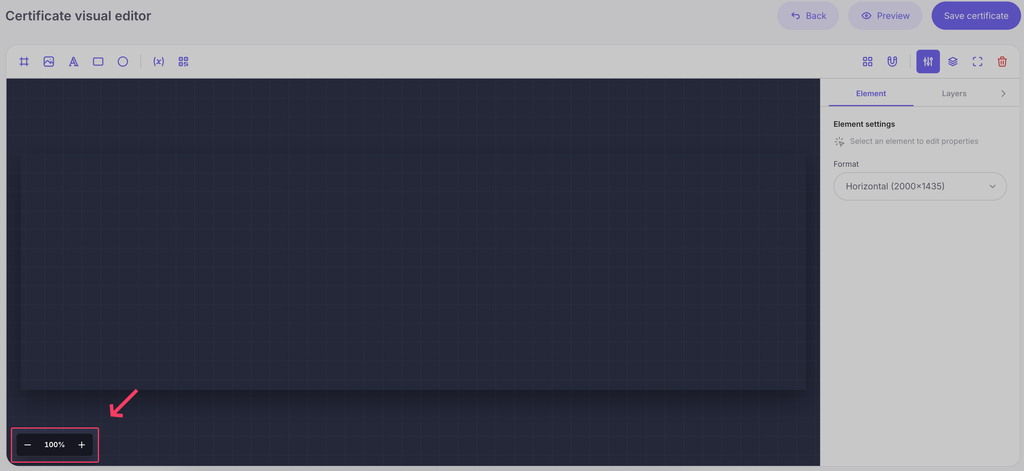
In the “Element” tab on the right, you can choose the “Certificate Format”:
- horizontal (2000 x 1435px)
- vertical (1435 x 2000px)
- square (2000 x 2000px)
- custom (any size)
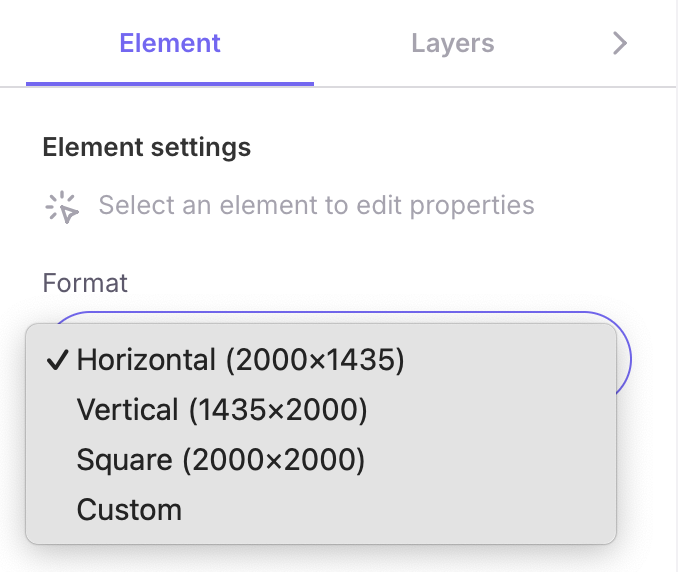
The horizontal format is available for users on the “Pro” plan, while the vertical, square, and custom formats are available only for users on the “Max” plan.
Click “add background” and upload the template image you want to make the background of the certificate. If you upload a custom-sized certificate, the platform will automatically adjust the uploaded image to fit the template dimensions.

Next, click “add image” and add your online school logo, you can change the size of the image by selecting it and start stretching or shrinking it by pulling the corner.

To add text, click “add text” and control its size, color, fonts, lettering, and placement in the accompanying settings box on the right panel. The text block has a width — long text automatically wraps to a new line inside the block. The selected element is aligned using the buttons on the panel that appears directly above it.

Each element on the certificate can be deleted from the workspace by selecting the desired one in the layers panel.
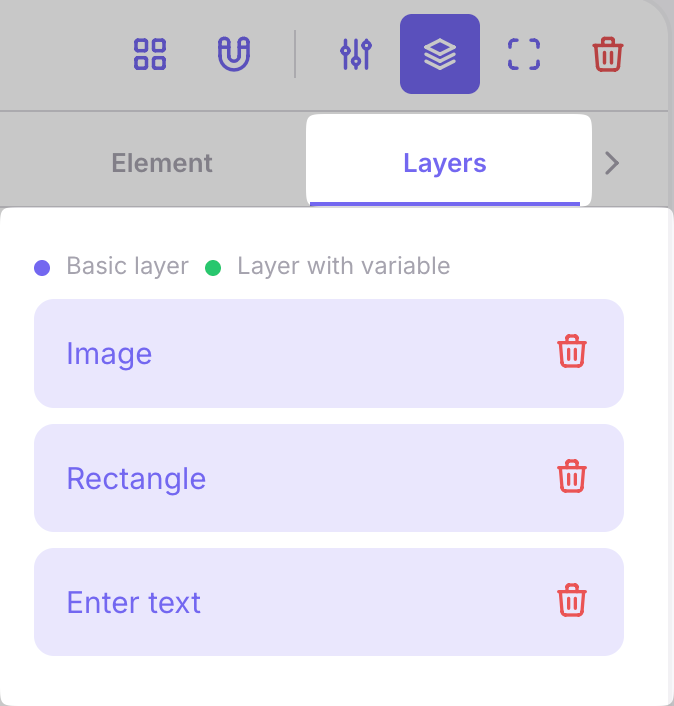
If you want to add a rectangle or circle to the certificate, select the appropriate item in the editor and place it. If you zoom in or out these shapes with the cursor, they will change proportionally. If you hold down the Shift key – the proportions will become free. In the layers panel, you can change their order of placement.

Next, proceed to the variable elements of the certificate. The “Insert variable” button on the top toolbar opens a list:
{first_and_last_name}— first and last name;{email}— email address;{course_title}— course title;{serial_number}— serial number;{completion_date}— completion date.
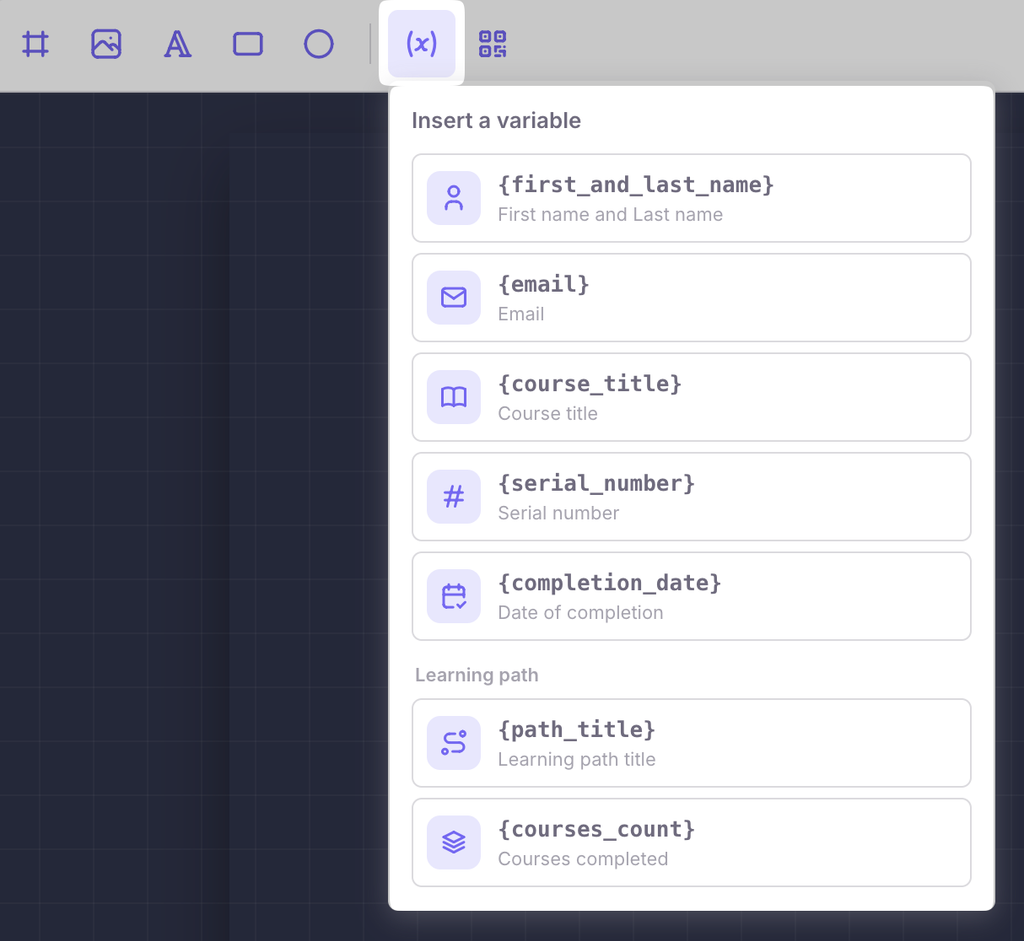
Variables work directly inside regular text. For example, if you create a text block and write “We confirm that {first_and_last_name} has successfully completed the {course_title} course”, this phrase in the issued certificate will be automatically filled with the student’s name and the course title.
For learning path certificates, there is a separate “Learning path” section in the “Insert variable” menu:
{path_title}— learning path title;{courses_count}— number of completed learning path courses.
In a standard course certificate, these variables remain empty.
Place a QR code that will link to the certificate verification site. That is, the site will show exactly who earned the certificate when and for what. Each certificate will have a unique QR code. In the element settings, you can change the shape of the QR code dots, choose the fill type (solid or gradient), and upload a logo to be displayed in the center of the code.
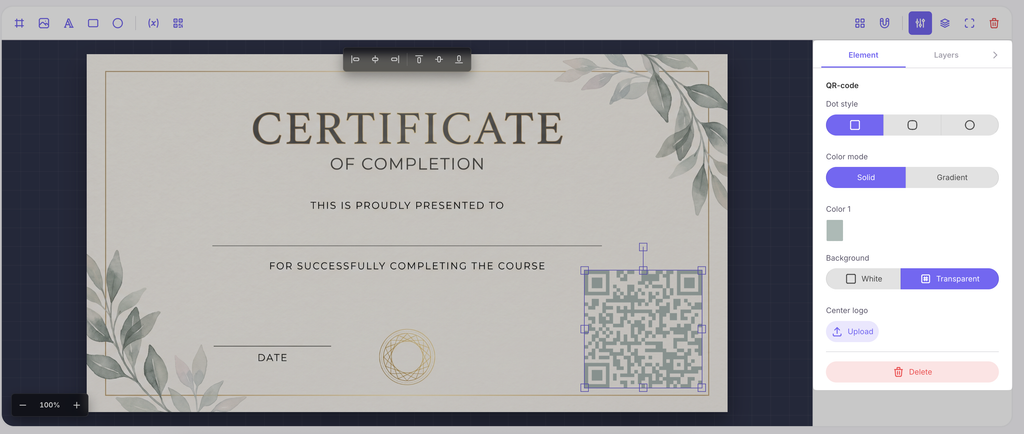
Also, among the tools is the element alignment. It comes after the “Add element” button. For example, the logo you placed on the certificate can be aligned with its help relative to the center of the document or another starting point from several offered.

There’s also a “Show grid” button. It activates a grid overlay on top of the certificate image. The grid includes a snap-to-grid function that helps position and align elements more precisely on the certificate.
The “Clear Layout” button removes the certificate editing field completely.
Next to the “Save Certificate” button, there is a “Preview” button. It allows you to visually check the final display of all elements and the overall appearance of the template before saving it in the system.
When all elements on the certificate are written and structured, click the “Save Certificate” button. Now in the course for which you set up this certificate, students will receive it after completing their studies.
A learning path certificate (a template with the “Without course (for learning paths)” option selected) is chosen in the learning path settings (“Certificate upon completion”) and is issued when a student completes all required steps. The learning path settings only display templates for which a design has been saved. For more details, see the “Learning paths” article.
Your template will be saved in the “Certificates” section and will be available for editing. And its image will become the avatar for the certificate editor.
To see how many students have already received the certificate, click the three dots and then select “Show Students Who Received a Certificate” from the dropdown list. A panel with the list of users who received it will appear.
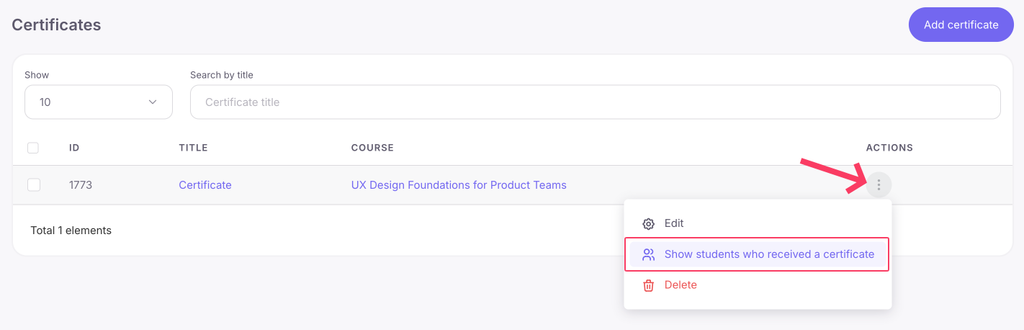
Next to each student’s name is an eye icon. If you click on it, you will be taken to this student’s card. The student cards also contain certificates with their images.
The student receives the course certificate at the end of the last lesson. A welcome notice with the button “Complete the course and receive the certificate” appears in front of him/her.
The “Complete course and receive certificate” button opens a student’s certificate image with the course title, first and last name, date of receipt, and serial number if the course author has set such a setting. The student can download the certificate image to his/her computer to add it to his/her resume and post it on social networks.
The student can find all their certificates in their cabinet in the “My Certificates” section. Their images are stored in the platform’s storage for life and will be available to students even if the online school on the platform ceases to operate.
That’s all. Now you know why certificates are needed and how to issue them to your course students on the Softbook platform.



 Book a demo call right now!