

LMS
- Workflows
- YouTube
- Zoom
- Emails
- Campaigns
- Chatbots
- Site
- Plan
- Creating a course with AI
- How to create course on Softbook
- Setting up a course
- Filling a lesson with content
- Creating homework
- Creating testing
- Changing the order of blocks in the lesson
- Creating a module
- Adding students
- Adding students using API
- Student groups
- Homeworks
- Certificates
- Plans
- Announcements
- Schedules
- Feedback
- Accesses
- Comments
- Video protection
- Content protection
- Overview
- Rewards
- Points
- Statistics
- Settings
- Overview
- Profile
- Feed
- Messenger
- Overview
- All forms
- Responses
- Overview and Settings
- Contacts
- Deals
- Tasks
- Funnels
- Overview
- Products
- Orders
- Subscriptions
- Post-course offers
- Discounts
- Promocodes
- Sales settings
- Overview and use
- General settings
- Domain Settings
- Email Settings
- Dashboards
- Webhooks
- Custom fields
- API
- Branding
- Notifications
- Overview
- Adding an administrator
- Adding a teacher
- Overview
- CRM
- Sales
- Team Actions
- Course Analytics
- Lesson Analytics
- Assigning students and groups
- Overview
- MailChimp integration
- GetResponse integration
- SendPulse integration
- Monobank Integration
- LiqPay integration
- WayForPay integration
- Stripe integration
- PayPal integration
- Portmone integration
- Przelewy24 integration
- Hutko Integration
- Telegram integration
- Zoom integration
- Testing statistics
Portmone integration
27.04.2023
If you use the Portmone payment system and want to integrate it into your online school on Softbook LMS, follow a few simple steps.
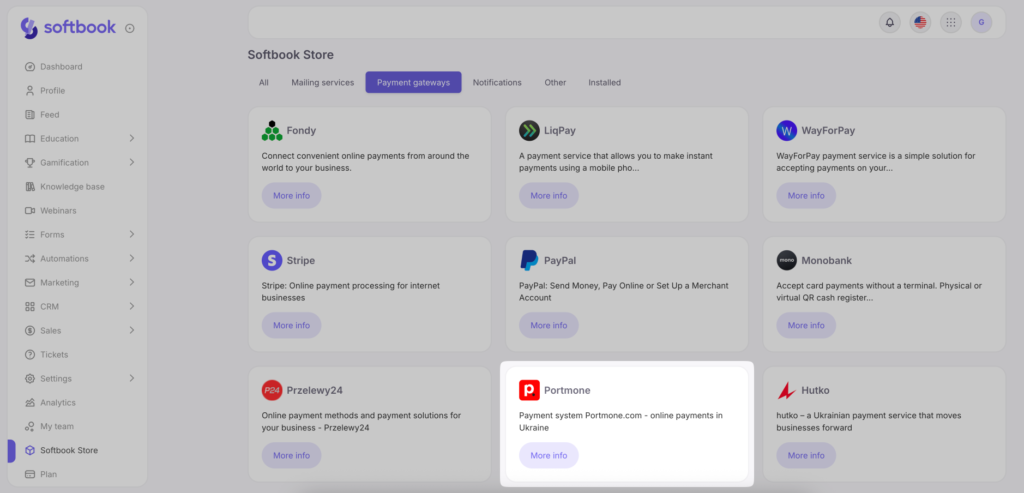
Go to “Payment Systems” in Softbook Store, select the Portmone payment system card, click “More Info”, and then click “Install”.
On the opened page, enter:
- Login
- Payeeid
- Key
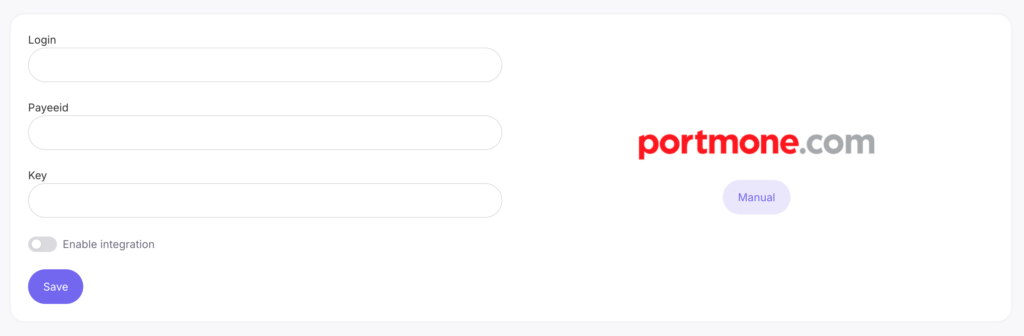
Then click “Enable Integration” to connect the payment system.
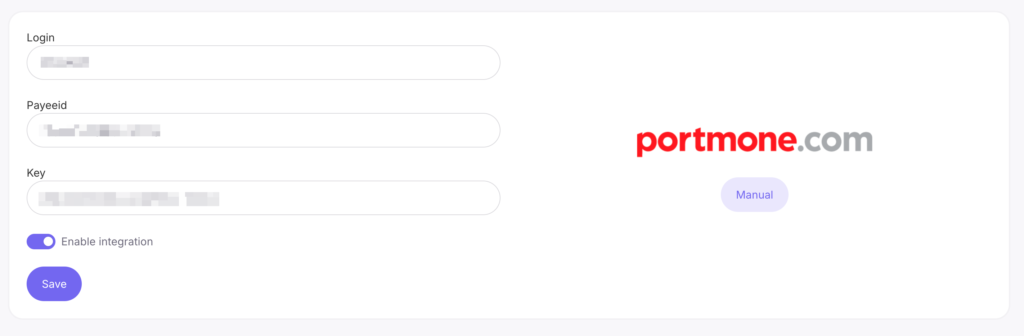
After that, click “Save”.
Done! The Portmone payment system is configured.



 Book a demo call right now!