

Chatbots
Chatbots are a tool for automated communication with your Telegram bot subscribers. They allow you to welcome new users, respond to keywords, ask questions, add delays between messages, check course access, and even accept payments directly in Telegram.
Chatbot scenarios are built in a visual editor using ready-made blocks. No programming is required — simply add blocks, configure them, and connect them together.
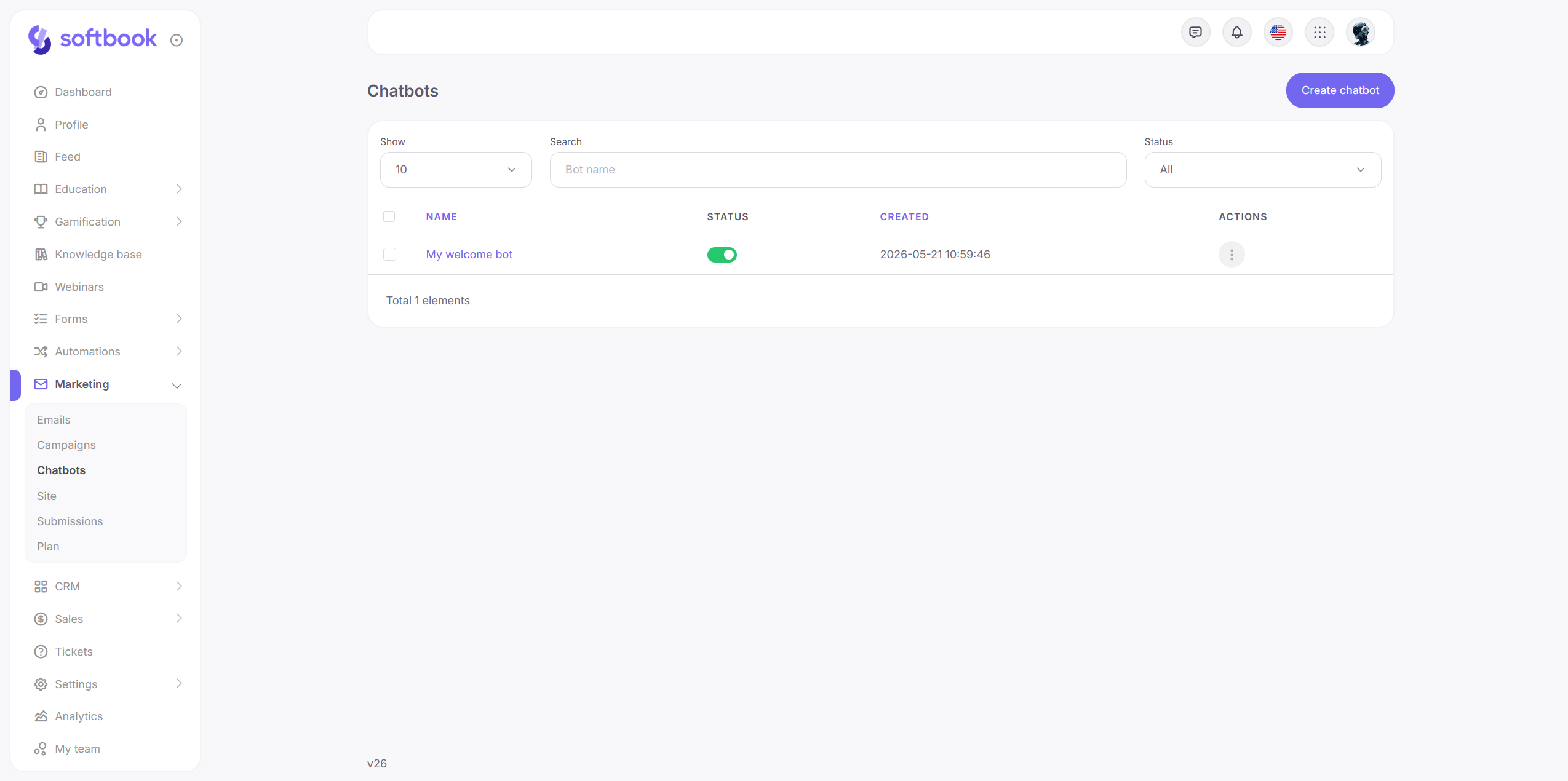
The section is located in the side menu: Marketing → Chatbots.
Connecting a Telegram Bot
Before getting started, you need to connect your school’s Telegram bot in the Softbook Store.
If Telegram is already being used for campaigns or notifications, no additional setup is required — the bot is already connected and ready to use.
Chatbot List
The “Chatbots” section displays all created scenarios for your school.
Here you can:
- create a new scenario;
- copy an existing scenario;
- delete unnecessary scenarios;
- view the status of each chatbot.
Only scenarios with the Enabled status actively work and respond to subscribers. Draft scenarios remain unavailable to users.
Scenario Editor
After opening a scenario, the visual editor appears.
The interface consists of three main areas:
- left panel with blocks;
- central scenario canvas;
- right settings panel for the selected block.
How the editor works:
- Drag the required block onto the canvas.
- Select the block to configure it.
- Connect blocks together with lines.
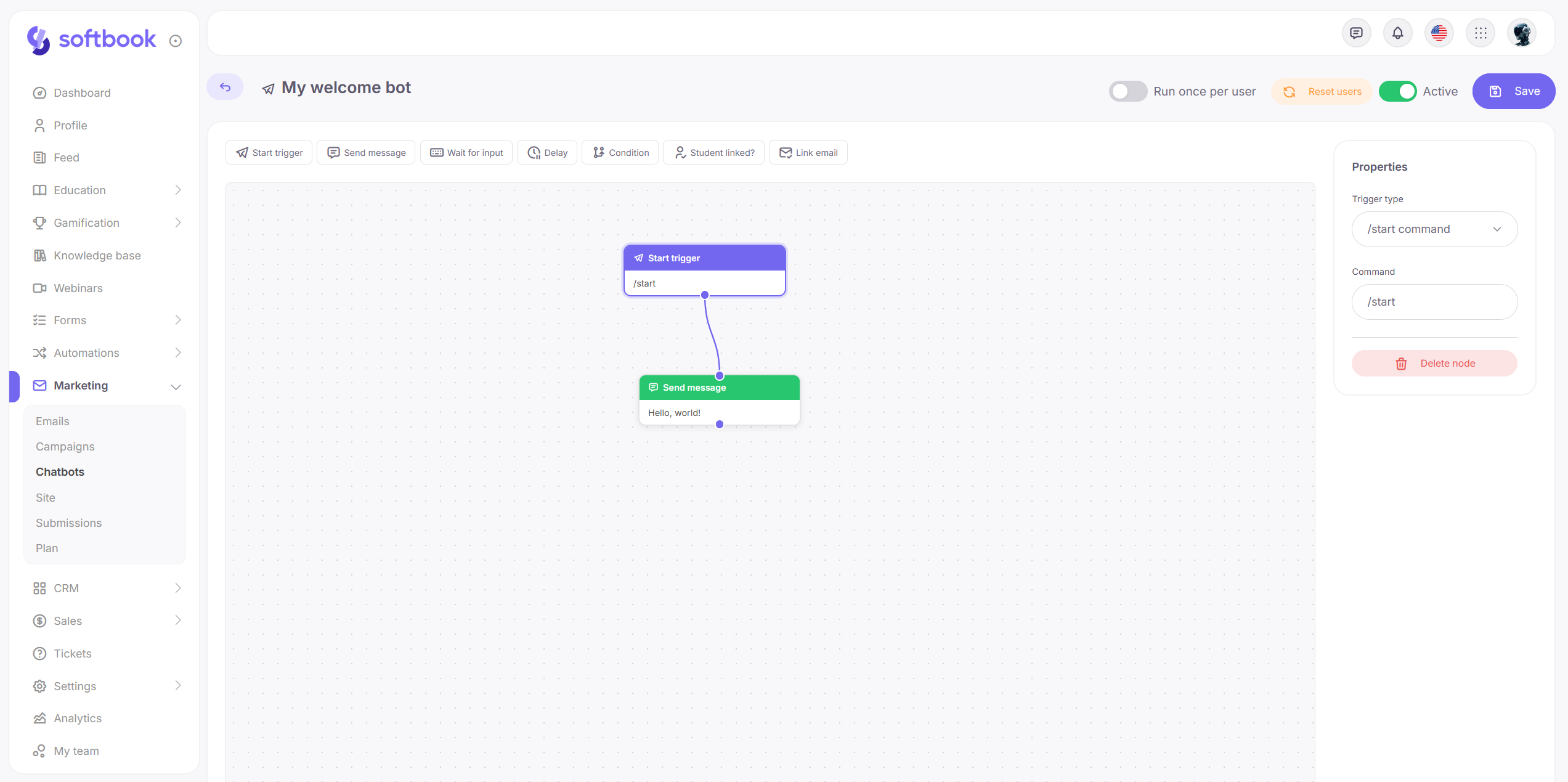
The Save button is located in the upper-right corner. Changes are applied only after saving the scenario.
Scenario Blocks
A chatbot scenario is built from blocks, each responsible for a specific action.
Trigger
The trigger determines when the scenario starts.
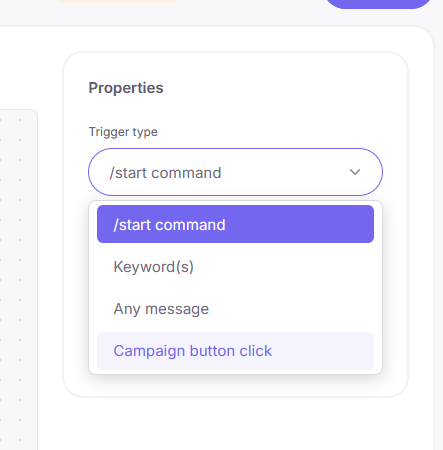
Available trigger types:
- /start command — launches the scenario after opening the bot or sending the command;
- Keyword (or several keywords) — launches when a user sends a specific word or phrase;
- Any message — the scenario launches on any user message;
- Click on a campaign button — launches after clicking a button in a Telegram campaign.
You can specify multiple keywords separated by commas. Letter case is ignored.
Send Message
This block sends a text message to the subscriber.
Basic Telegram formatting is supported:
- bold text;
- italic text;
- links.
You can also add buttons to the message.
Available button types:
- Link — opens an external URL;
- Action — sends the user to the next branch of the scenario;
- Payment — opens a payment form for purchasing a product.
Payment buttons are available only on plans that support chatbot payments.
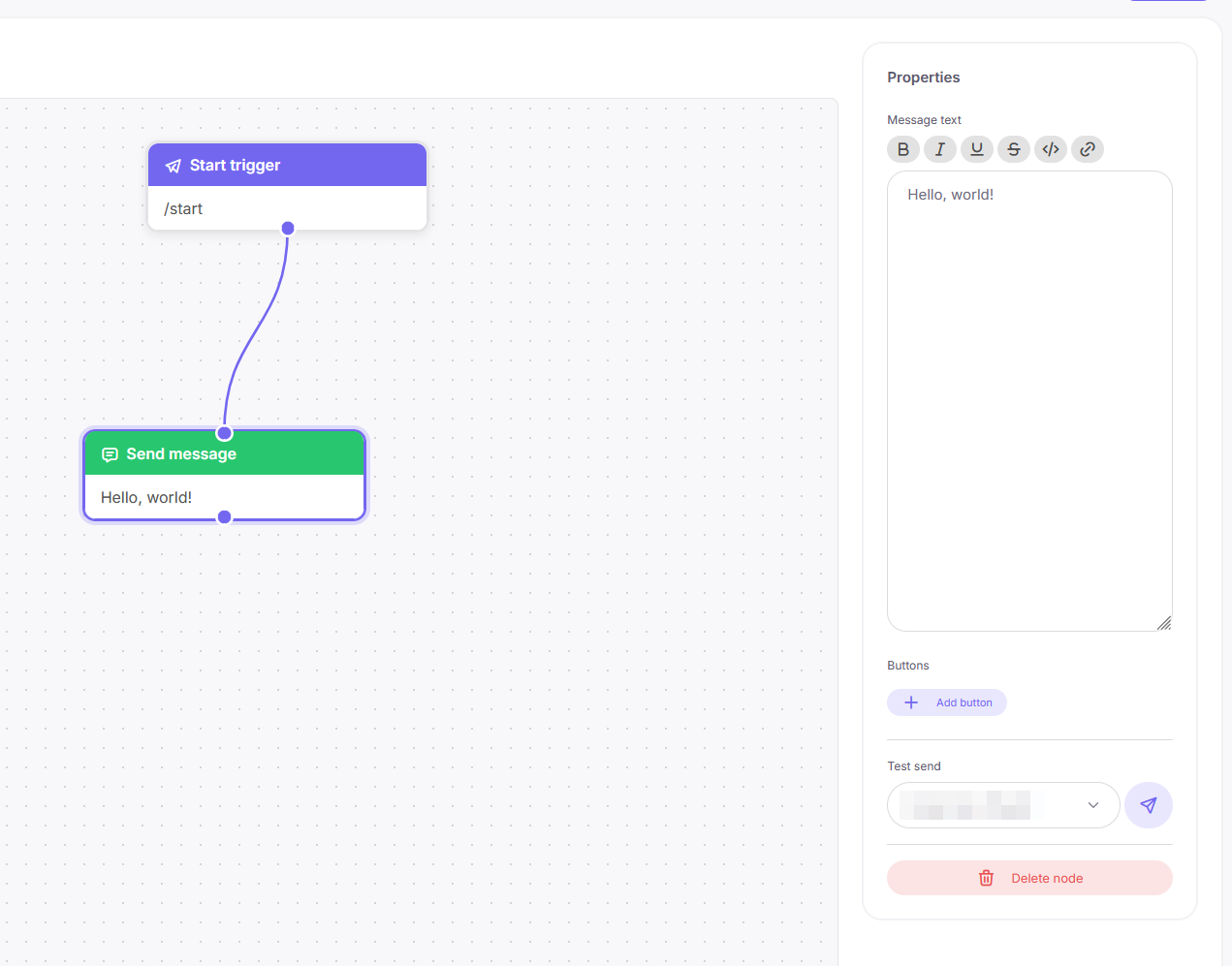
A test send feature is available for the “Send message” block.
It allows you to check:
- text formatting;
- button appearance;
- how the message looks in Telegram.
To send a test message, select a school staff member with a connected Telegram account.
Screenshot: test message sending
Wait for Input
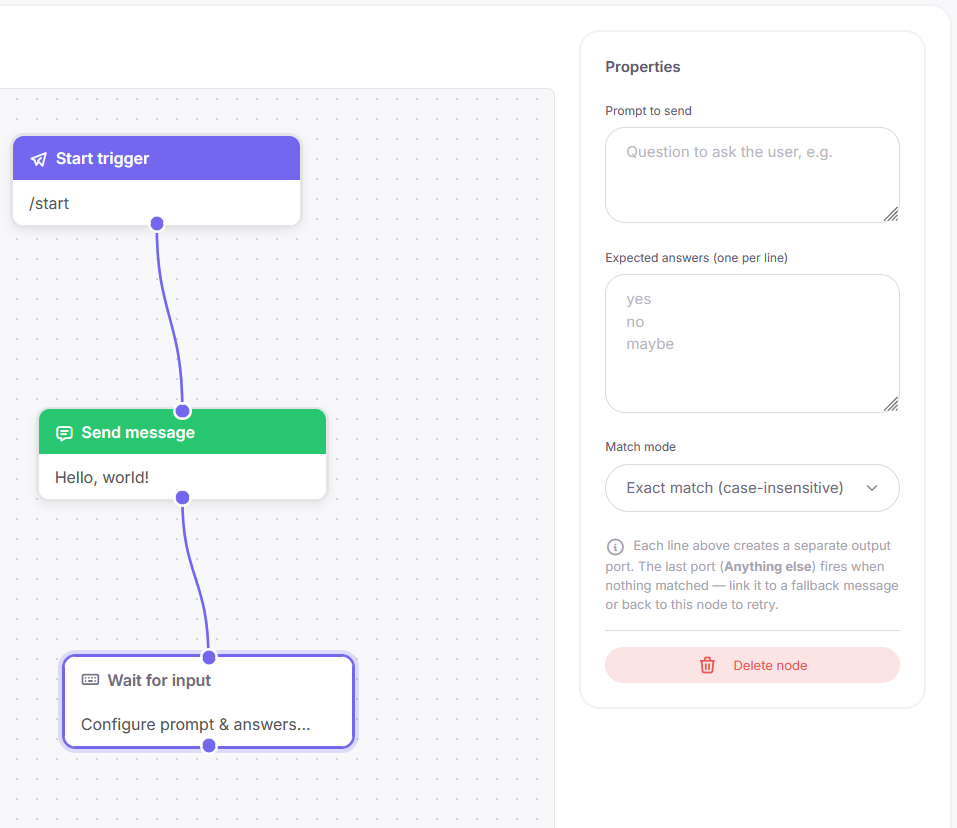
This block allows the bot to ask a question and wait for the user’s response.
The settings include:
- question text;
- expected answer options;
- response comparison mode.
Two comparison modes are supported:
- exact match;
- contains text.
A separate branch is created for each answer option. There is also an Any other response output, which triggers if the user’s message does not match any specified option.
Delay
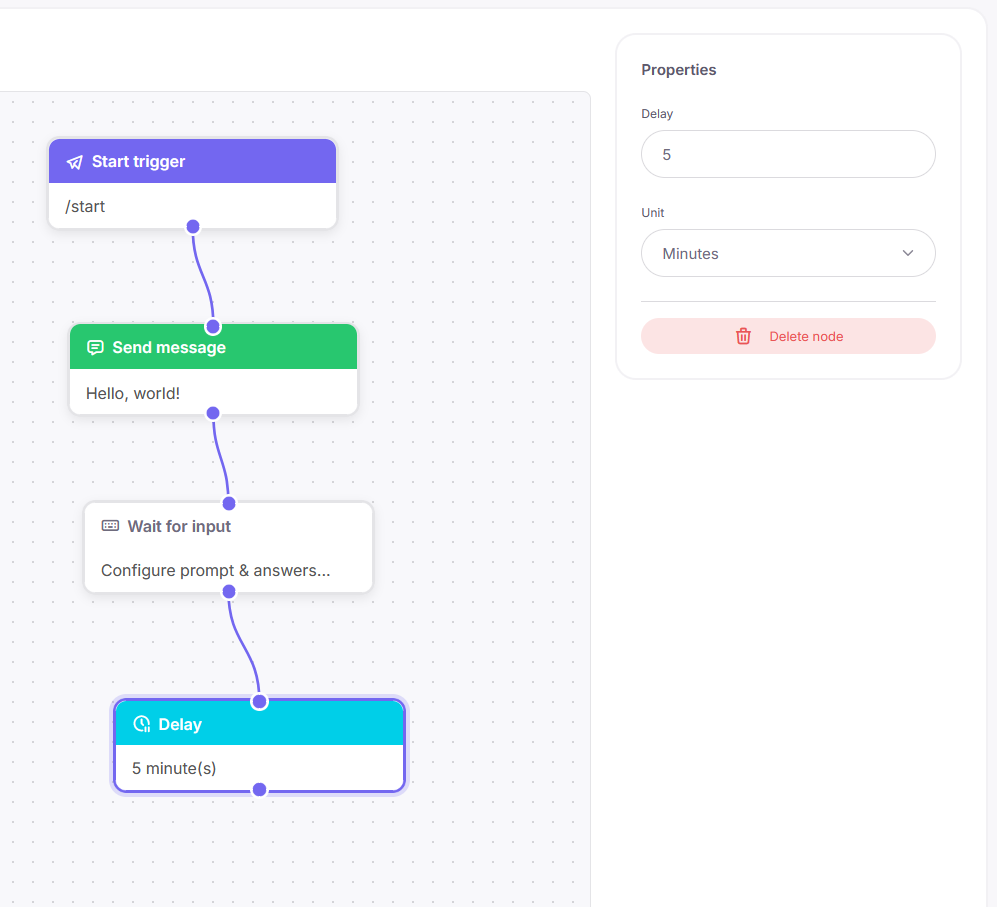
This block creates a pause before the next message.
The delay can be configured in:
- minutes;
- hours;
- days.
This block is used for gradual message delivery and building communication sequences.
Condition
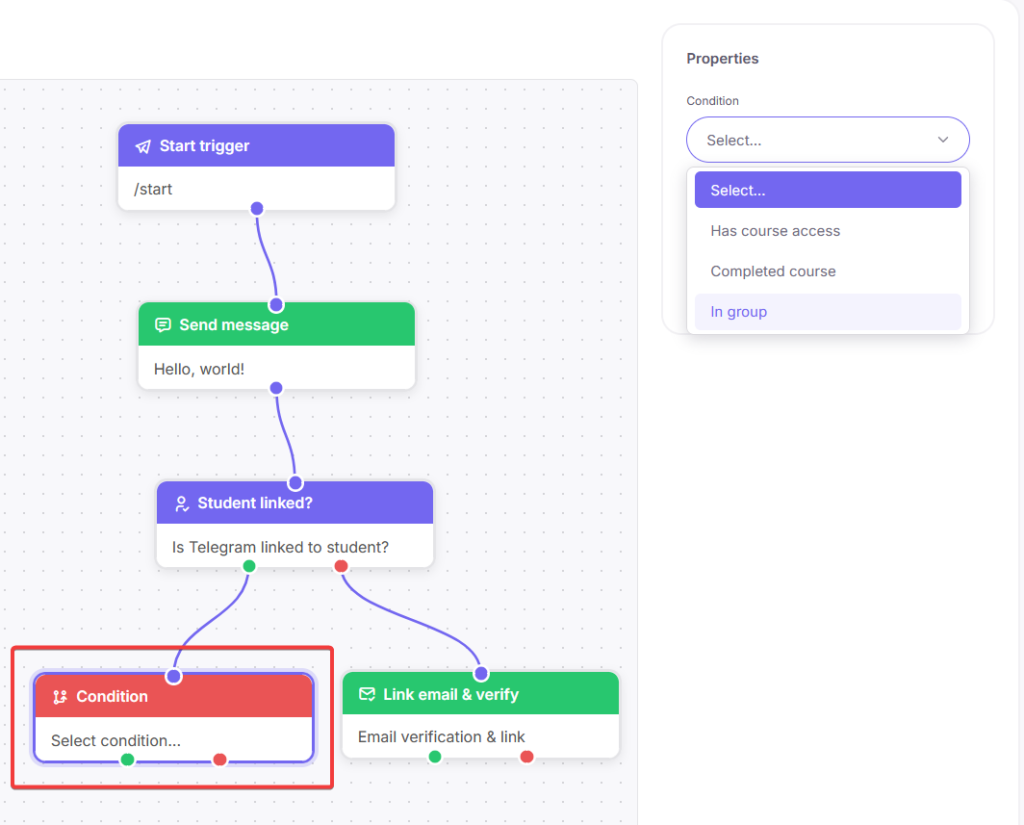
This block checks a condition and splits users into two branches: Yes and No.
You can check:
- whether the user has access to a course;
- whether the course has been completed;
- whether the student belongs to a group.
You can select multiple courses or groups for the check.
Important: this block only works for users whose Telegram account is linked to a student profile in the LMS.
If Telegram is not linked, it is recommended to first use:
- Email linking;
- or Student linked?
Student Linked?
This block checks whether the Telegram user is connected to a student profile in the school.
The block has two outputs:
- Yes;
- No.
There are no additional settings for this block.
It is most commonly used before checking courses or groups.
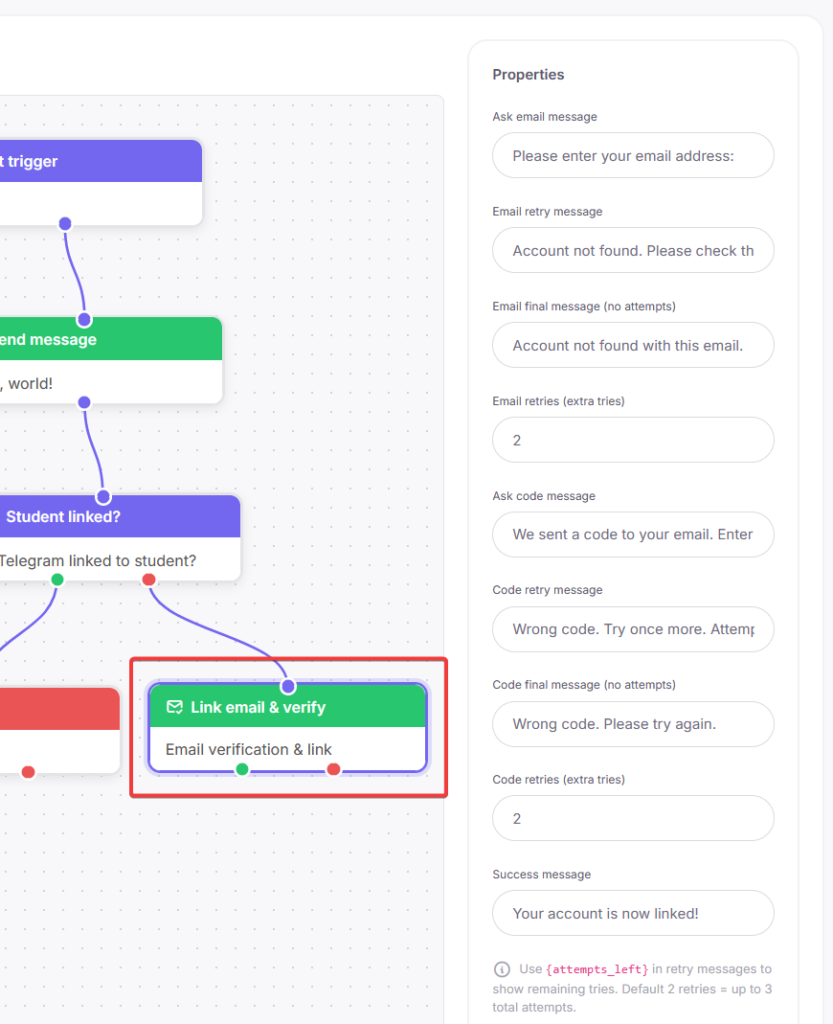
Email Linking
This block allows you to connect a Telegram user to a student profile.
How it works:
- The bot asks for the user’s email.
- A verification code is sent to the email.
- The user enters the code in Telegram.
- Telegram is linked to the student account.
After linking, the following become available:
- course access checks;
- group checks;
- message personalization.
In the block settings, you can change:
- message texts;
- number of input attempts;
- language of the verification email.
Enabling a Scenario
After configuring the scenario, switch the Enabled toggle to the active state.
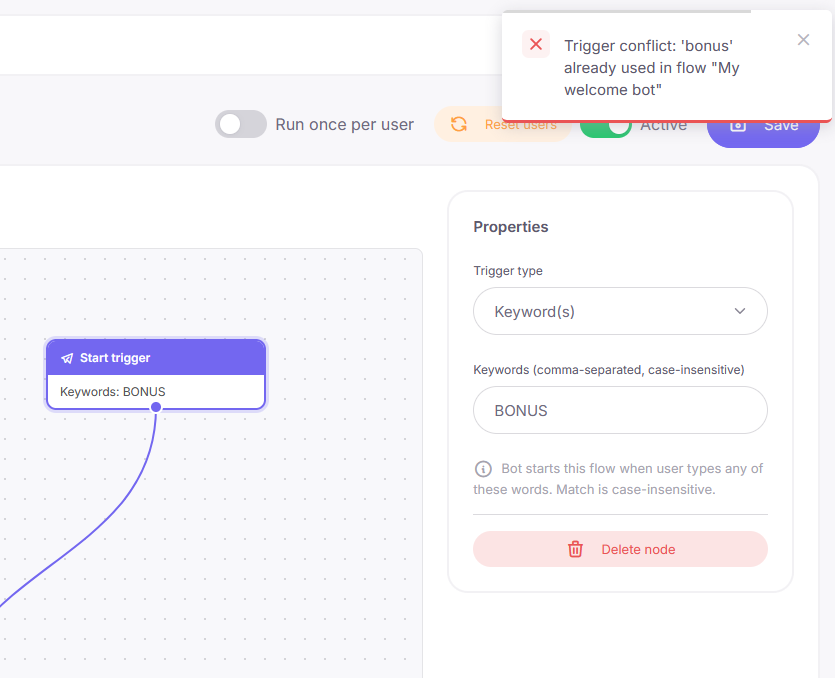
During saving and enabling, trigger conflicts are checked automatically.
A conflict occurs when two scenarios use the same trigger, for example the same keyword.
In this case, the system will display a warning with the name of the conflicting scenario.
Run Once and Reset Users
Additional scenario settings are available in the editor.
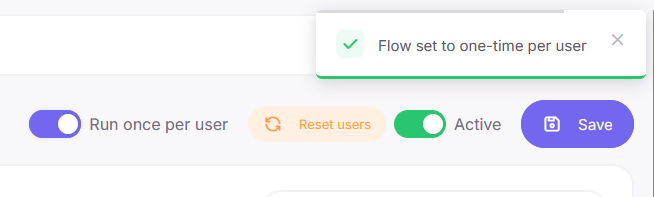
Run once per user — the user will only be able to complete the scenario once.
This setting is suitable for:
- bonuses;
- promotions;
- surveys;
- one-time offers.
Reset users — clears the scenario completion history. After resetting, users will be able to go through the scenario again.
Scenario statistics are preserved.
Chatbot Best Practices
- Save changes to the scenario regularly.
- Test the scenario in draft mode before launching it.
- Avoid sending too many messages in a row without delays.
- If the scenario includes course or group checks, add email linking near the beginning.
- Use link buttons for website redirects and action buttons for continuing the conversation inside the bot.
Scenario Statistics
The “Marketing → Chatbots” section displays the status and creation date of each scenario.
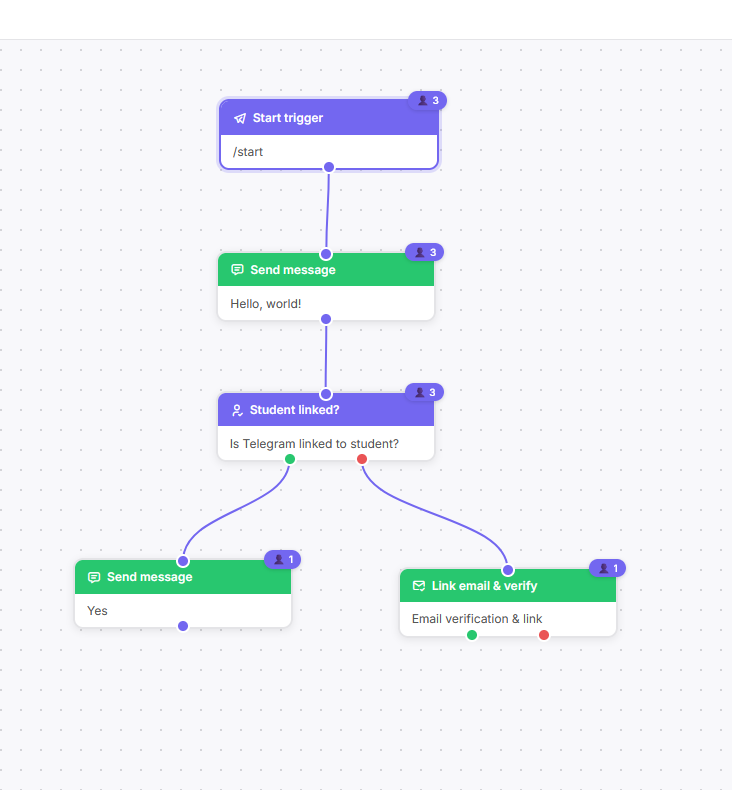
Inside the editor, scenario statistics are available:
- how many users completed the scenario;
- where users stopped in the flow;
- who is waiting for input;
- who is currently in a delay block.
Statistics are displayed directly on the scenario blocks.



 Book a demo call right now!