


Learning paths
A Learning path is a program consisting of several courses that a student completes sequentially. The next course opens when the previous one is completed, or based on a rule you set: after a certain number of days, on a specific date, or manually by a curator.
Learning paths are ideal for long-term programs: multi-course professions, employee onboarding, or week-by-week training. Students see their entire route, progress, and upcoming steps, while you can track which step each student is currently on.
Learning paths are available on the Max plan.
1. Learning paths list
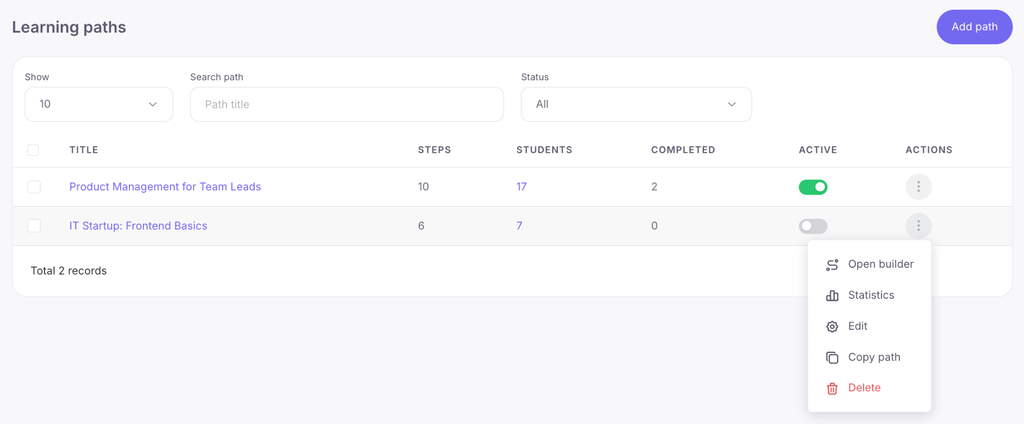
Learning paths are located in Learning → Learning paths. All school learning paths are collected here. Path status is managed via the toggle in the “Active” column (which can also be enabled upon creation). The “Status” filter above the list displays:
- Active — the learning path is live and students can be enrolled.
- Draft — the learning path is still in development.
In the action menu of a learning path: open builder, view statistics, edit (title and description), copy learning path, or delete.
2. Creating a learning path
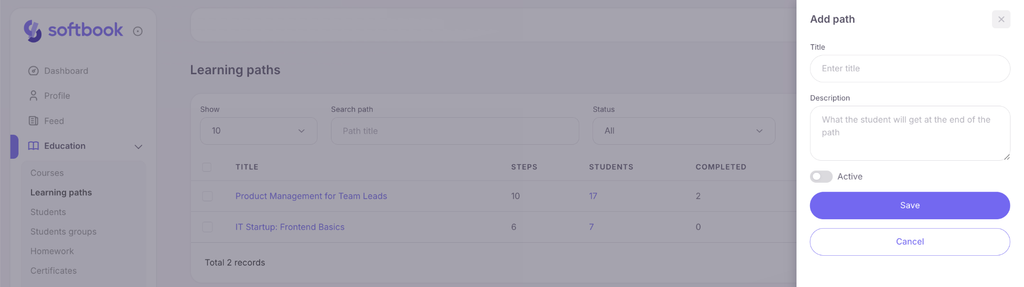
Click “Add learning path” — a side panel will open on the right. Enter the title and description (what the student will achieve at the end), optionally enable “Active”, and click “Save”. Immediately after creation, the learning path builder will open.
3. Builder: step-by-step route
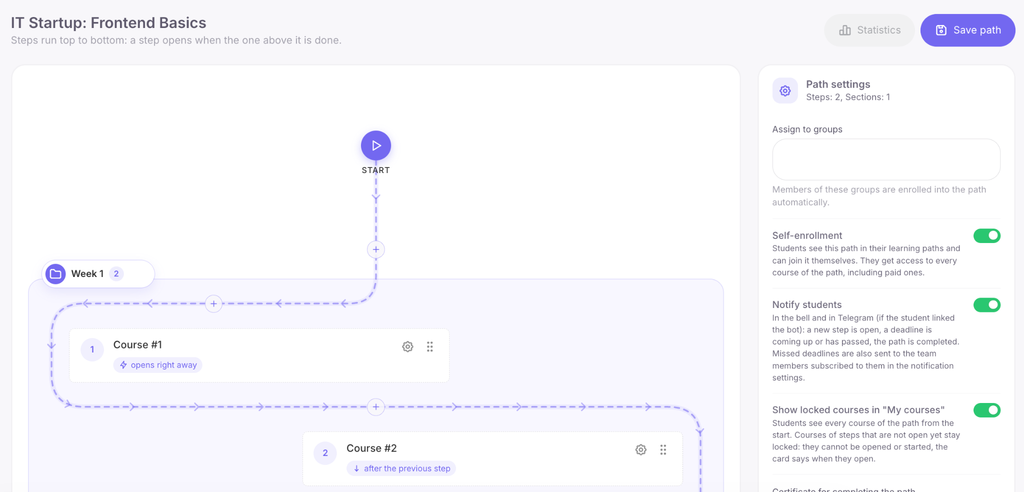
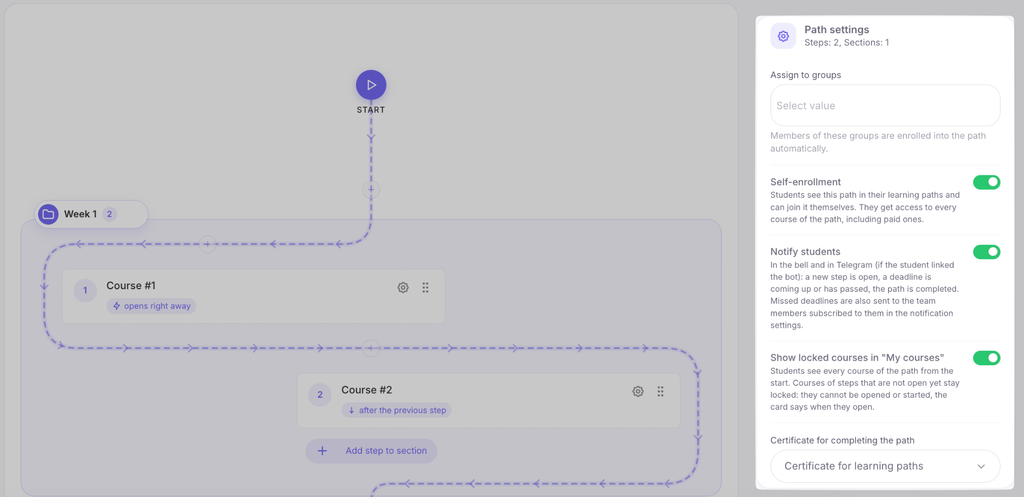
The builder consists of two parts: the step-by-step route on the left, and the settings panel on the right. While no step is selected, the settings panel displays the overall learning path settings.
Each step is a course. Steps flow from top to bottom: the next step opens when the previous one is completed, unless another rule is specified for that step.
To build a route:
- Click “Add first step” and select a course.
- Add subsequent steps using the “+” button on the route line — new steps can be inserted between any two existing ones.
- Reorder steps using drag-and-drop.
- To group steps, click “Add section” (e.g., “Week 1”) and drag steps into it.
- Click “Save learning path”.
4. Step settings
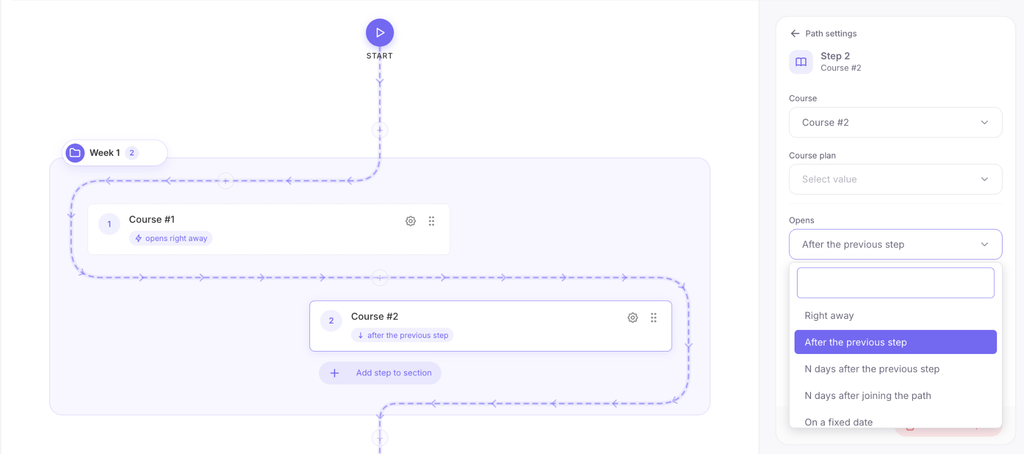
Click on a step along the route to open its settings on the right. To return to the general learning path settings, press Esc or click on an empty area of the route.
- Course — the course assigned to this step.
- Course tariff — the course tariff tier the student gets enrolled in. “As in course” uses the default course tariff.
- Opens — when the step becomes available:
- Immediately;
- After previous step;
- N days after previous step;
- N days after enrollment in the learning path;
- On a specific date;
- Manually by curator — opened by a school staff member in the student’s profile (Section 9).
- Access, days — duration of course access after the step opens.
- Deadline, days — number of days the student has to complete the step. The student receives a reminder before the deadline and a notification if they miss it. Deadlines do not revoke access to the course.
- Optional step — not required to finish the learning path; the next step opens without waiting for this one to be completed.
5. Learning path settings
When no step is selected, the right panel shows the general learning path settings:
- Assign to groups — members of selected groups are automatically enrolled in the learning path.
- Self-enrollment (“Allow students to enroll independently”) — students see the learning path in their account and can join on their own. They gain access to all courses in the learning path, including paid ones.
- Notify students — notifications sent via in-app bell and Telegram (if connected): new step opened, deadline approaching/passed, learning path completed.
- Show locked courses in “My courses” — students immediately see all courses in the learning path. Locked courses cannot be opened; their card displays when they will become available.
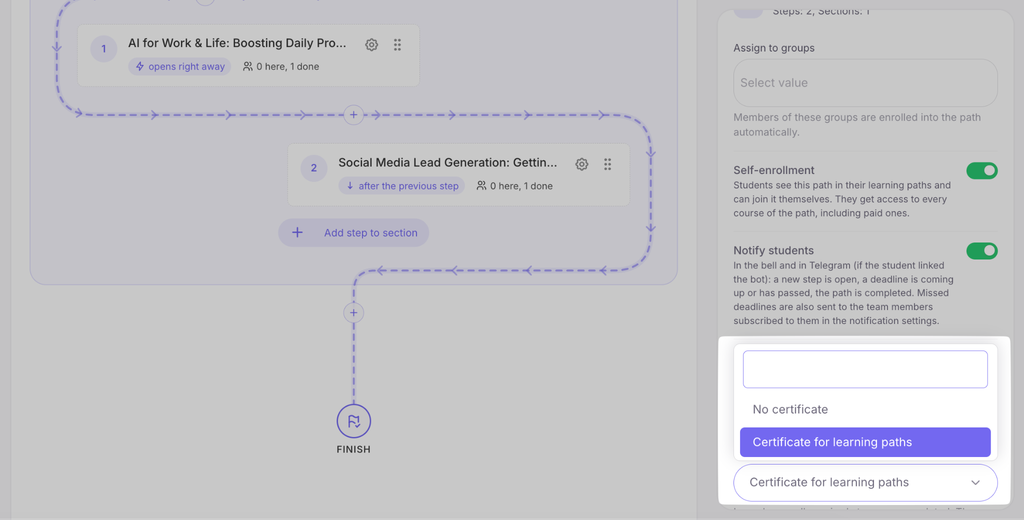
- Completion certificate — certificate template awarded for completing the learning path (Section 8).
6. Enrolling students
Students can be enrolled in a learning path in several ways:
- in the student profile under the Learning paths tab — “Enroll in learning path”;
- in bulk: select students from the list and choose “Enroll in learning path”;
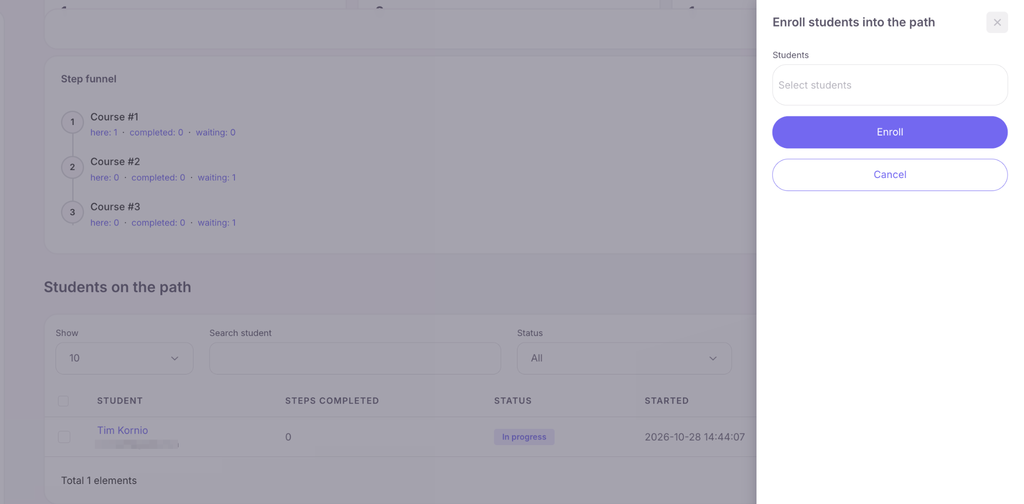
- in learning path statistics — click the “Enroll students” button;
- via groups (“Assign to groups” setting);
- via self-enrollment;
- by purchasing a product with the “Learning path” type (Section 10);
- via automation — action “Enroll in learning path”.
When a student is enrolled by the school, they receive an email notifying them of access to the learning path. Access to a course is granted the moment its step opens. A locked course within a learning path cannot be accessed or started via a direct link.
7. What the student sees
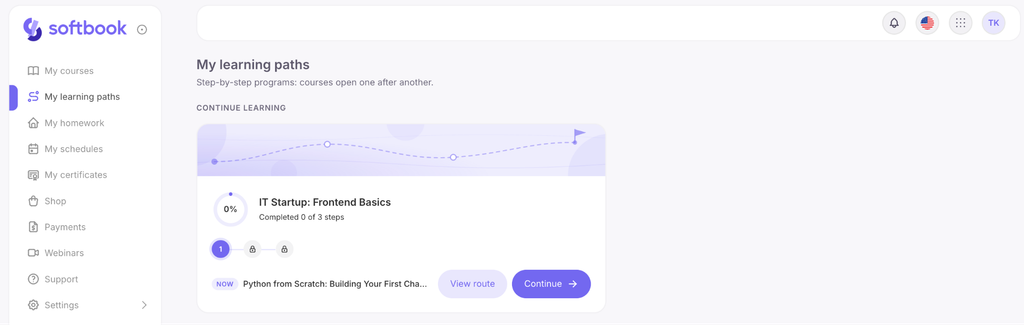
- “My learning paths” section: cards showing progress, route steps, and a “Continue learning” button.
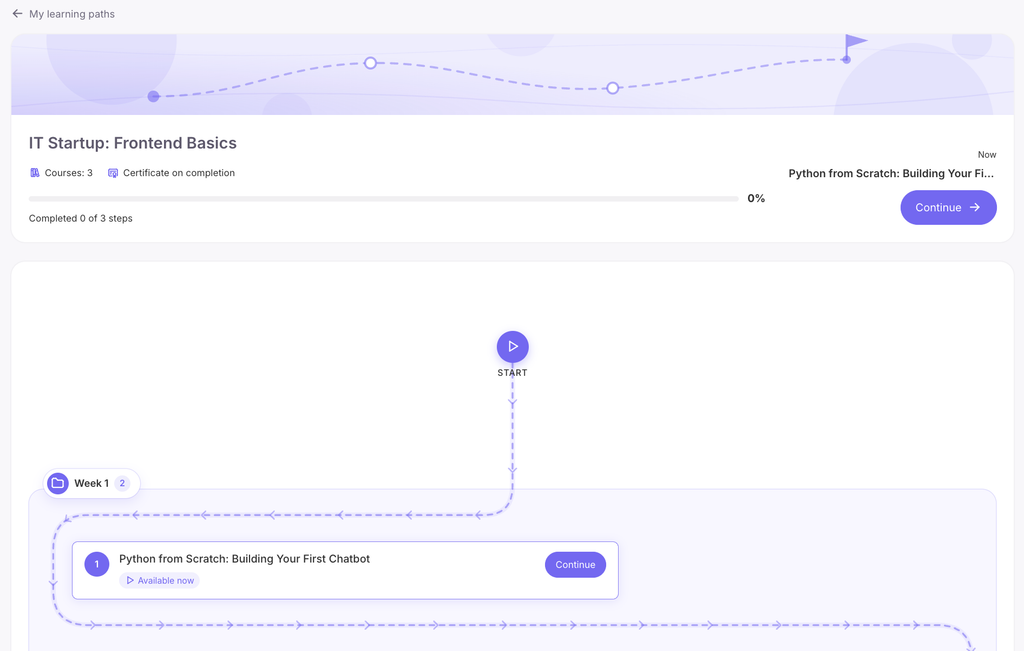
- Learning path page: route map with a “You are here” indicator and completed milestones.
- Learning paths with self-enrollment feature a “Join learning path” button.
- On the final lesson of a course: a completion block displaying the course certificate and the next learning path step.
8. Learning path certificate
- In Learning → Certificates, create a template with the course set to “No course (for learning paths)” and style it in the editor.
- In the learning path settings, select this template in the “Completion certificate” field. Only templates with saved designs will appear in the list.
The certificate is automatically issued when the student completes all mandatory steps and appears under “My certificates”. The certificate text can include variables such as “Learning path name” and “Courses completed”.
9. Learning path in the student profile
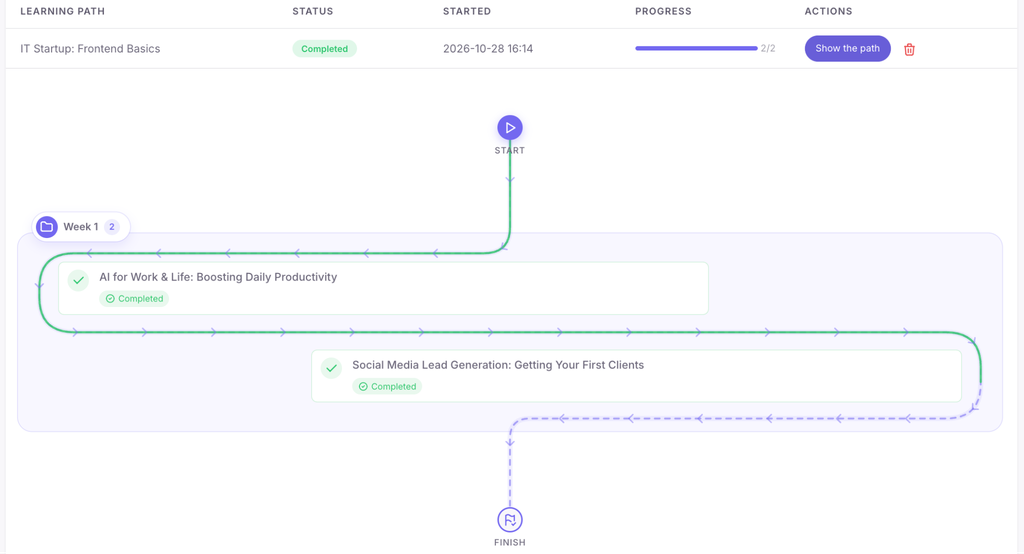
Under the Learning paths tab in the student’s card, all enrolled learning paths are visible: status, progress, and route map (“Show learning path”).
- Open step — button next to any locked step: used for “Manually by curator” steps or to grant early access.
- Remove from learning path — deletes student’s progress within the learning path. Check the box to simultaneously remove the student from the learning path’s courses; progress inside those individual courses will be preserved.
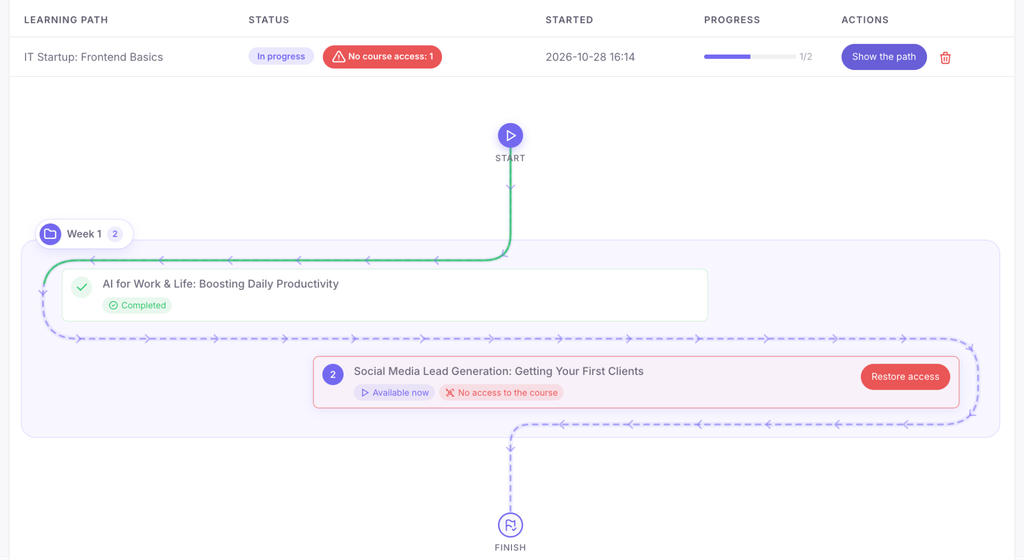
- Restore access — if a student was removed from a course belonging to an open step, that step highlights in red, and access can be restored with this button.
If you remove a student from a course that represents an open step in their learning path, a warning will appear: “This will break the learning path.”
In the “Courses” tab, future learning path courses are marked with their step number.
10. Selling a learning path
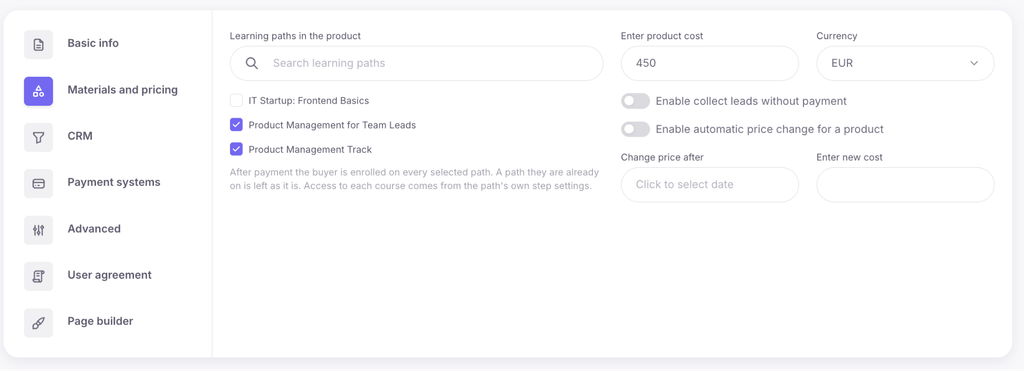
In Sales → Products, create a product with the type “Learning path” and select one or several learning paths. Upon payment, the student is enrolled in them, and courses open according to the step rules.
11. Statistics
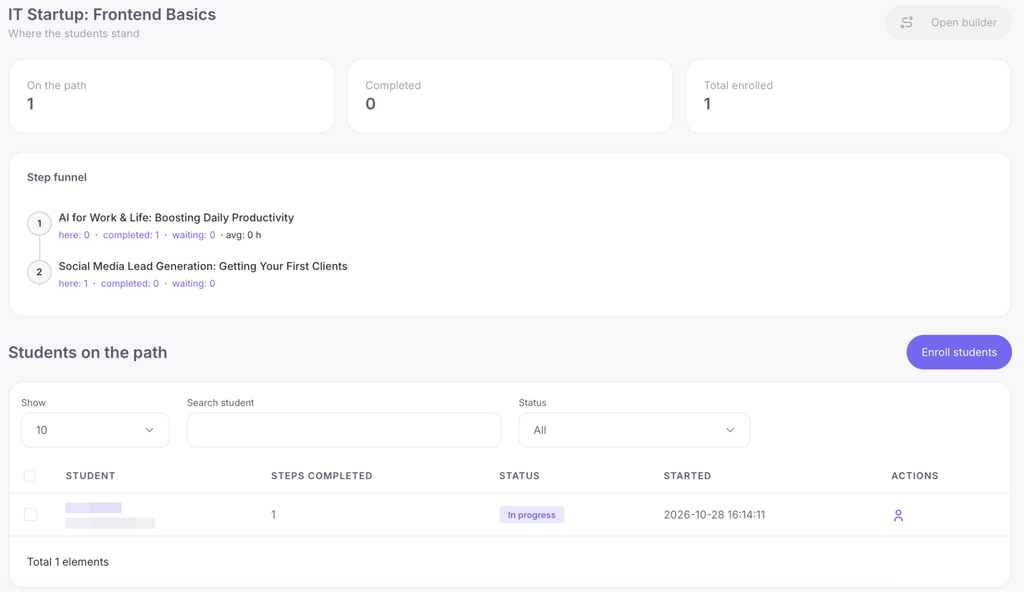
Select “Statistics” in the learning path menu to view: total enrolled vs. completed students, “Step funnel” (where students currently are), and a filtered list of students.
12. Automations and gamification
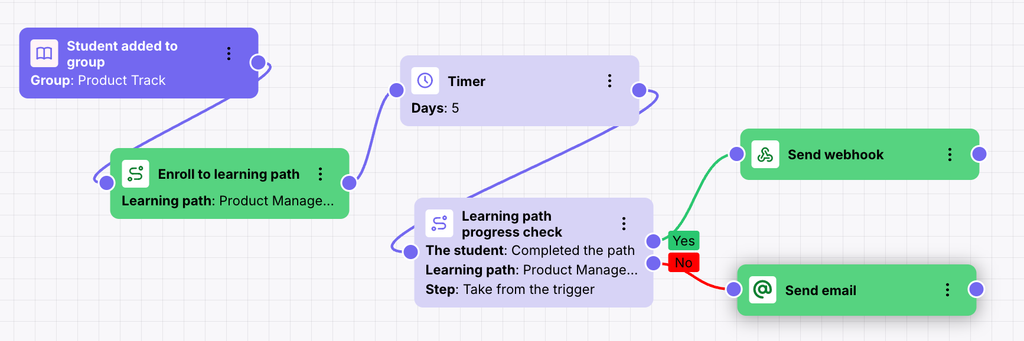
Automations include triggers like “Enrolled in learning path”, “Step opened”, “Step completed”, “Step deadline missed”, “Learning path completed”, actions like “Enroll in learning path”, “Open step”, “Remove from learning path”, and the rule “Check learning path progress”.
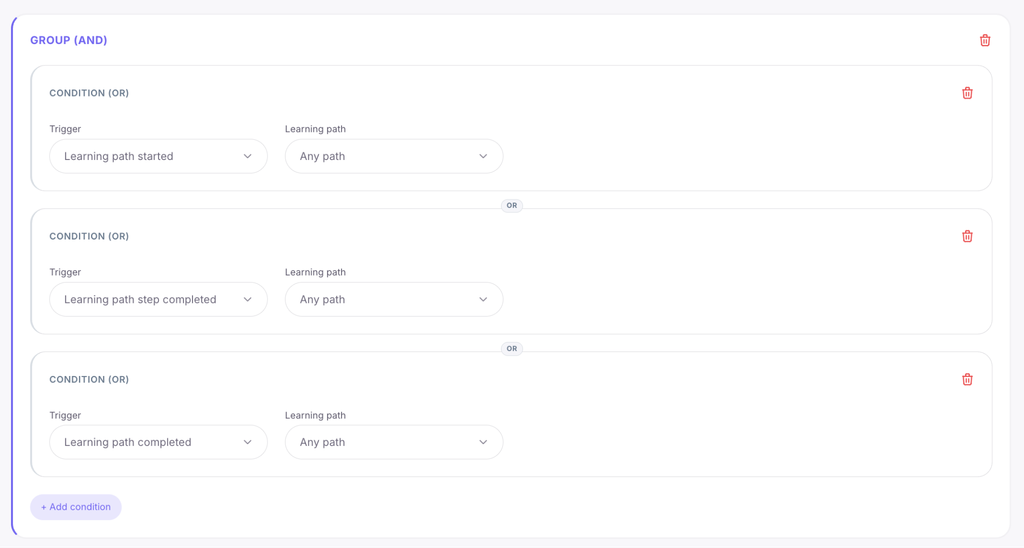
In gamification, points and awards can be granted for starting a learning path, completing a step, or finishing the entire learning path — either for a specific learning path or any learning path.
13. Team permissions
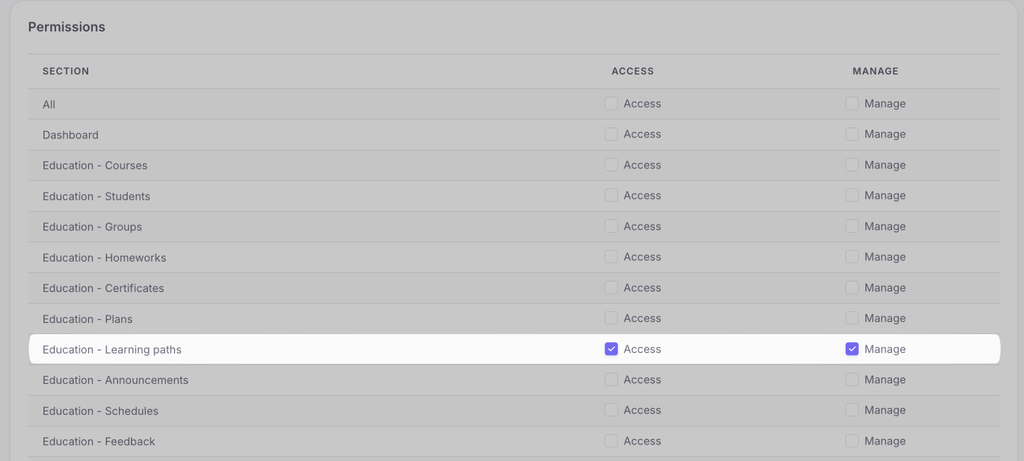
Access to learning paths and bulk actions is configured under employee permissions in My Team.
The team stays informed about missed student deadlines through notifications (enabled in notification settings).



 Book a demo call right now!