

AI Connector
Connect Softbook to AI assistants (such as Claude or ChatGPT) and manage your school using everyday language: courses, students, groups, orders, and homework. The AI will find the right students, courses, and orders, show analytics, enroll people in a course, or build a new course with lessons.
1. What AI can do in your school
Viewing data
- Schools and courses — list of courses, course structure (modules, lessons).
- Students — search by name or email, student card, their courses and access levels, groups.
- Orders and sales — list of orders, order details, sales summary for a period, top courses and products.
- Homework — list of assignments by status (new, accepted, rejected).
- Analytics — revenue dynamics, top products, UTM sources, course statistics and funnel, students at risk of churn, active users, cohort retention, repeat buyers, discount effectiveness, LTV.
The AI never adds up amounts in different currencies: dollars, euros, and hryvnias are always displayed separately.
Changes
- Adding students by email — up to 50 people at a time, with immediate enrollment in a course.
- Enrollment — enroll an existing student in a course or exclude them from a course.
- Groups — add a student to a group or remove them from it.
- Course access — extend for N days, set an expiration date, remove restrictions, change the start date, block or unblock.
- Course builder — create a course with modules and text lessons, add lessons to an existing course, replace lesson text.
- Images — course avatar and cover, lesson avatar. The AI draws them itself (as a vector illustration), Softbook converts them into an image and saves them.
What AI does NOT do
- Does not send emails, campaigns, or Telegram messages.
- Does not refund money, change prices, or delete courses and students from the school.
- Does not modify lessons containing video, files, or quizzes (only text lessons).
- Does not see passwords and does not resend login credentials to students.
- Does not work with schools to which you have not granted access.
2. How to connect
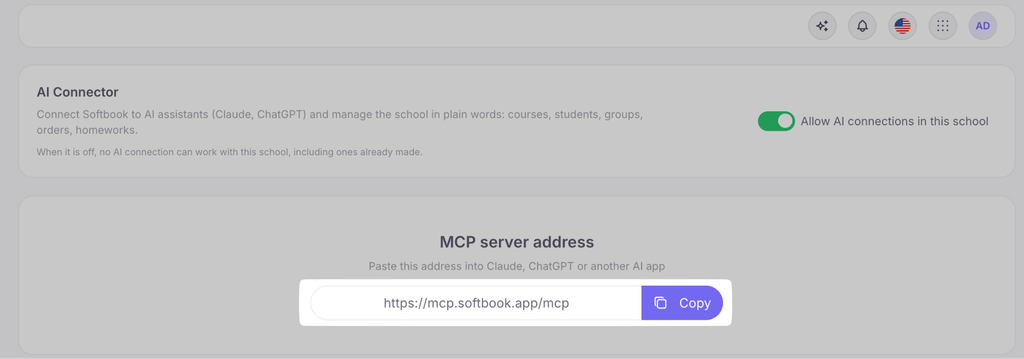
You can copy the MCP server address directly from the platform interface:
Claude (claude.ai and Claude Desktop app)
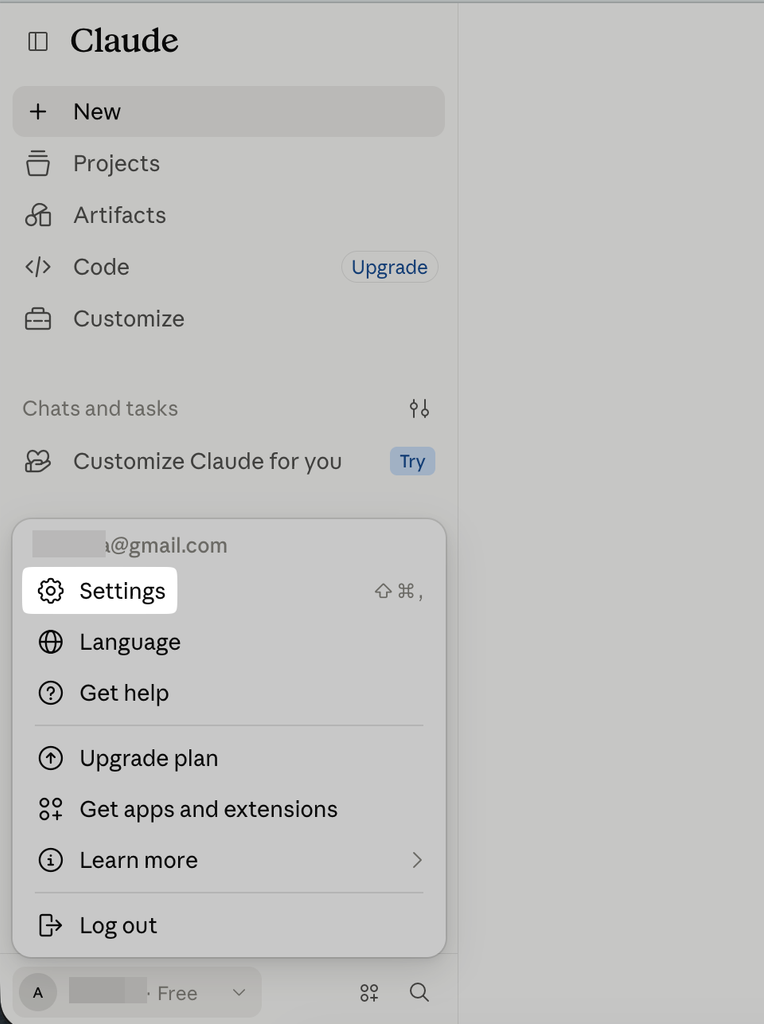
- Go to Settings → Connectors → Add custom connector.
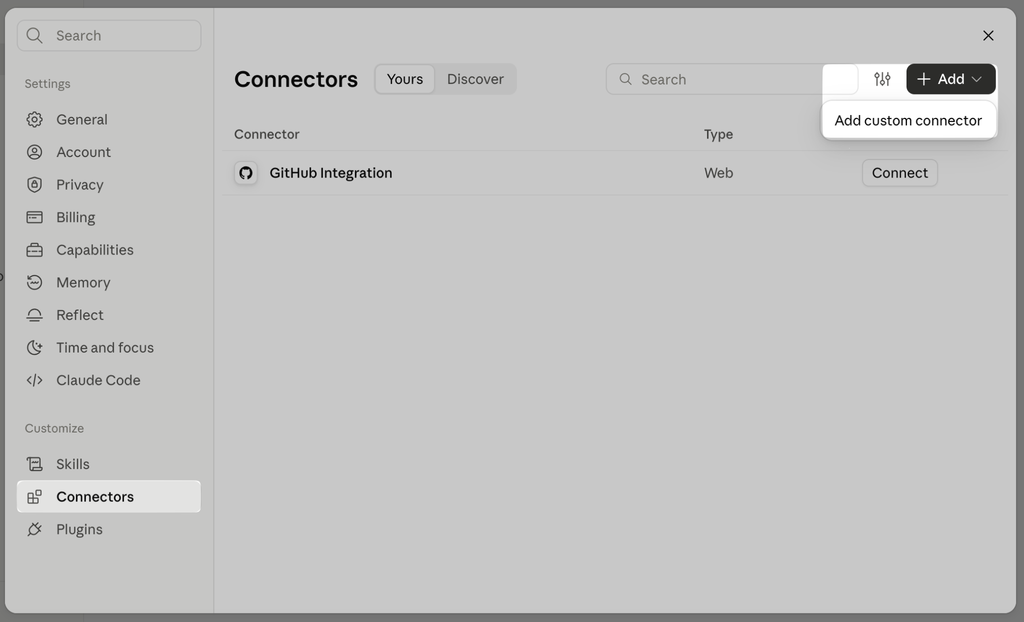
- Paste the server address and click Connect.
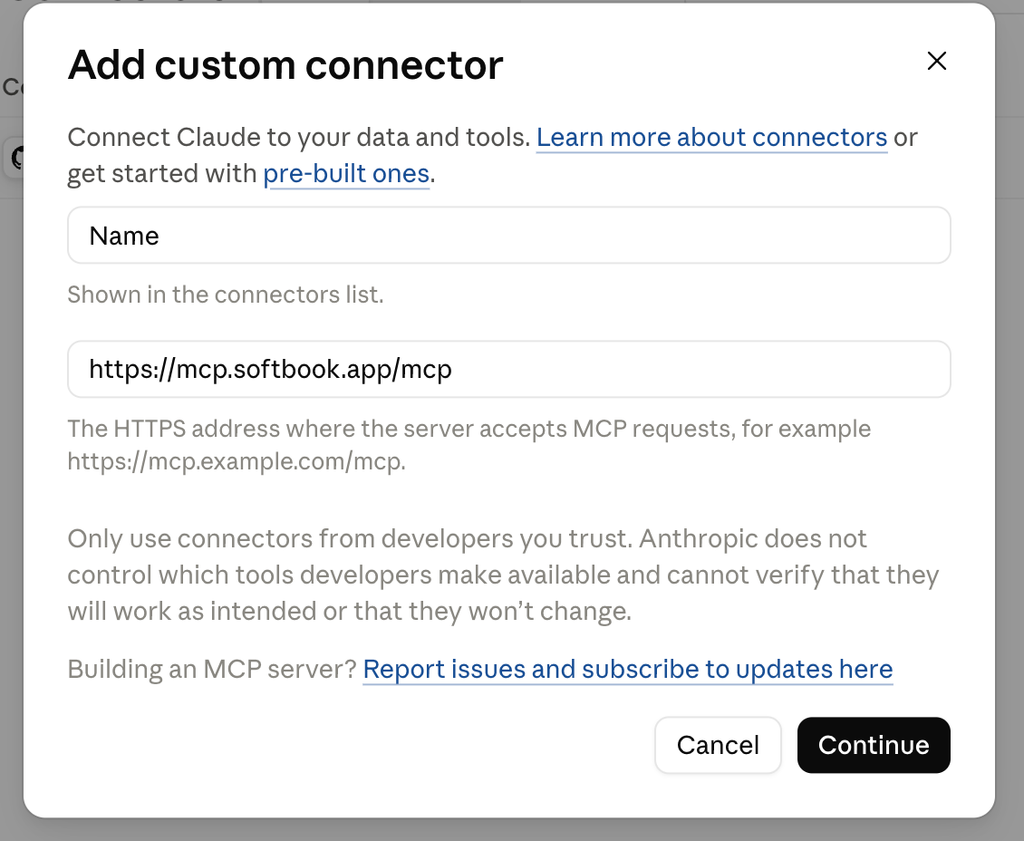
- Log in to Softbook (using your email and password or via Google/Apple).
- On the “Connect to Softbook” screen, select the schools, enable “Changes” if necessary, and allow access.
The ability to add custom connectors depends on your Claude subscription plan.
ChatGPT
- Go to Settings → Plugins → Browse catalog → Add → Create custom MCP server.
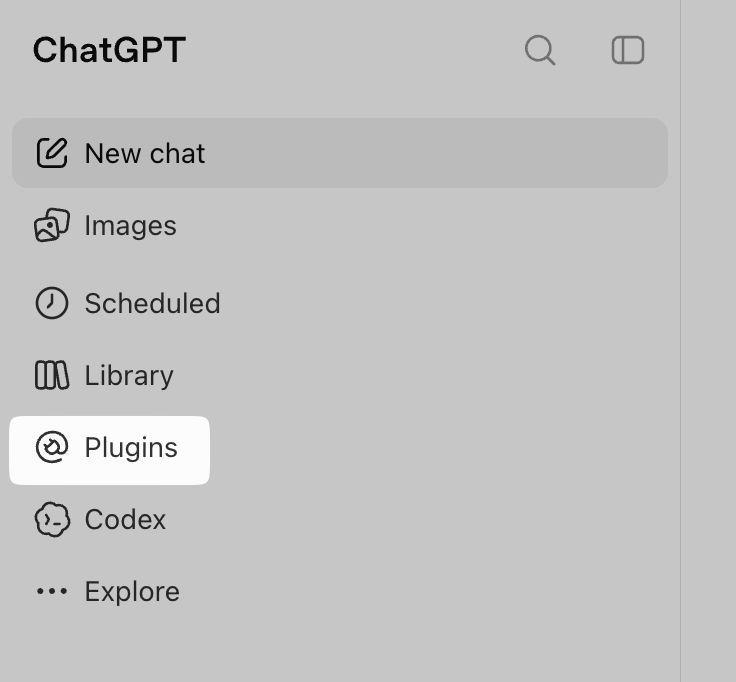
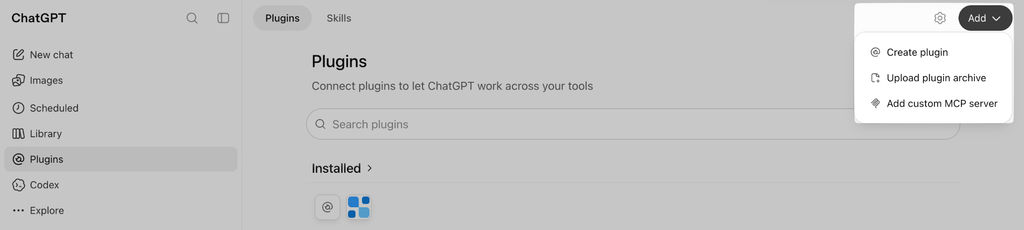
- Paste the server address, select OAuth authentication, and click Create.
- Log in to Softbook, select the schools, and allow access.
Claude Code
Run in the terminal:
claude mcp add –transport http softbook https://mcp.softbook.app/mcp
Then type /mcp in Claude Code, select softbook, and log in via your browser.
Cursor, n8n, and other applications
If the application supports OAuth for MCP, specify the server address: the login process will be the same as described above.
If the application requires a key, the school owner can connect using an API key:
- Create a key at developers.softbook.app/api_keys (LMS type).
- Specify the server address and the header Authorization: Bearer <your key>.
The API key grants full access (viewing and changes) to all your schools.
3. Features of making changes via AI
All actions sync with the platform Actions performed through the AI assistant are processed by the system exactly as if you performed them manually in the Softbook interface. For example, when enrolling a student in a course:
- the user automatically receives a system enrollment email (unless you explicitly asked the assistant to disable sending);
- all your configured automation processes trigger correctly;
- new users who do not yet have a Softbook account receive an email with their login password.
Data clarification before actions If your request affects multiple students at once or involves large-scale changes, the AI assistant will first generate an action plan and ask for your confirmation. Additionally, if the school has courses with similar names (e.g., “English A1” and “English A1 (2026)”), the assistant will not make a decision on its own but will clarify exactly which course to work with.
System limits To ensure stable platform operation and protect your account from unintended mass operations, the following limits apply:
| Operation type | Limit |
| Requests from a single connection | 120 per minute, 3000 per hour |
| Changes from a single connection | 30 per minute, 500 per hour |
| Adding and enrolling students (counts users) | 100 per minute, 500 per hour |
| Total changes in the school via AI | 2000 per day |
| Image generation | 10 per minute, 100 per hour |
If any limit is reached, the assistant will tell you how long to wait before the system allows you to continue, and nothing will be lost.
Tip: If you need to import a large number of students (e.g., several thousand), we recommend using the standard CSV import tool.
4. Control and security
The school owner can check which employees are using AI tools, view the change history, or restrict access at any time.
- Action history. The “Actions via AI” section records all changes in detail. You can use filters to see which employee made edits and through which application (e.g., ChatGPT), as well as view the exact time of the operation.
- Active connections. This section gathers all information about granted accesses. You always see who on the team is using AI, via which application, with what level of permissions, as well as the connection setup date and time of last use.
- Instant access revocation. If you need to restrict a specific connection, simply click the “Revoke” button next to it in the list. The action takes effect immediately — the very next request from this AI assistant will be rejected.
- Global disable. The school owner can block all AI tools with a single click. Just turn off the “Allow AI connections in this school” toggle — after that, no application, including previously configured ones, will be able to interact with the platform.
- Reset on password change. To protect your data, changing your Softbook account password automatically terminates all current AI sessions. To continue working, you will need to re-authenticate in the assistant.
- Strict permission synchronization. The system checks the employee’s permissions with every single request. If you revoke an employee’s right to manage a certain section, the AI will instantly stop executing this employee’s commands within that area of responsibility.
- Data isolation. The AI assistant only sees information for the schools you personally checked during the connection stage.
5. Example queries
Students
- “Find student Olena Kovalenko and show which courses she is taking”
- “Add these people to the ‘English for Travel’ course: anna@example.com, petro@example.com”
- “Extend Ivan Petrenko’s access to the ‘SMM from Scratch’ course by 30 days”
- “Add everyone who bought the ‘Marketing’ course in September to the ‘September 2026’ group”
Sales and analytics
- “How much did we earn in the last 30 days compared to the previous month?”
- “Which courses sold best this quarter?”
- “Where are buyers coming from: show UTM sources for September”
- “Which students haven’t logged in for a long time and might drop out?”
Courses
- “Create a ‘Photography Basics’ course with three modules of four lessons each, including text for each lesson”
- “Add a ‘Summary’ lesson at the end of the course with a brief overview of the entire course”
- “Draw a cover for the ‘Yoga for Beginners’ course in calm green tones”
Homework
- “Show new homework assignments that haven’t been reviewed yet”



 Book a demo call right now!