

Campaigns
Campaigns are a tool for mass messaging to your school students. With them, you can send email messages and Telegram messages to a selected audience directly inside the Softbook platform.
For example, you can:
- send an email to all students of a course;
- remind students about a webinar;
- announce a new product;
- message inactive students;
- contact subscribers of your Telegram bot.
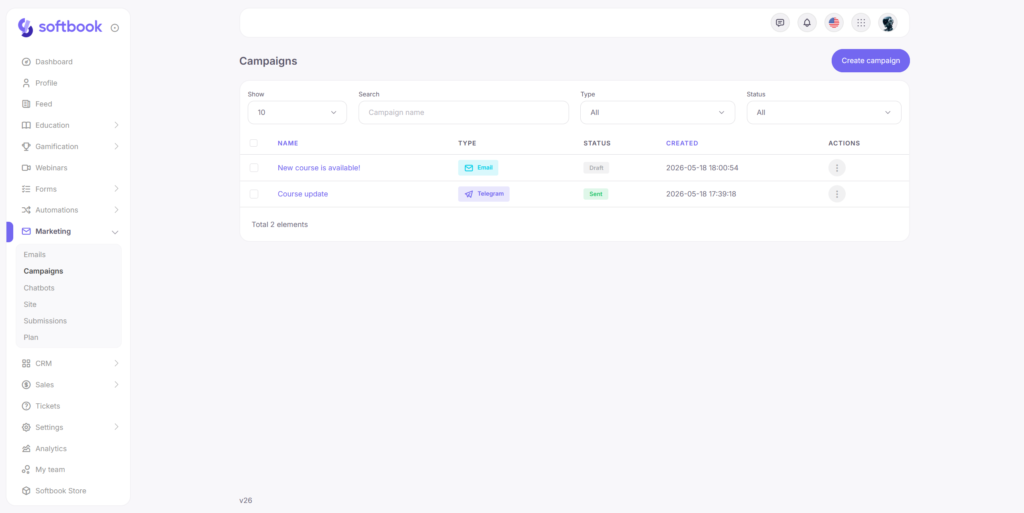
The section is located in the side menu: Marketing → Campaigns.
With marketing campaigns, you can create email newsletters using ready-made templates built in the email builder, as well as send Telegram messages to students who connected their Telegram accounts.
Campaigns support both instant and scheduled sending. Before launching a campaign for the entire audience, you can send a test message to yourself or another school staff member.
After launching a campaign, statistics become available:
- number of sent messages;
- delivered messages;
- opens;
- clicks;
- delivery errors;
- other campaign metrics.
Campaign list
The main page of the section displays a table with all created campaigns.
At the top of the page, the following filters are available:
- Search — search campaigns by name;
- Type — filter by campaign type: All, Telegram, or Email;
- Status — filter by campaign status.
A campaign can have one of the following statuses:
- Draft — the campaign has been created but not launched yet;
- Scheduled — the campaign is waiting to be sent at the selected time;
- Sending — the campaign is currently being sent;
- Sent — the campaign has been completed.
The table displays:
- campaign name;
- campaign type;
- status;
- creation date;
- available actions.
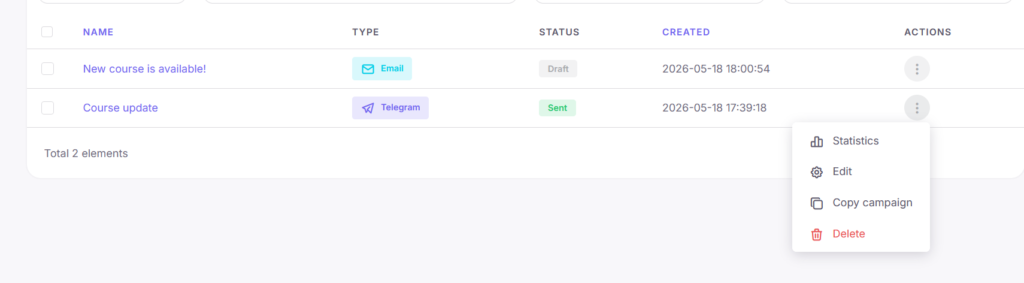
Using the actions menu, you can:
- open campaign statistics;
- edit the campaign;
- create a copy;
- delete the campaign.
If you delete a sent campaign, its statistics will also be deleted.
You can also select multiple campaigns and delete them in bulk.
Creating a new campaign
To create a new campaign, click the Create campaign button in the top-right corner.
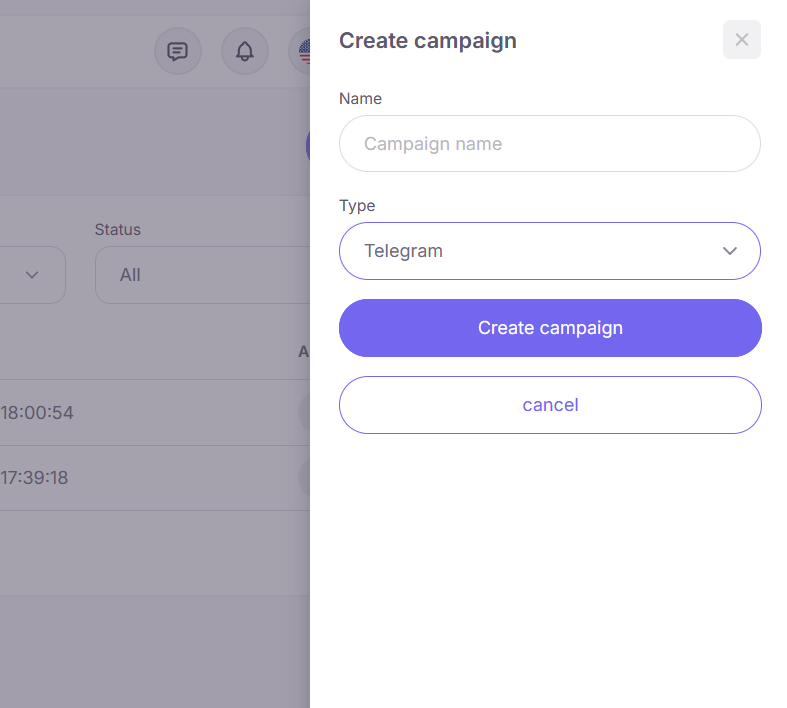
In the form, you need to specify:
- Title — internal campaign name;
- Type — campaign type: Telegram or Email.
The campaign name is visible only inside the admin panel. Students do not see it.
After creation, the campaign editor will open. The campaign type cannot be changed later. If you selected the wrong type, delete the campaign and create a new one.
Email campaign
If Email is selected during creation, the email campaign editor will open.
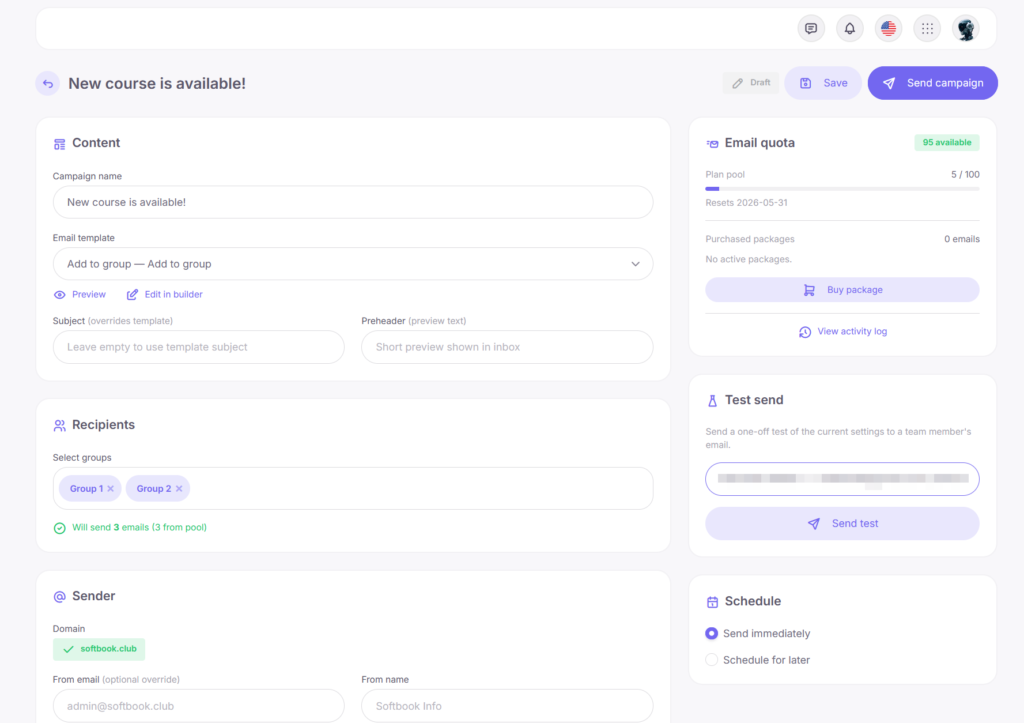
Email campaigns use a ready-made template created in Marketing → Emails. Emails are not designed directly inside the campaign editor.
If the template has not been created yet:
- go to Marketing → Emails;
- create a template;
- configure it in the email builder;
- switch it to Active status;
- return to the campaign and select the template from the list.
Please note: only custom templates are available in email campaigns. System emails that replace standard Softbook notifications are not displayed in the campaign templates list.
In the email campaign editor, you can configure:
- email subject;
- preheader;
- sender;
- audience;
- sending mode;
- test sending.
The Subject field defines the email subject line that recipients will see in their inbox. If left empty, the subject from the template itself will be used.
The Preheader field allows you to add a short text displayed next to the subject in some email clients.
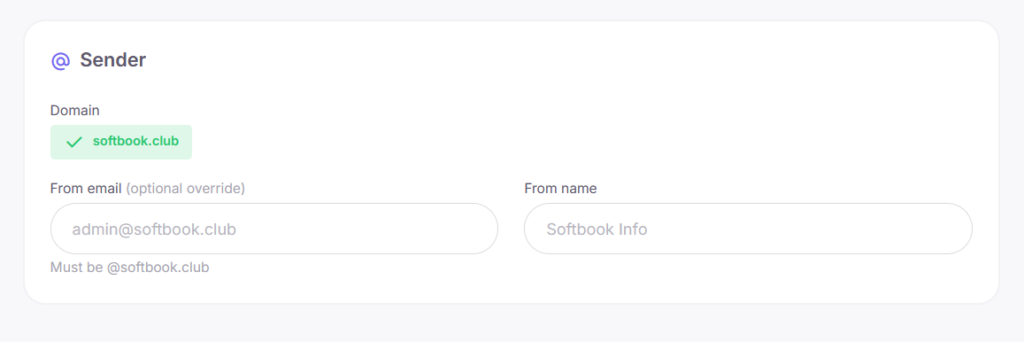
In the sender block, you specify:
- sender email;
- sender name.
To launch email campaigns, you need to connect your own sender email in Settings → Email. If the sender email is not connected, campaign sending will be unavailable.
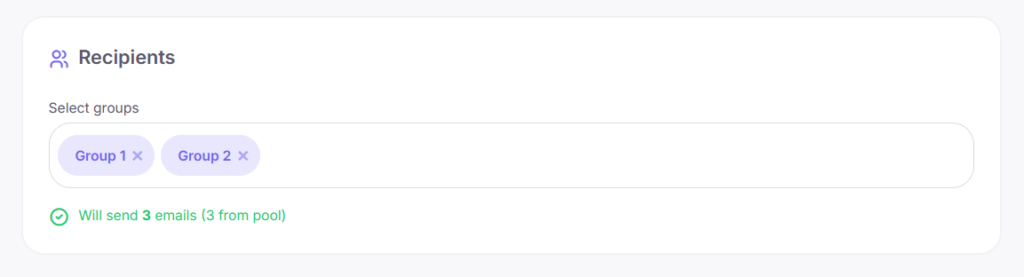
Email campaign audience
In the audience block, select one or several student groups.
Groups are:
- created in Education → Student Groups;
- generated automatically through automations.
If one student belongs to multiple selected groups, the system will send the email only once.
Email quota
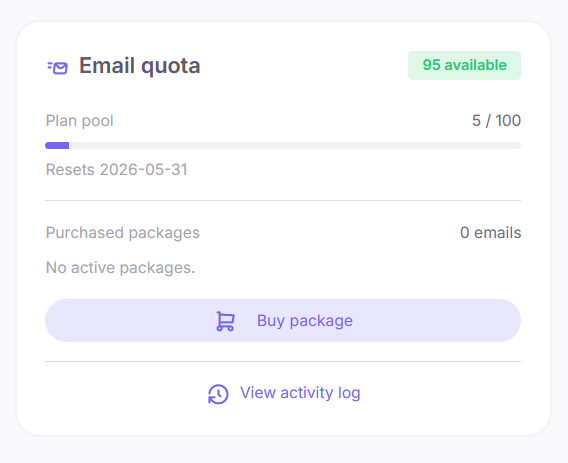
The email campaign editor contains an Email quota block.
It shows:
- how many emails are available for the school;
- how many emails have already been used during the current period;
- whether additional email packages were purchased.
After selecting the audience, the system immediately shows how many emails will be used when launching the campaign.
If there are not enough available emails, the system will:
- show how many emails are missing;
- offer to purchase an additional package.
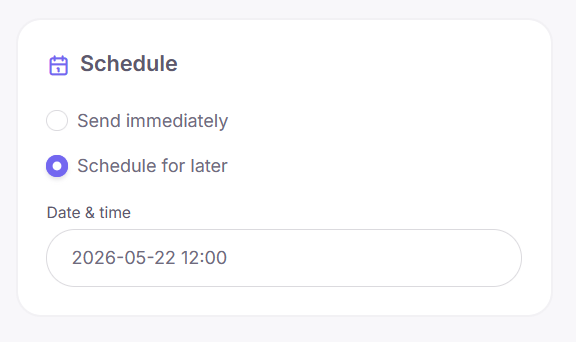
Sending schedule
A campaign can use one of two sending modes:
- Send now — send the campaign immediately;
- Schedule for later — schedule sending for a selected date and time.
If scheduled sending is selected, the campaign will receive the Scheduled status and will be sent automatically at the specified time.
Test sending for email campaigns
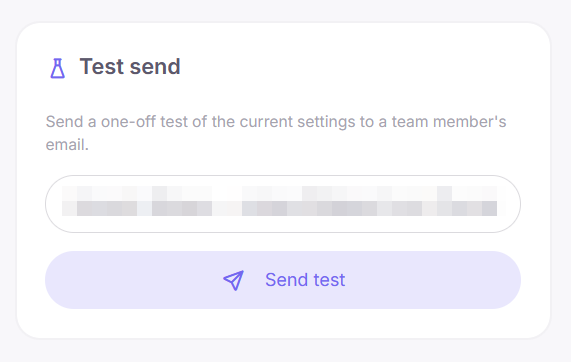
Before launching the campaign, you can send a test email.
To do this:
- click the Send test button;
- select a recipient from the list.
Test emails can only be sent to school staff members:
- owners;
- administrators;
- teachers.
Test emails cannot be sent to students.
The test email is delivered with the [TEST] label in the subject. Test sending does not use email quota.
Launching an email campaign
After configuring the campaign:
- click Save to save changes;
- click Send campaign to launch the campaign.
If there is not enough email quota when a scheduled campaign starts, the campaign will be paused automatically.
A warning with the number of missing emails will appear in the editor. After purchasing an additional package, sending will continue.
Email campaign statistics
Each campaign includes a Statistics section where you can view campaign analytics.
For email campaigns, the following metrics are available:
- sending;
- delivery;
- opens;
- clicks;
- delivery errors;
- unsubscribes.
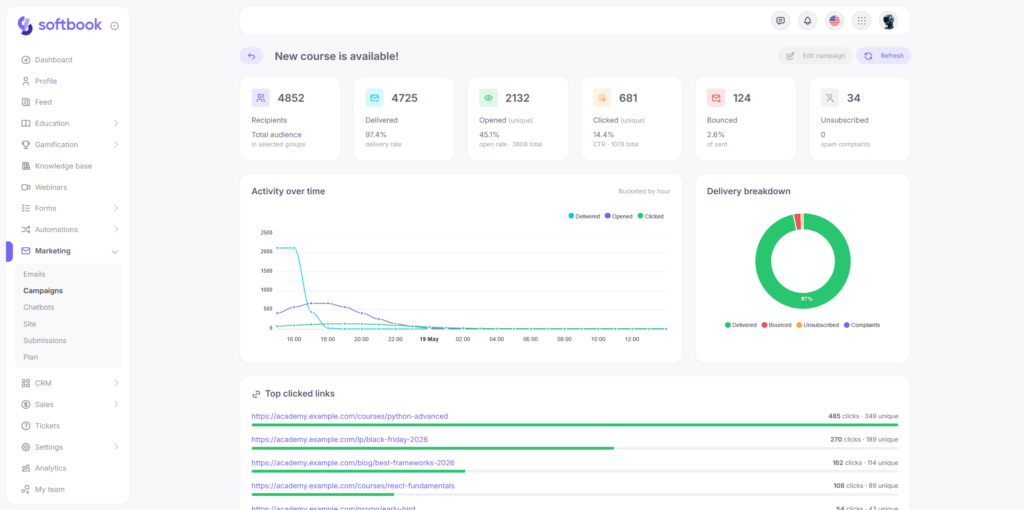
The top cards display:
- Recipients — how many emails were sent;
- Delivered — how many emails were delivered;
- Opened — how many emails were opened;
- Clicked — how many recipients clicked links;
- Bounced — how many emails failed to deliver because of errors;
- Unsubscribed — how many recipients unsubscribed.
You can also view:
- open and click trends;
- the most popular links;
- a recipient list with statuses.
For open and click tracking to work correctly, tracking CNAME must be verified.
If it is not verified:
- emails will still be sent;
- opens and clicks may not be tracked.
Email quotas
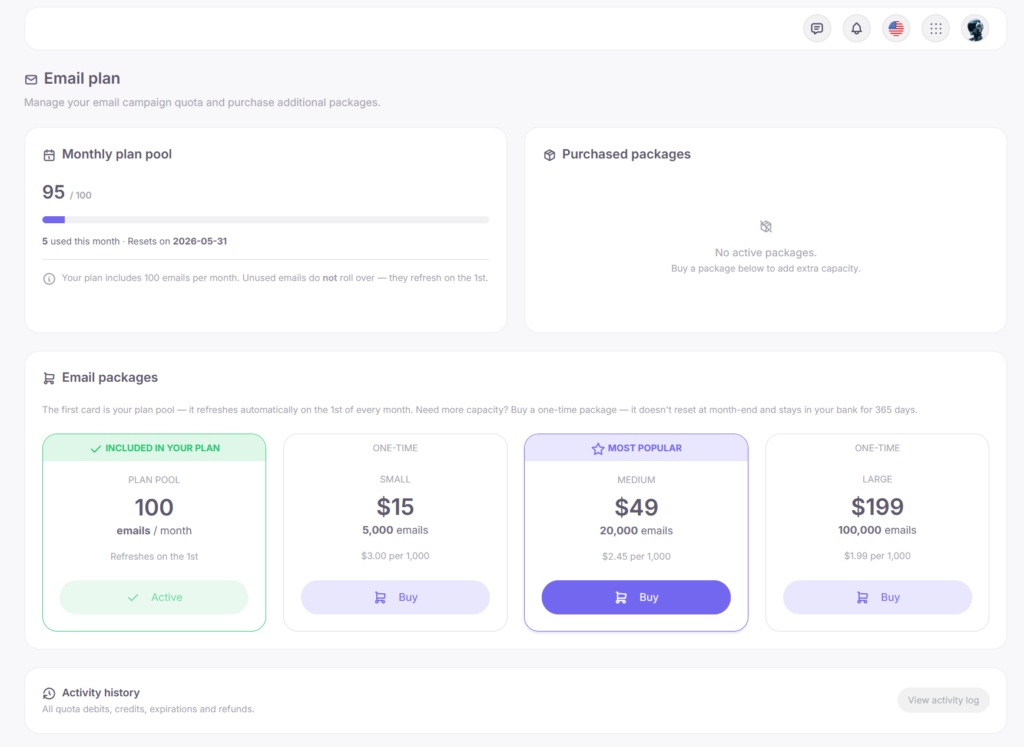
Email campaigns use paid email infrastructure, so each school has a monthly email quota. The quota size depends on the subscription plan.
Telegram campaigns do not use email quota.
The number of available emails is updated every billing period. Unused emails are not carried over to the next month.
If the available number of emails is insufficient, you can purchase an additional package.
Purchased packages remain active for 365 days from the purchase date.
When sending campaigns:
- emails from the monthly quota are used first;
- emails from purchased packages are used afterward, starting with the oldest package.
The quota includes email campaigns sent through Marketing → Campaigns.
The following are NOT included in the quota:
- system emails;
- login credentials;
- course access emails;
- invitations;
- notifications.
These emails are always sent regardless of balance.
Test sends also do not use quota.
If there are not enough emails for an instant launch, the system will:
- prevent sending;
- display how many emails are available;
- display how many are required;
- display how many are missing.
If there are not enough emails for a scheduled campaign at the sending time, the campaign will automatically pause. After purchasing an additional package, sending will continue.
You can purchase packages directly:
- in the Email quota block inside the campaign editor;
- in Marketing → Plan.
Telegram campaign
If Telegram is selected during creation, the Telegram campaign editor will open.
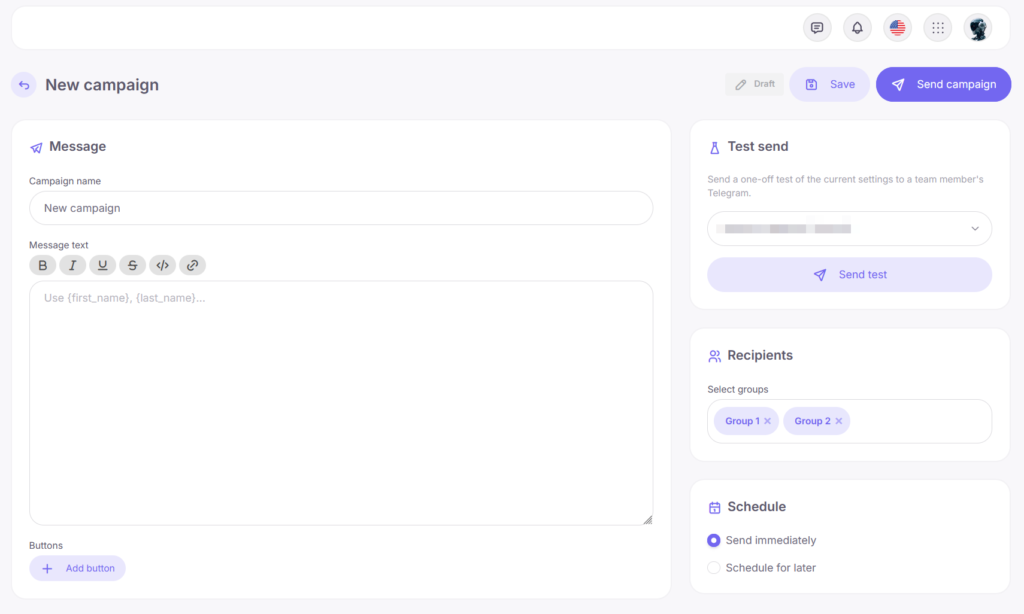
In the editor, you can:
- write the message text;
- add buttons;
- choose recipients;
- configure the schedule;
- send a test message.
Telegram messages support:
- basic formatting;
- personalization variables such as recipient first or last name.
Buttons can also be added to the message.
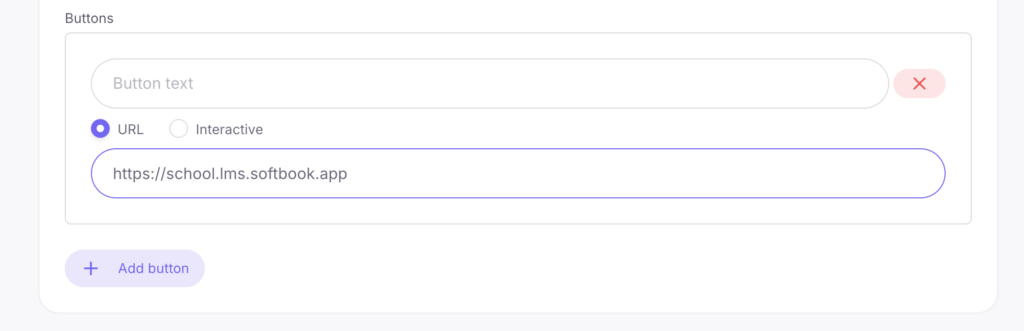
For each button, you can specify:
- button text;
- button type;
- URL if a link button is used.
Buttons can have two types:
- URL — a regular button with a link;
- Interactive — an interactive button whose clicks are tracked in Softbook.
Interactive buttons can be used in chatbot scenarios.
Telegram campaign audience
The audience is selected the same way as for email campaigns: choose one or more student groups.
Important: Telegram messages are delivered only to students who connected their Telegram account to the school.
If a student has not connected Telegram:
- they will be skipped during sending.
If none of the selected groups contain students with connected Telegram accounts:
- the system will show a warning;
- the campaign cannot be launched.
Connecting Telegram for tests
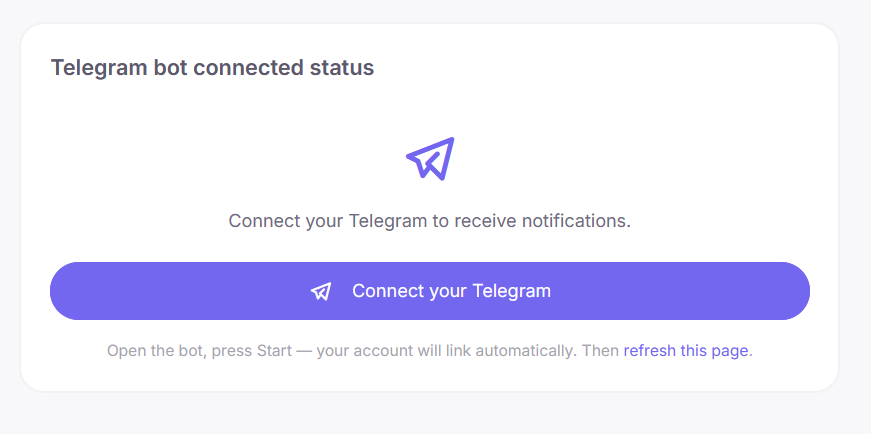
To receive a Telegram test message, the current user’s Telegram account must also be connected to the school.
If Telegram is not connected:
- a Connect Telegram button will appear in the editor;
- after opening the one-time link, the bot will connect the account;
- test sending will become available.
Launching a Telegram campaign
Telegram campaigns can be:
- sent immediately;
- scheduled for a specific time.
After launch:
- the campaign receives the Sending status;
- messages are added to the Telegram queue.
Large campaigns may take several minutes because of Telegram rate limits.
After the queue is fully processed, the status changes to Sent.
Telegram campaign statistics
Telegram campaigns display delivery and button interaction statistics.
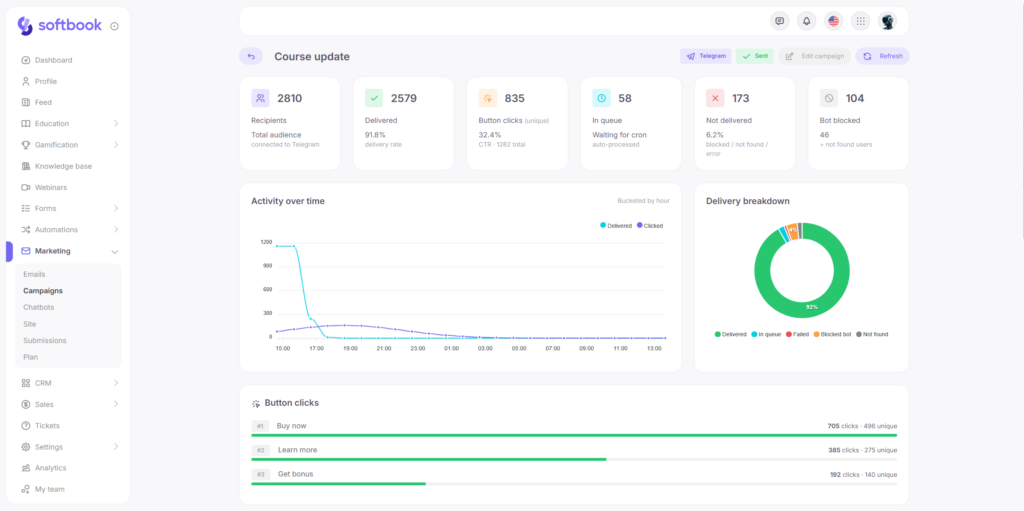
The statistics include:
- Recipients — total number of users with connected Telegram accounts who received the campaign;
- Delivered — number of users who received the message;
- Button clicks — number of users who interacted with buttons in the message;
- In queue — messages still waiting to be sent;
- Failed — messages that could not be delivered because of errors;
- Bot blocked — users who blocked the school Telegram bot, as well as users whose Telegram accounts could not be found.
Button statistics and a recipient list with statuses are also available.
FAQ
I cannot launch an email campaign because the send button is blocked
Check whether the sender email is connected in Settings → Email. Without a connected sender email, email campaigns cannot be launched.
I cannot see my template in the list
Make sure the template:
- is in Active status;
- has the Custom type.
System emails are not displayed in campaigns.
Opens or clicks are not tracked in email campaigns
Check the tracking CNAME status. If it is not verified, open and click tracking may be unavailable.
Nobody received the Telegram campaign
Most likely, the selected groups do not contain students with connected Telegram accounts.
Students must connect Telegram themselves through the school bot.
The scheduled campaign was not sent
Check:
- whether there is enough email quota;
- whether the campaign was launched after scheduling.
A campaign will not be sent if it remains in Draft status.
I want to repeat a campaign
Click Copy campaign next to the desired campaign.
The system will create a Draft copy that you can edit and launch again.
I deleted a campaign and lost the statistics
Statistics are stored together with the campaign. If the campaign is deleted, the statistics cannot be restored.
That’s it. Now you know how to create email and Telegram campaigns, configure audiences, launch campaigns, and track their statistics.


 Book a demo call right now!